
Beta program
Help us test TabMerger before it ships
Get the next version of TabMerger early and tell us what breaks. This page covers joining, installing the private beta, what to test, and how to report what you find. AI features are hidden ("coming soon") in this build, so they're not part of testing yet.
Join the beta1. Join and install
- Join the tester group. Open groups.google.com/g/tabmerger-beta-testers and join. Joining is instant, but make sure you join with the same Google account you're signed in to in Chrome — otherwise the private listing won't be visible to you.
- Open the private beta listing. Open the TabMerger BETA listing If you see "Item not found," you likely just joined — access can take a little while to appear. Wait a bit and try again before assuming something's wrong.
- Install it. Click "Add to Chrome." The beta installs as a separate extension ("TabMerger BETA") from the stable "TabMerger" listing — you can keep both installed side by side, and their data is completely separate. We suggest disabling the stable version while you're testing, so you don't accidentally act on the wrong one.
- Sign in through the preview web app. Beta builds sync with tabmerger-preview.vercel.app — not the main tabmerger site. Sign in there (from the extension or the dashboard directly) to see synced groups and sessions.
- Which browsers can I test on? Chrome, Edge, Brave, Vivaldi, Arc, and Opera all use this same TabMerger BETA listing and the same Google Group — there's no separate Edge beta, so don't go looking for one. Edge: accept "Allow extensions from other stores" when prompted. Opera: install Opera's "Install Chrome Extensions" add-on first, then use the link above. If you also have the stable TabMerger installed from the Edge Add-ons store, turn it off while testing the beta — it's a separate extension from this one. Safari isn't supported.
- Firefox. Firefox has its own beta build, installed from a direct link rather than the Chrome Web Store listing above. Install the Firefox beta. Firefox asks whether to add "TabMerger BETA": choose Add. It checks for updates on its own roughly once a day; to check right now, open
about:addons, click the gear icon, and choose "Check for Updates." Sign in once inside the extension and allow Firefox's data permission prompt (it covers sign-in and sync); after that, signing in on this website also signs the extension in. Anyone with the install link above can install it — please don't share it outside the tester group. - Note your version. Open TabMerger's Settings and copy the version badge next to the "Settings" title (e.g.
v3.1.0-beta.5), or checkchrome://extensionsand find "TabMerger BETA". Either way, report that real semver — not the Chrome Web Store's internal store version number, which is offset and won't match what we use to track builds.
2. What to test
Work through whichever areas match how you'd normally use TabMerger. Each item below has numbered steps, an example of what it should look like, and what a working result looks like.
Tick each step as you go. Your checkmarks are saved in this browser only, and each area shows how far you've got.
Do I need Pro?
Areas are listed from Free to Pro. Everything unmarked works on Free, without an account. Pro: the whole item needs a Pro account (sync, encryption and creating share links are Pro). Partly Pro: most of the item works on Free, and a "Pro:" line under its title says which part doesn't. Pro costs nothing in this beta: you pay with a test card (see Upgrading to Pro).
Free: no account needed
Groups and tabsShow
Groups, colors, and undo/redo
What this checks: That you can create, name and color a group, save tabs into it, and undo or redo a change without losing anything.
Steps
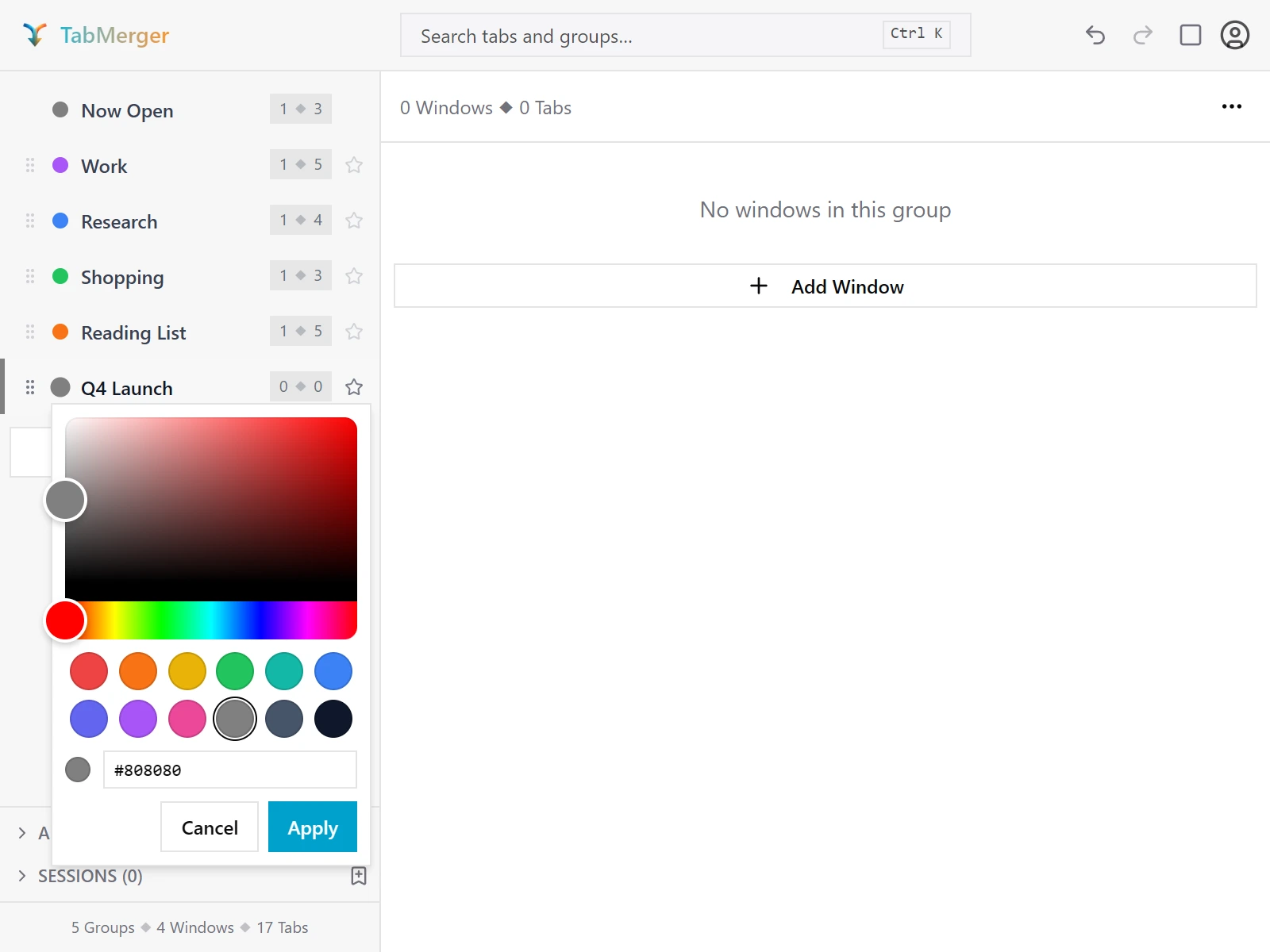
Clicking a group's color dot opens this picker.
Good looks like
"Now Open" follows your open tabs
What this checks: That the permanent "Now Open" group always mirrors the tabs actually open in your browser.
Steps
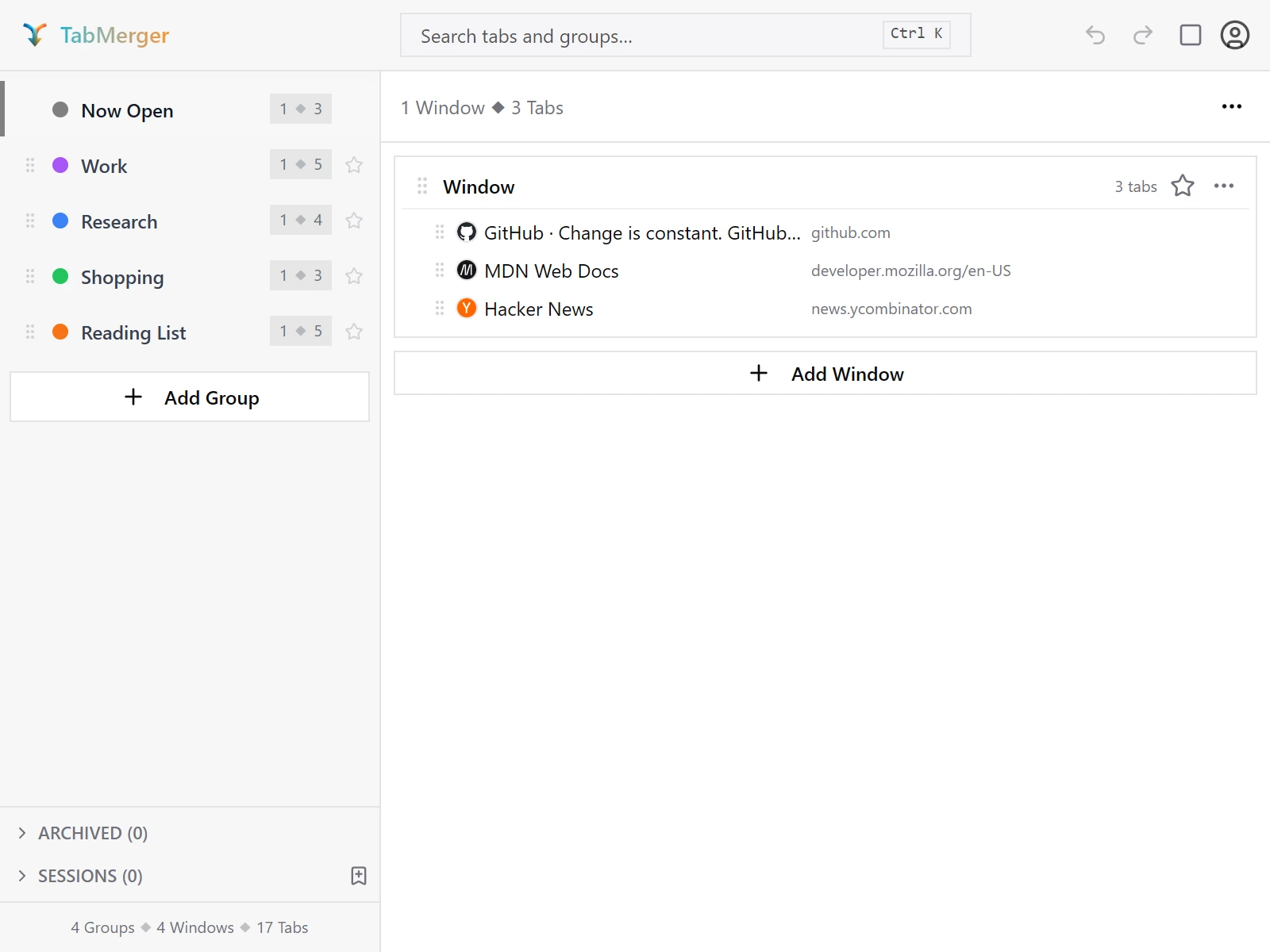
"Now Open" is always first in the sidebar and lists the tabs open right now.
Good looks like
Saving and reopening whole windows
What this checks: That a saved window keeps every tab, in order, and reopens intact.
Steps
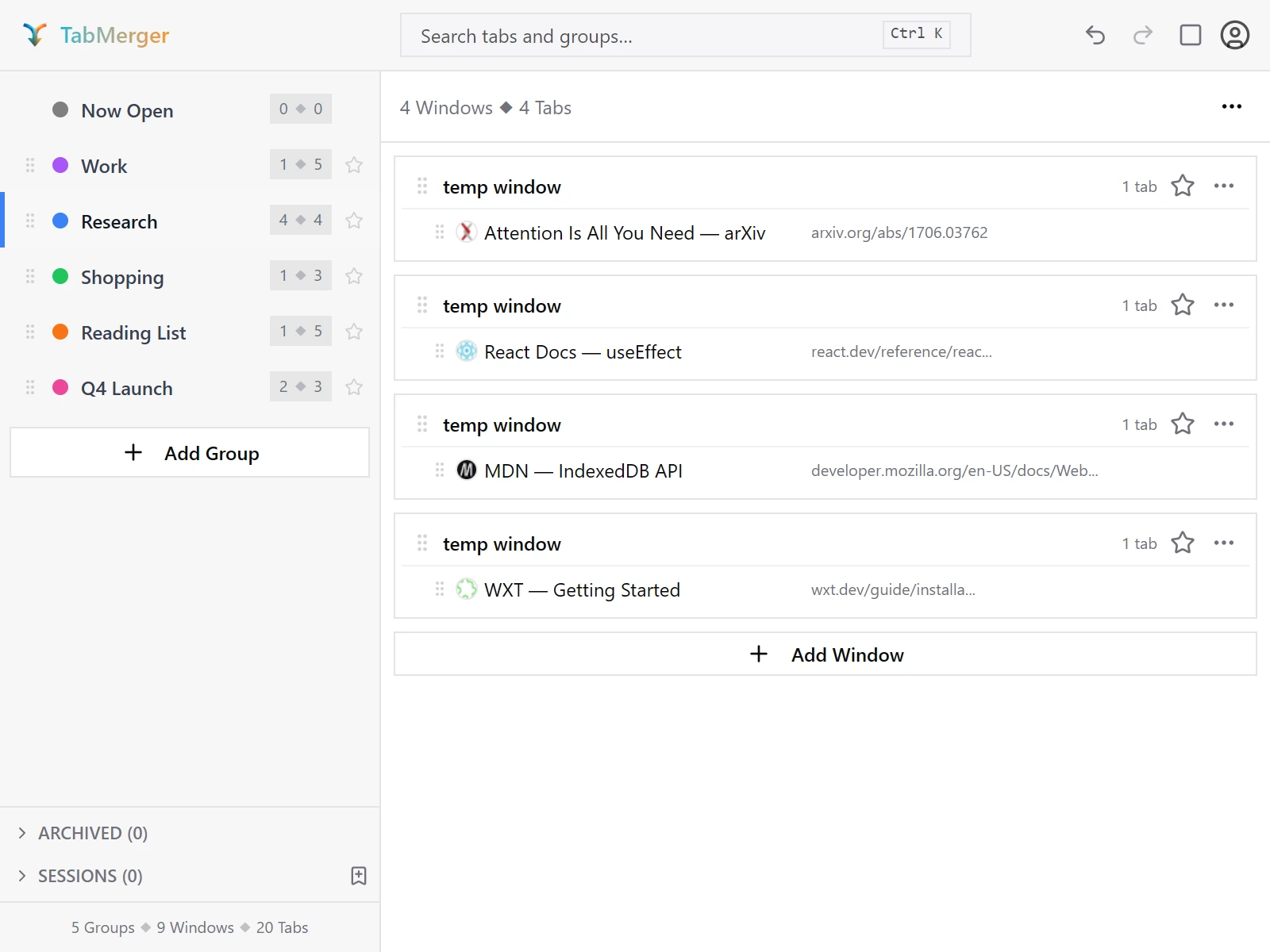
A group can hold several separate windows — each with its own tab count.
Good looks like
Archiving and restoring a group
What this checks: That archiving hides a group without deleting it, and restoring brings it back unchanged.
Steps
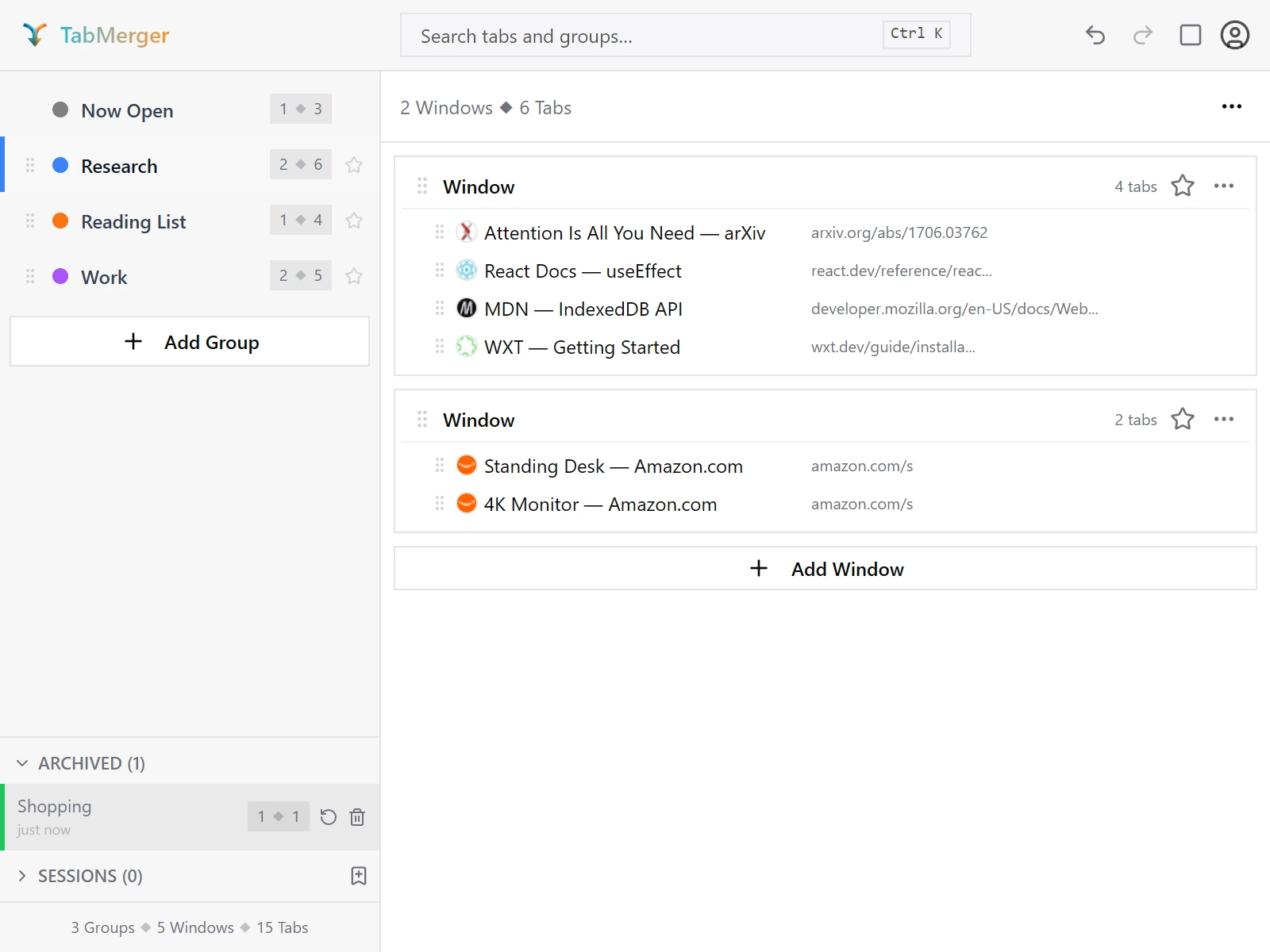
The Archived section at the bottom of the sidebar, opened: "Shopping" is archived, with Restore and Delete buttons.
Good looks like
Saving and restoring sessions
What this checks: That a saved session brings your groups back exactly as they were when you saved it.
Steps
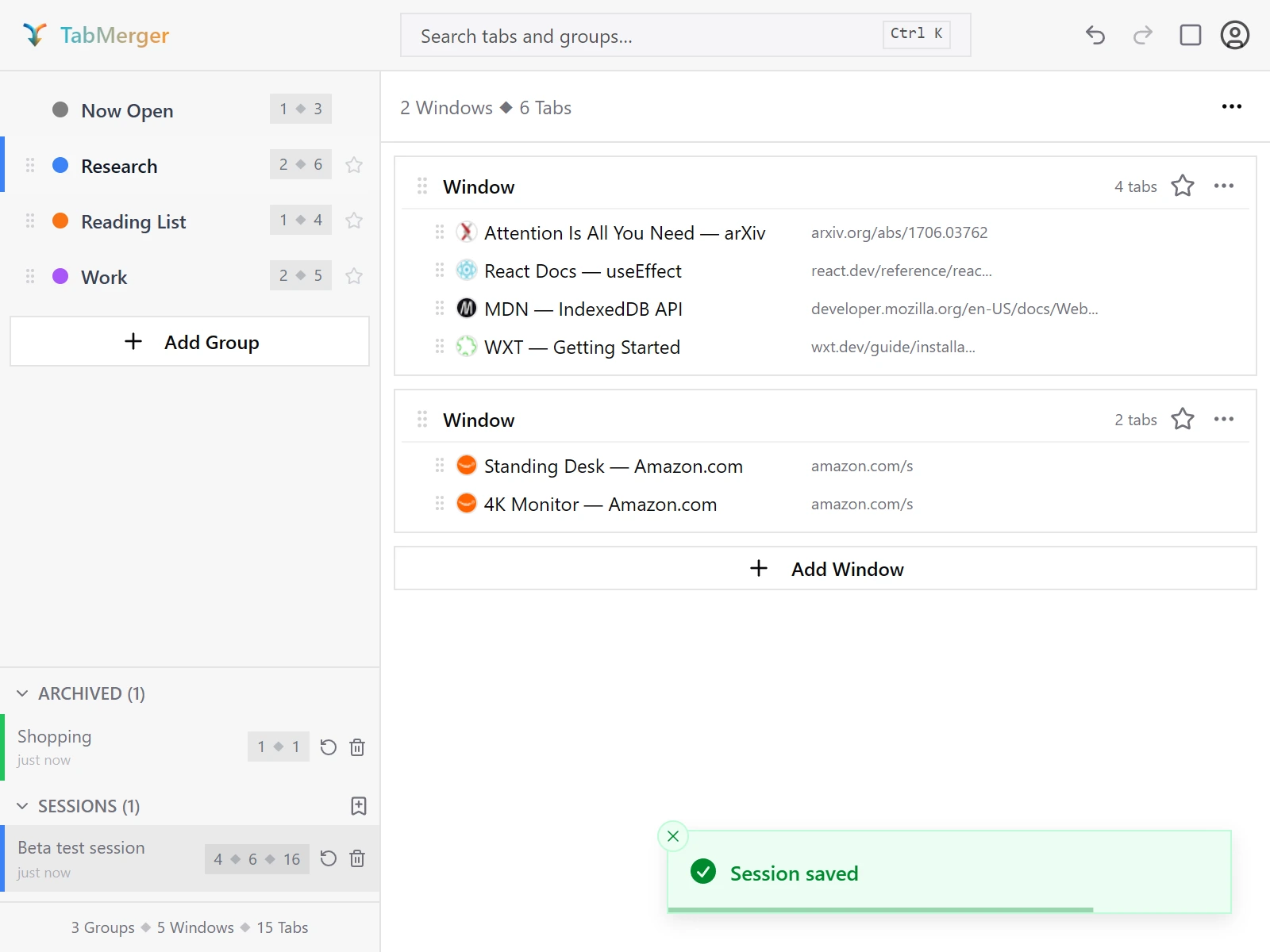
A saved session in the Sessions section, with Restore and Delete buttons, and the "Session saved" notification.
Good looks like
Search
What this checks: That search finds tabs by title or URL across all your groups, and that the group:, window: and tag: filters narrow it down.
Steps
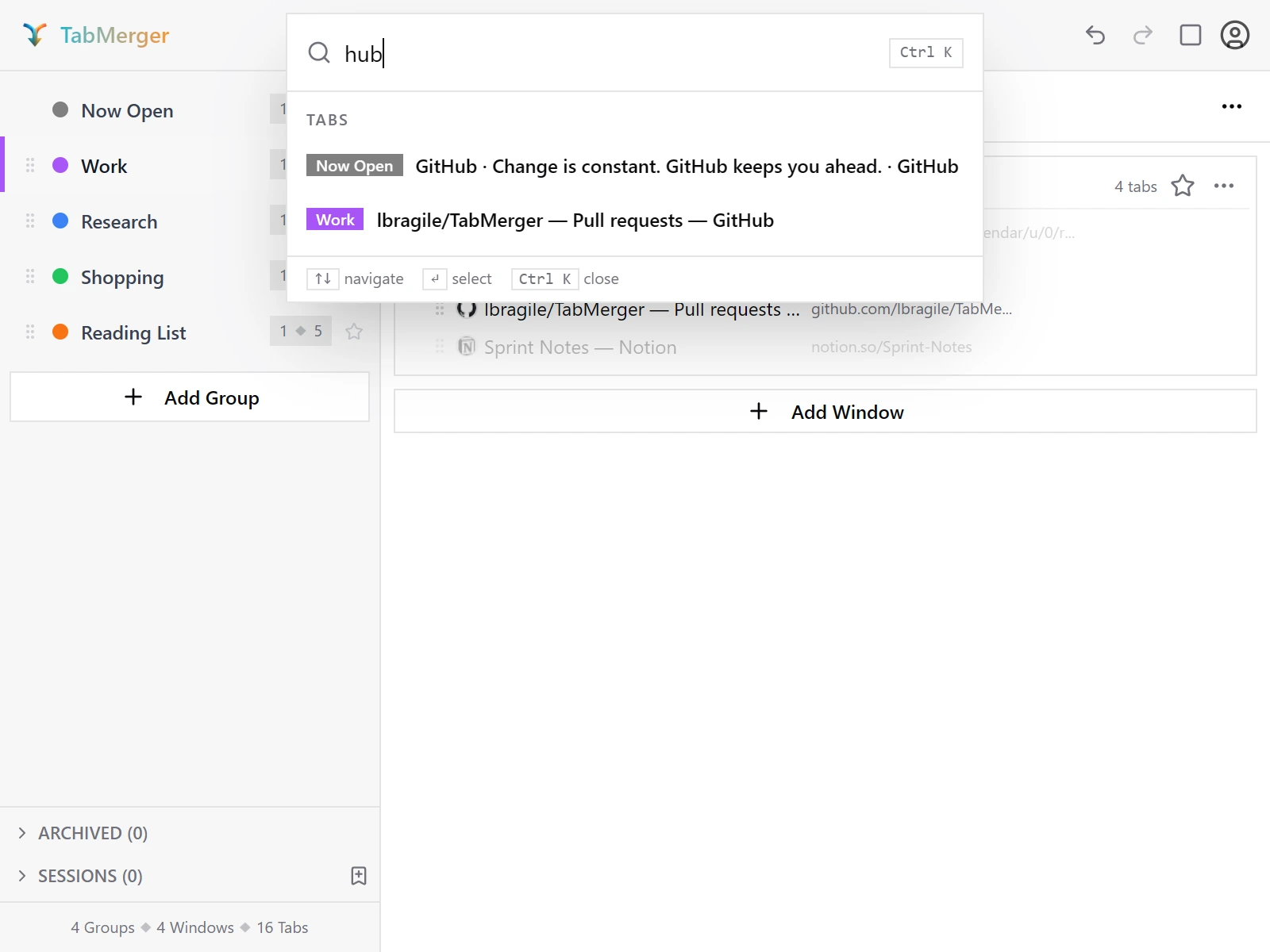
Typing "hub" — a plain substring match against tab title or URL.
Good looks like
Stale tabs
What this checks: That tabs you haven't opened for a while get flagged, and can be reviewed and removed safely.
Steps
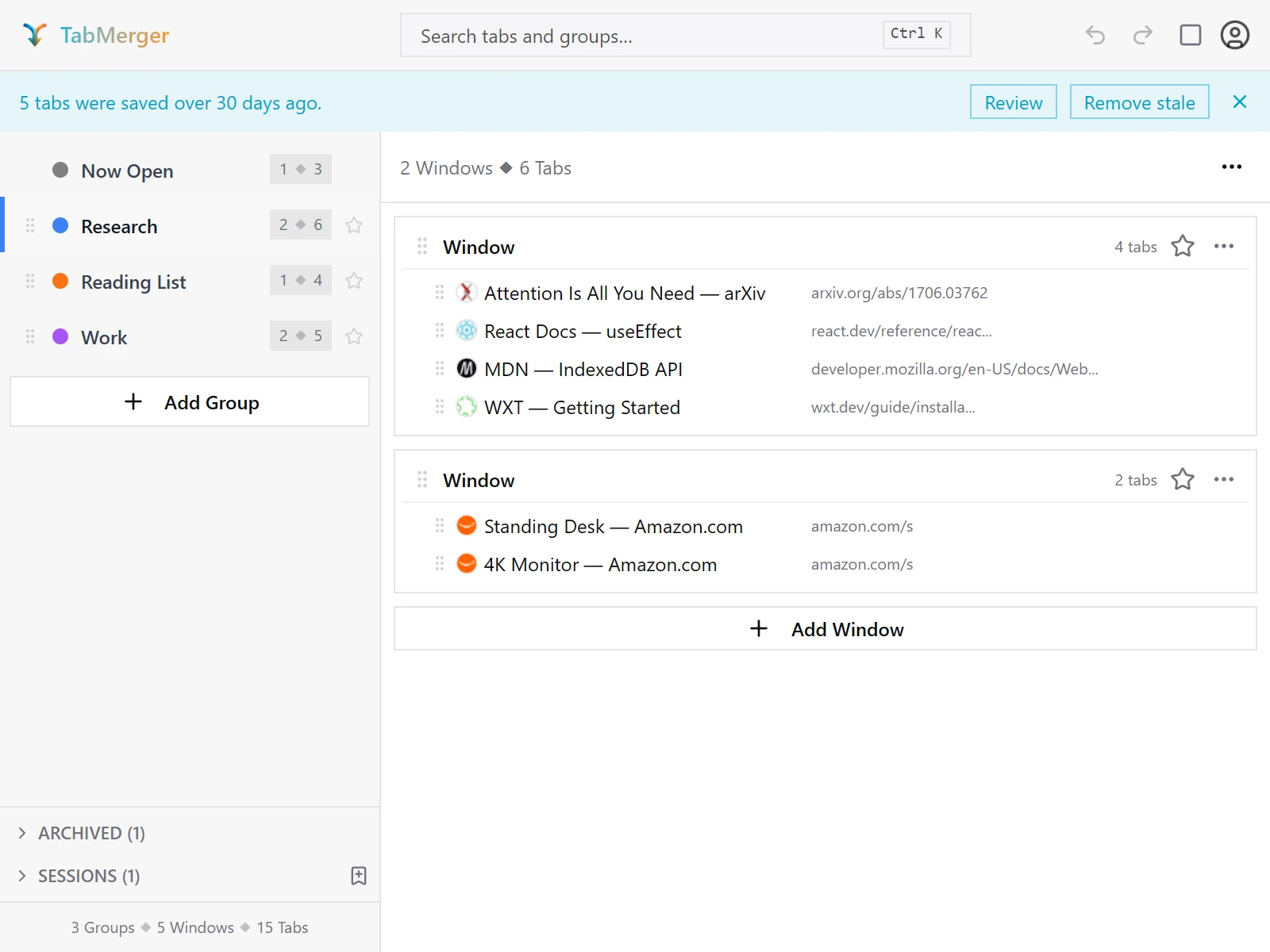
The stale-tab banner and its Review / Remove stale buttons.
Good looks like
Report it if: A group you deleted or archived reappears on its own — that's the "resurrection" bug we're specifically hunting.
Setting up tab reminders
What this checks: That you can set, change and clear a reminder on a saved tab, and that it notifies you at the time you chose.
Steps
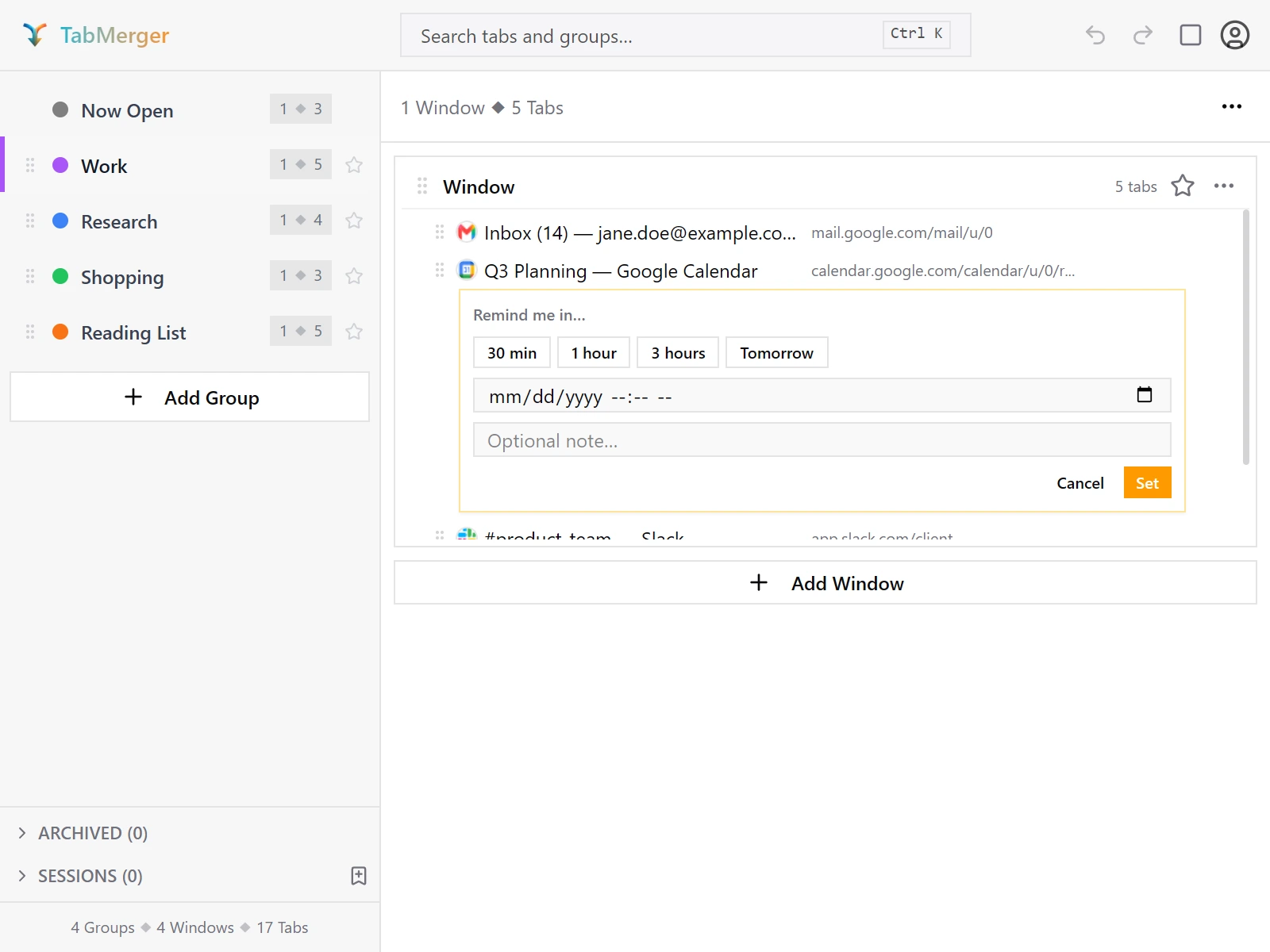
Right-click a saved tab → "Remind me…" opens this editor under the tab.
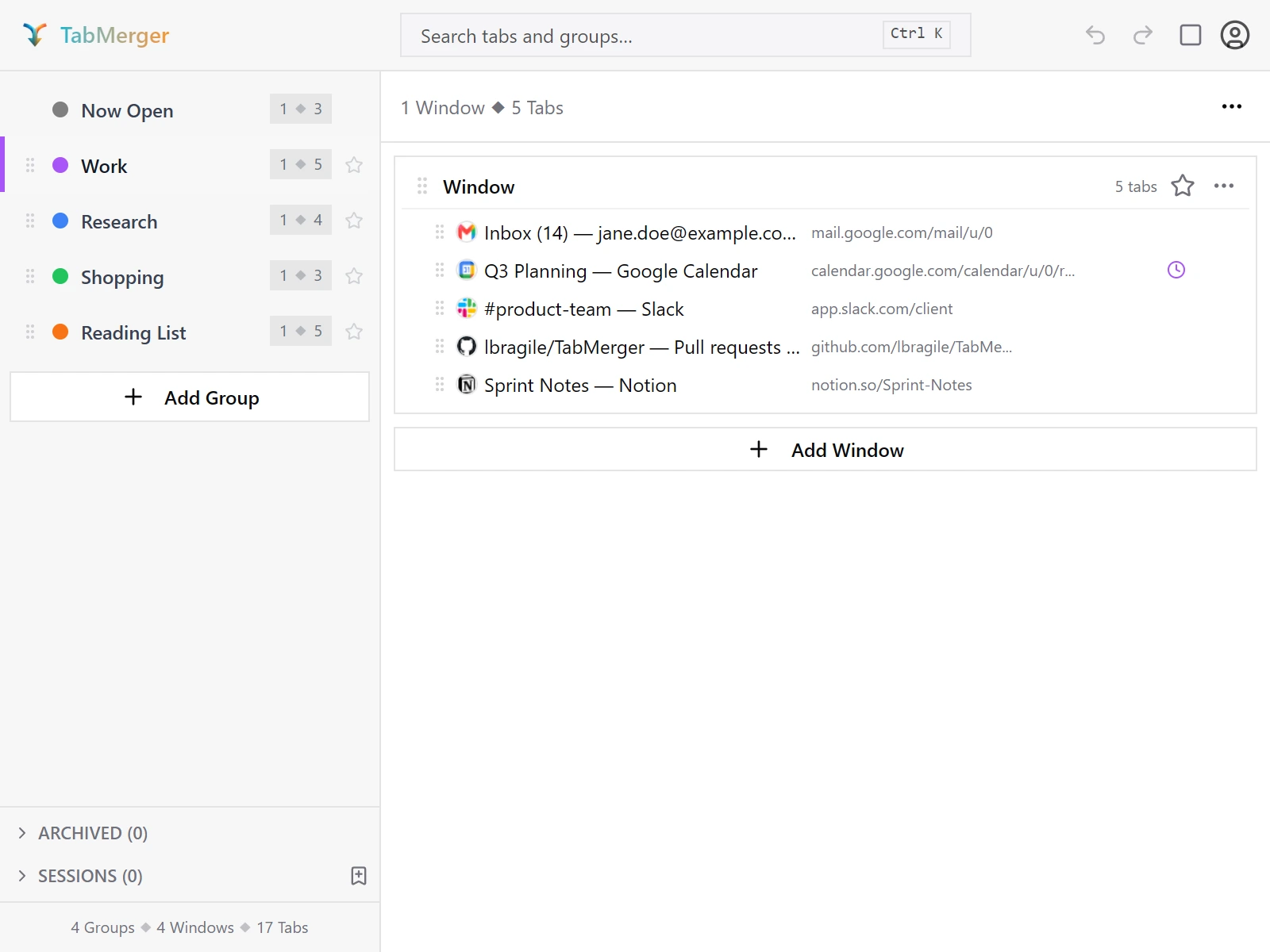
Once set, the tab shows a clock icon.
Good looks like
Report it if: A reminder never fires, fires twice, or still fires after you cleared it.
Notes on groups, windows and tabs
What this checks: That you can attach a short note to a group, a window or a tab, and edit it later.
Steps
Good looks like
Report it if: A note is lost, attached to the wrong item, or saved when you pressed Escape or Cancel.
Deleting, with and without "Confirm before deleting"
What this checks: That deletions ask first only when "Confirm before deleting" is on, and that Undo brings back what you deleted.
Steps
Good looks like
Report it if: Something is deleted without asking while the setting is on (other than a single tab), a dialog appears while it's off, or Undo doesn't bring the item back exactly.
The group menu
What this checks: That every action in a group's menu does what its label says.
Steps
Good looks like
Report it if: An action affects the wrong group, loses tabs, or can't be undone.
The window menus
What this checks: That both of a window's menus work: right-clicking its header, and its ⋯ button.
Steps
Good looks like
Report it if: A menu action changes a different window, or Close window in "Now Open" closes the wrong browser window.
The tab menu
What this checks: That right-clicking a tab offers the right actions for it.
Steps
Good looks like
Right-click menuShow
Saving from the right-click menu
What this checks: That right-clicking any web page lets you save the tab to TabMerger, or straight into a chosen group.
Steps
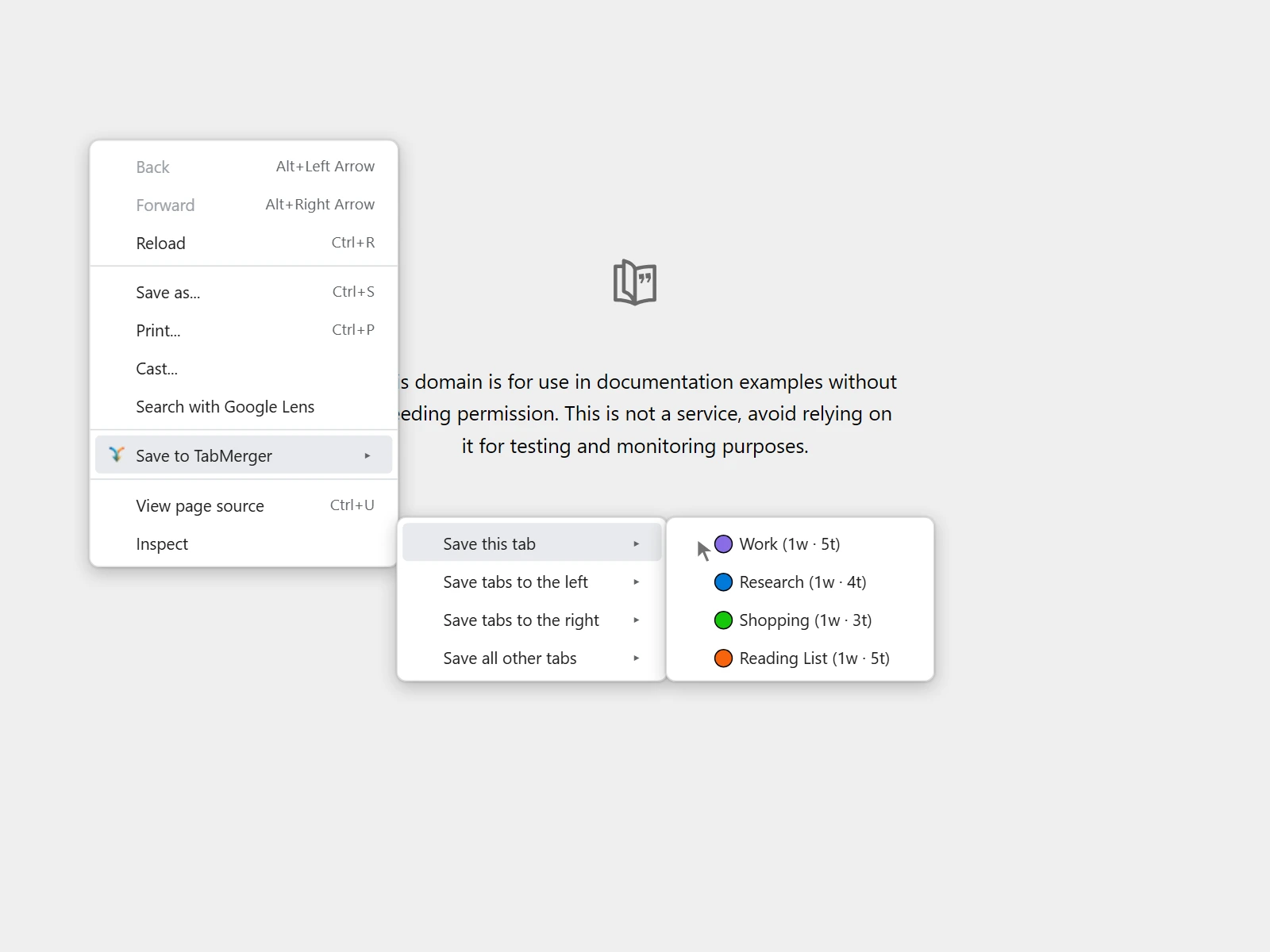
Illustration (the browser draws this menu itself, so it can't be screenshotted): each of the four "Save…" options lists your groups with their color, window count and tab count.
Good looks like
New groups appear in the right-click menu
What this checks: That the right-click menu picks up new groups without restarting the browser.
Steps
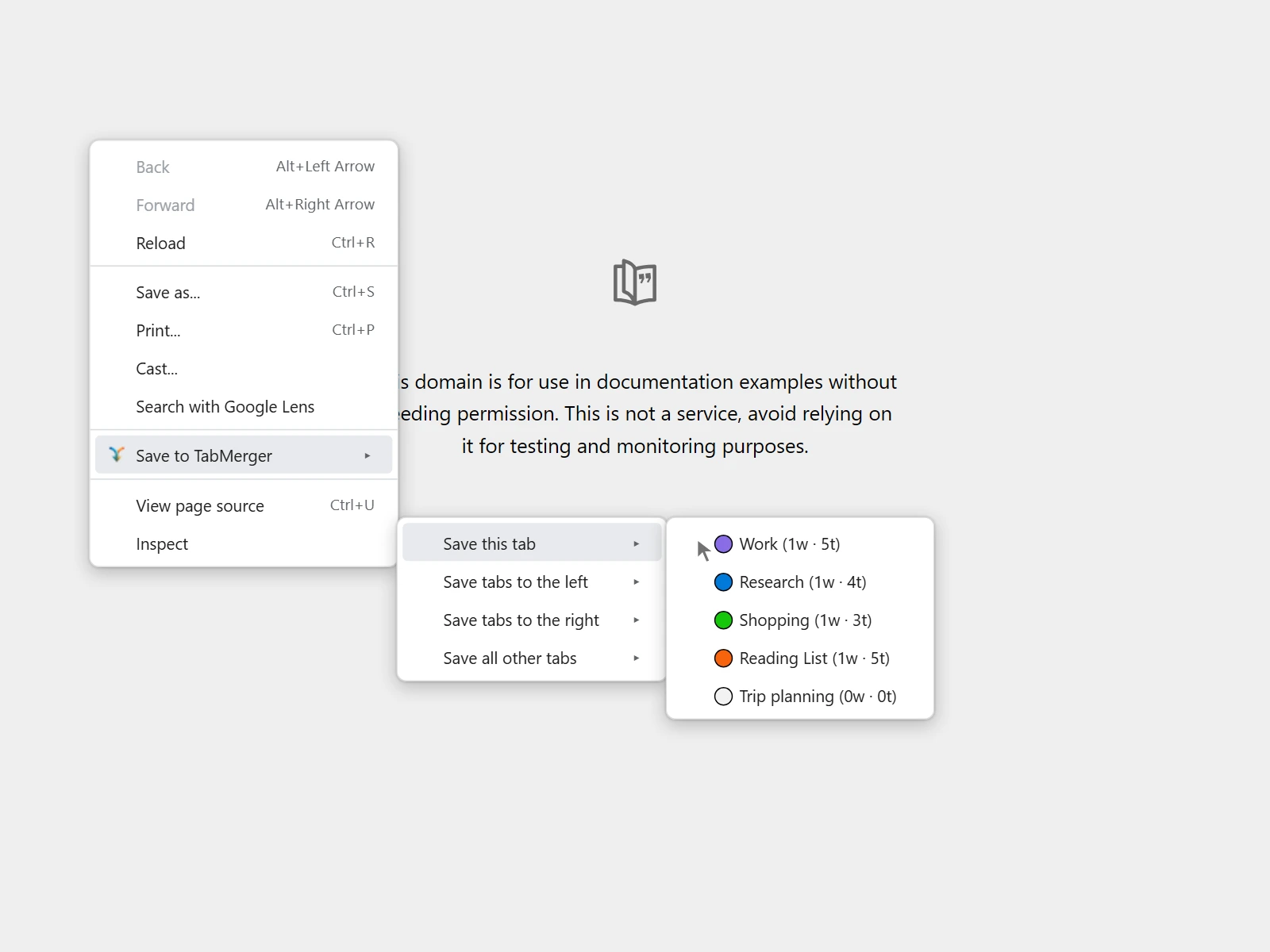
Illustration: a new, still-empty group ("Trip planning") appears at the end of the list.
Good looks like
Getting Pro: test payments, no real money
Upgrading to Pro (test payments)Some ProShow
Billing is part of this beta, but only with Stripe's test cards — no real card will work and no real money changes hands. Pro AI and AI credit packs are still "coming soon" and are not purchasable, so this is Pro (unlimited groups/tabs + sync) only.
Test card warning
What this checks: That you only ever use Stripe's test cards: nothing in this beta charges real money.
Steps
⚠ This is a test checkout. Never enter a real card. No real money is charged, and a real card won't work here anyway.Successful payment (Visa)Use this one to upgrade 4242 4242 4242 4242Generic decline 4000 0000 0000 0002Insufficient funds 4000 0000 0000 9995Needs 3D Secure authentication 4000 0025 0000 3155With any card: an expiry date in the future (e.g.
12/34), any 3-digit CVC (e.g.123), and anything for the name, postal code and other fields. More cards: docs.stripe.com/testing.Good looks like
Upgrading from the extension
What this checks: That upgrading from inside the extension works end to end, and the extension then shows Pro.
Steps
Good looks like
Report it if: The extension still shows free-tier limits (5 groups / 50 tabs / 3 URL rules) more than a couple of minutes after a successful checkout and a popup reopen.
Upgrading from the web account page
What this checks: That upgrading from the website's account page works, and the website and extension agree on your plan.
Steps
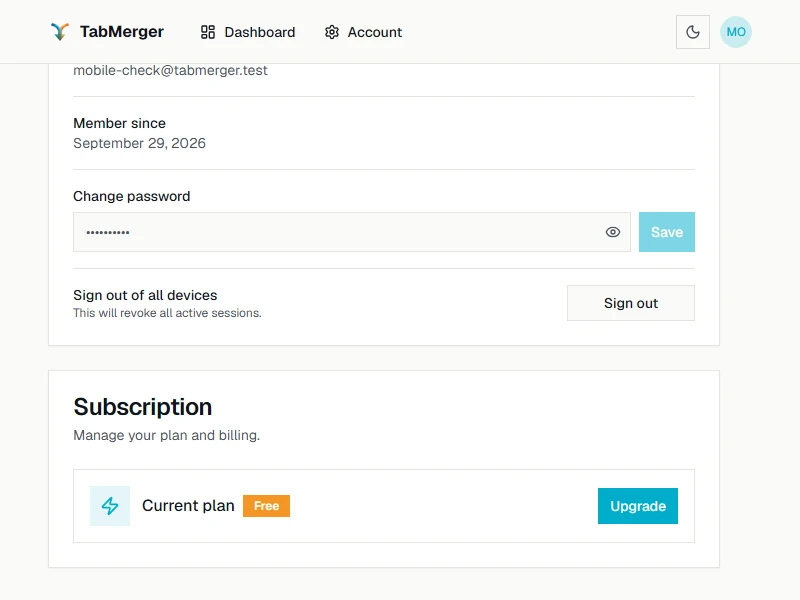
Before upgrading: Free, with an Upgrade button. Afterwards it shows Pro and "Manage billing" (see "Account page" below).
Good looks like
Report it if: The web account page and the extension popup show different plans (one says Pro, the other still says Free) more than a couple of minutes apart.
Paying in your local currency
What this checks: That checkout shows, and charges, the price in your own currency.
Steps
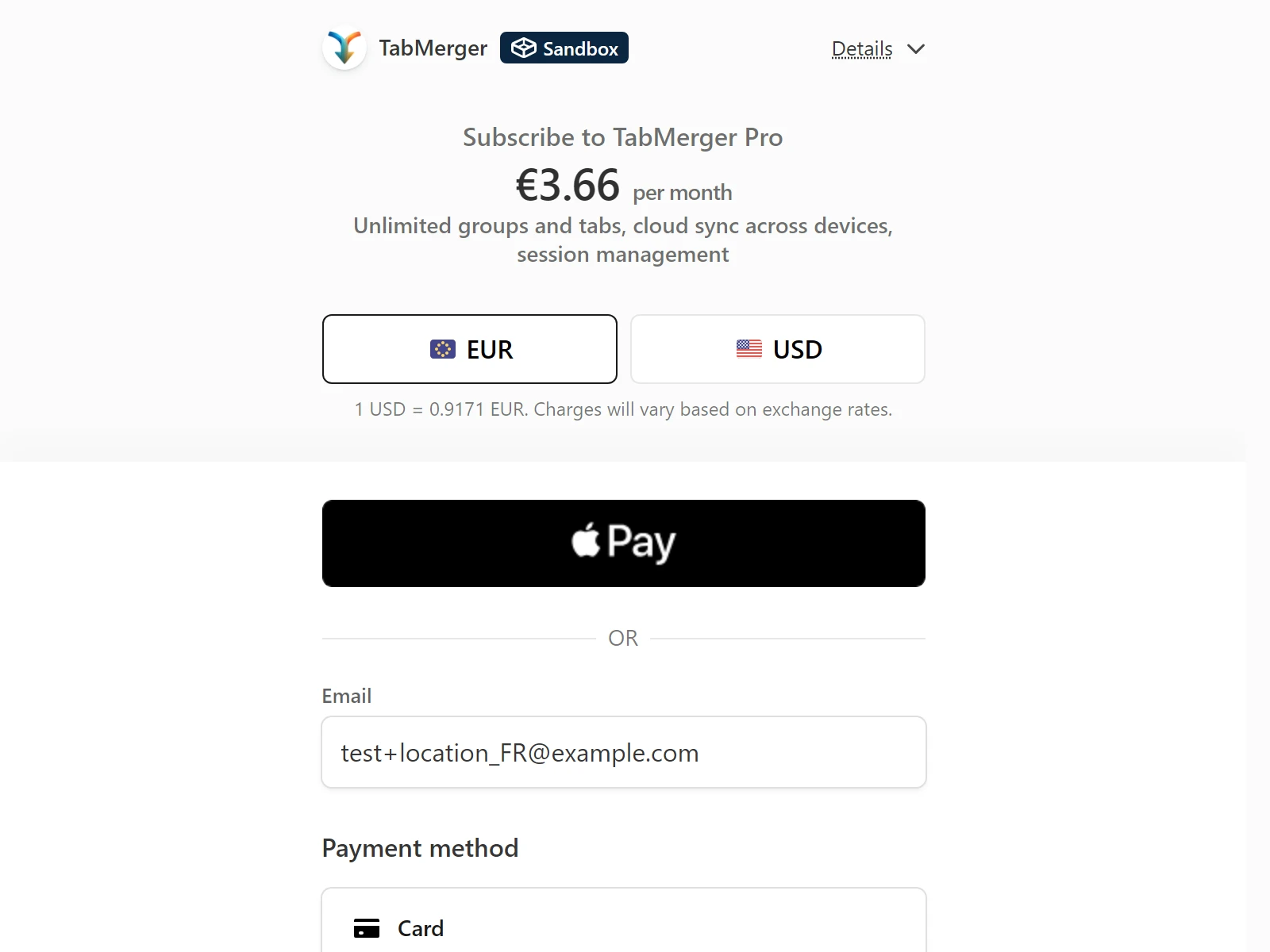
Checkout for a France (+location_FR) address: euros by default, US dollars one click away. Exchange rates change, so your amount will differ.
Good looks like
Report it if: Outside the US, checkout offers only US dollars, the amount charged differs from what checkout showed, or paying in a local currency doesn't give you Pro.
Switching between monthly and yearly
ProWhat this checks: That a Pro subscription can move between monthly and yearly billing, and is charged correctly for it.
Steps
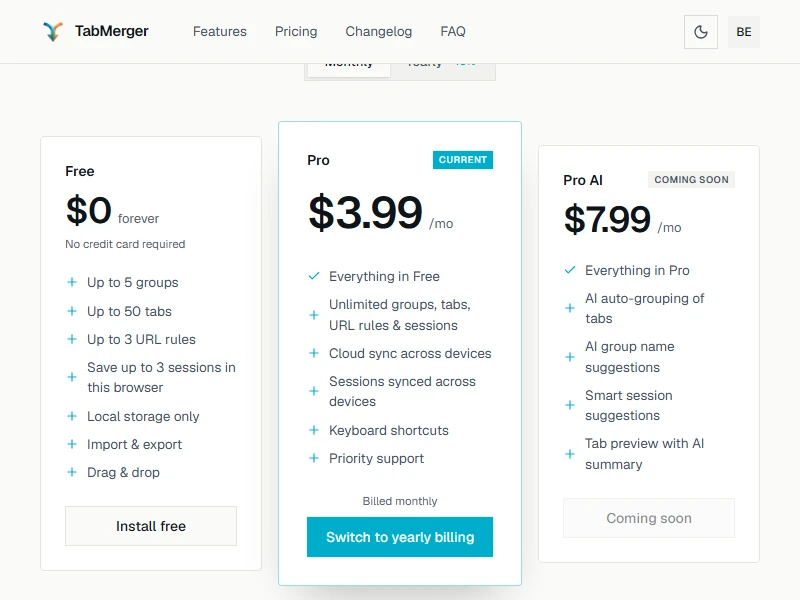
On the pricing page, your plan's card is marked Current and has the switch button.
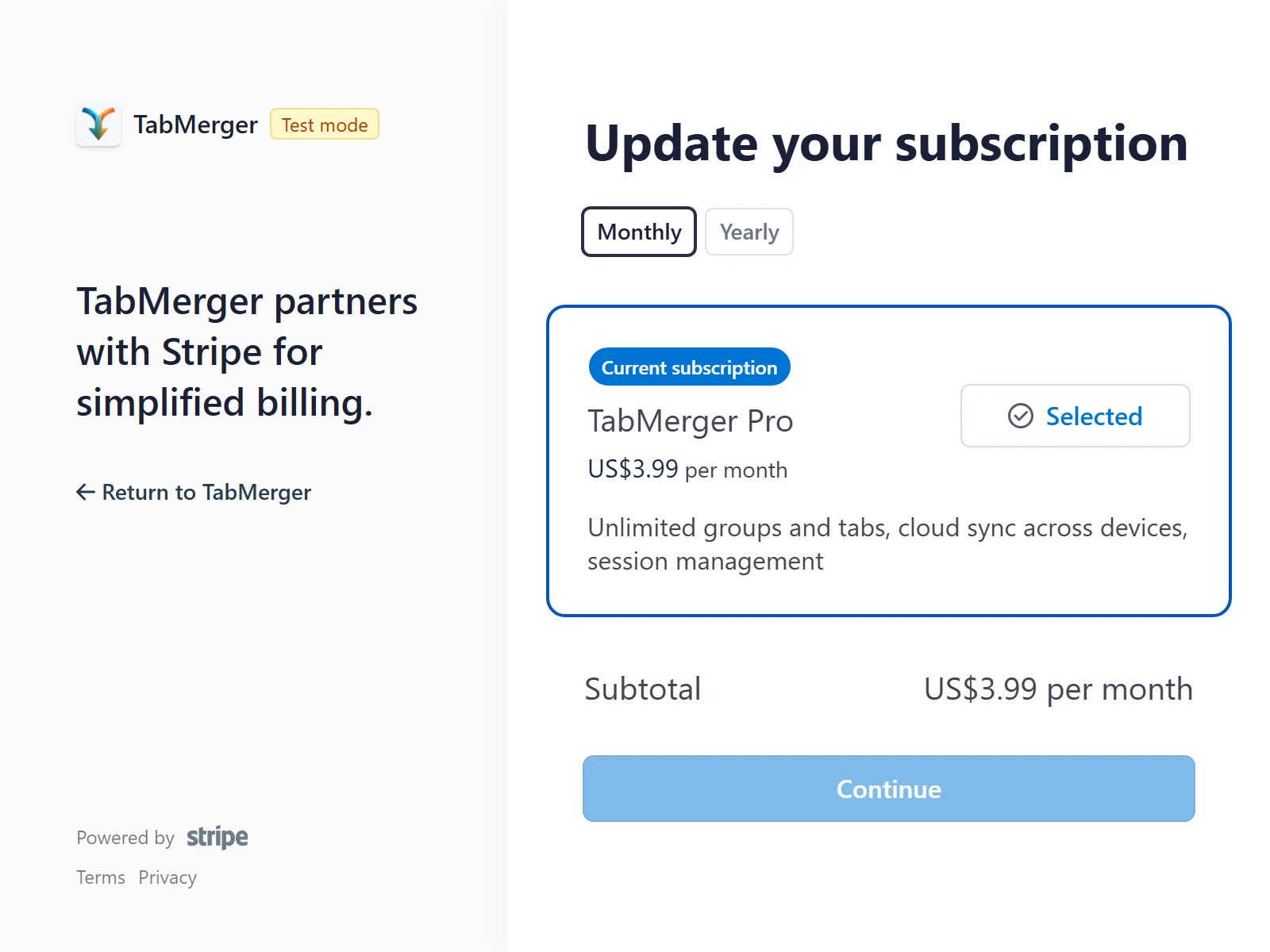
The same choice in Manage billing → Update subscription (Stripe's page).
Good looks like
Report it if: A switch charges the wrong amount, the account page still shows the old billing period more than a couple of minutes later, yearly → monthly charges you immediately, or you're offered a plan other than Pro.
Cancelling
ProWhat this checks: That cancelling keeps Pro until the end of the period you paid for, then returns you to Free.
Steps
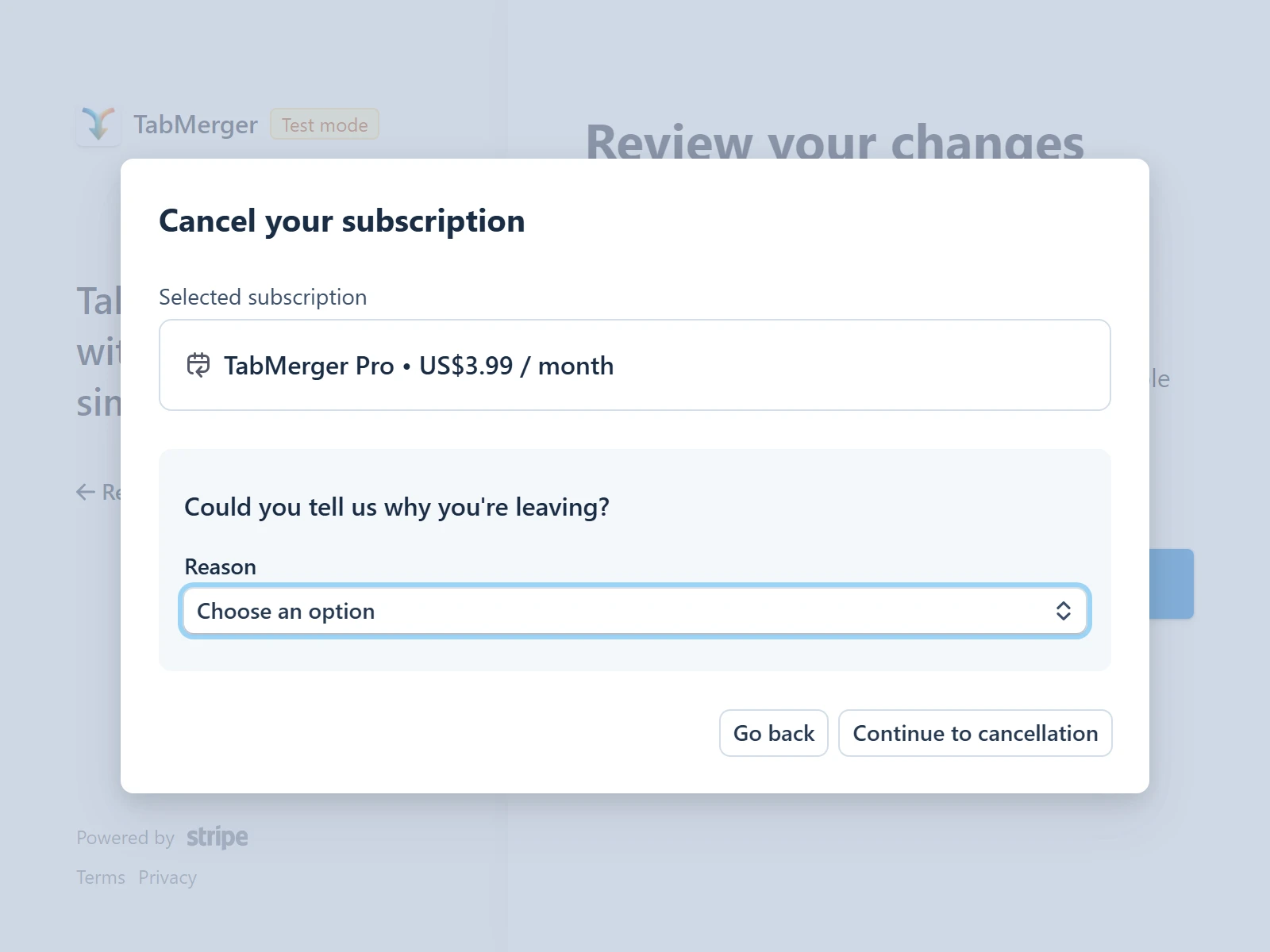
Stripe asks for an optional reason before cancelling.
Good looks like
Report it if: Cancelling drops you to Free immediately instead of at period end, or the plan never reverts to Free after the period actually ends.
Free and Pro: each Pro part is marked
Drag and dropSome ProShow
This area covers every drag interaction in the popup — sorting, moving between windows and groups, multi-item drags, the two "drop for a new..." zones, cancelling, keyboard-only dragging, and whether the result sticks. Work through as many of these as you can; this is the single area we're most focused on for this beta.
Sorting: tabs within a window
What this checks: That dragging a tab reorders it within its window, landing exactly where you drop it.
Steps
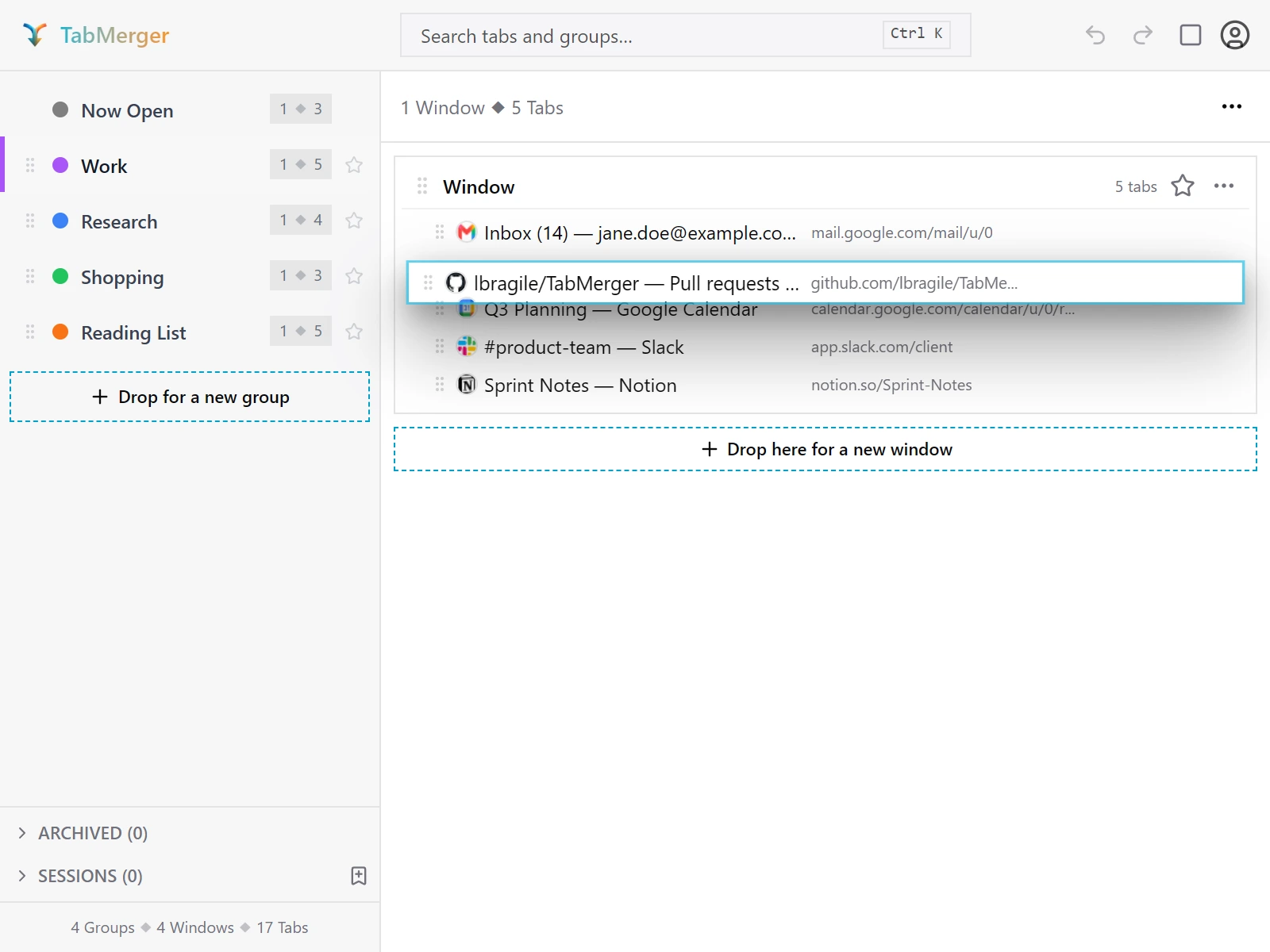
Mid-drag: the tab floats and the others make room where it will drop.
Good looks like
Sorting: windows within a group
What this checks: That window cards can be reordered inside a group.
Steps
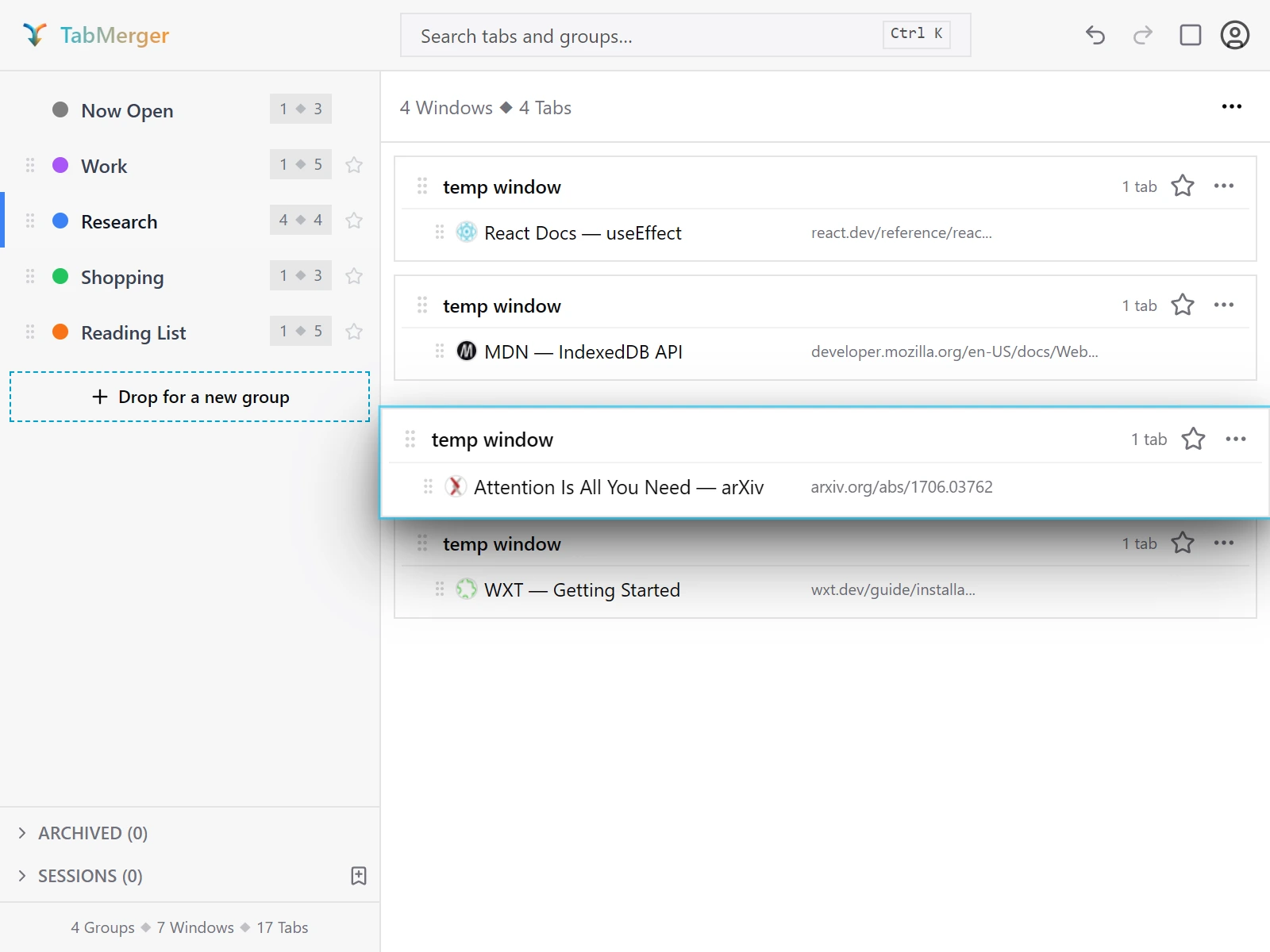
Dragging a whole window card by its handle to reorder it within the group.
Good looks like
Sorting: groups in the sidebar
What this checks: That groups reorder freely in the sidebar while "Now Open" stays first.
Steps
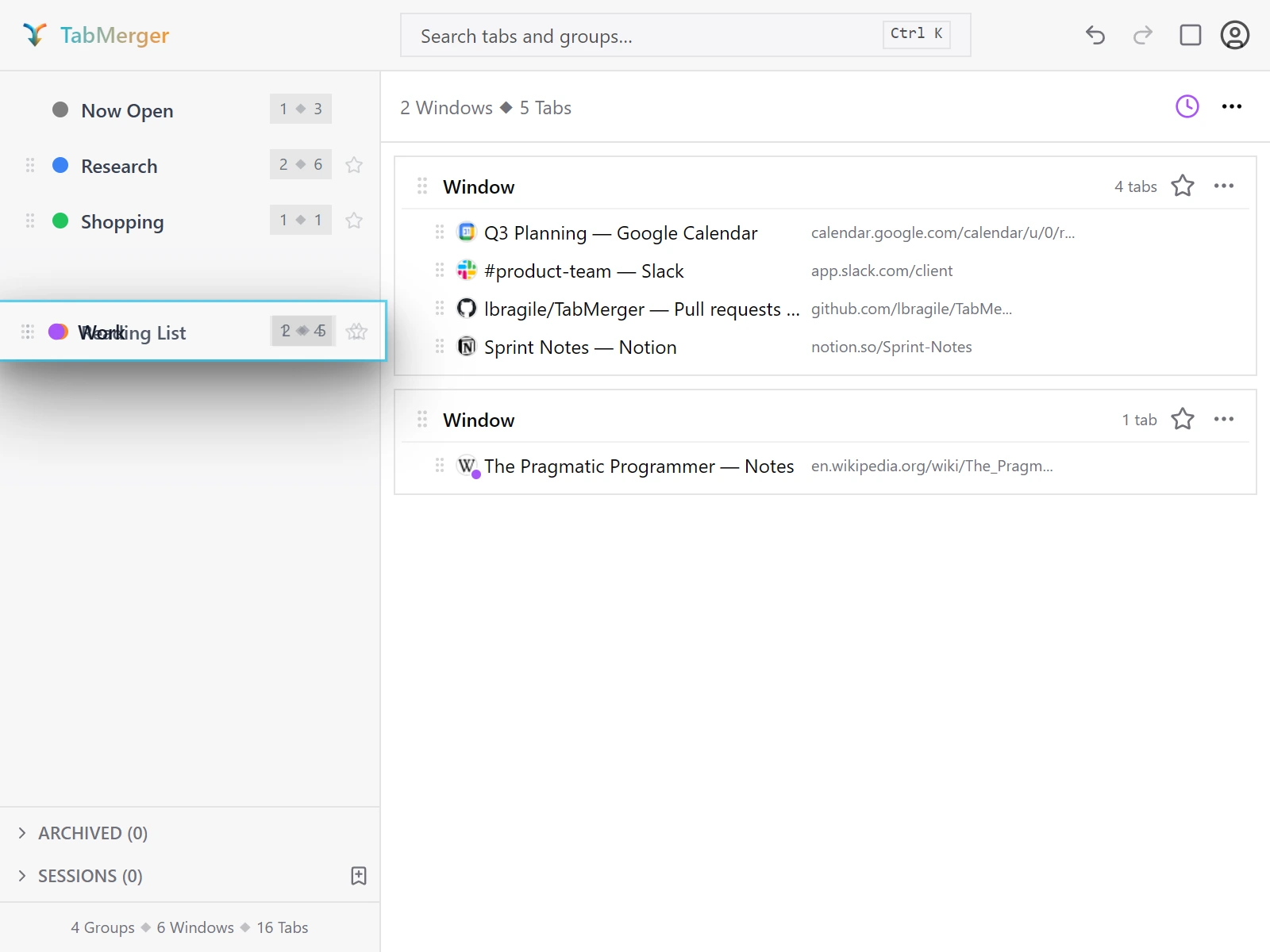
Reordering a group in the sidebar.
Good looks like
Report it if: Anything lands above "Now Open", or "Now Open" itself becomes draggable.
Cross-window: moving a tab between window cards
What this checks: That a tab can move from one window card to another, at the exact spot you drop it.
Steps
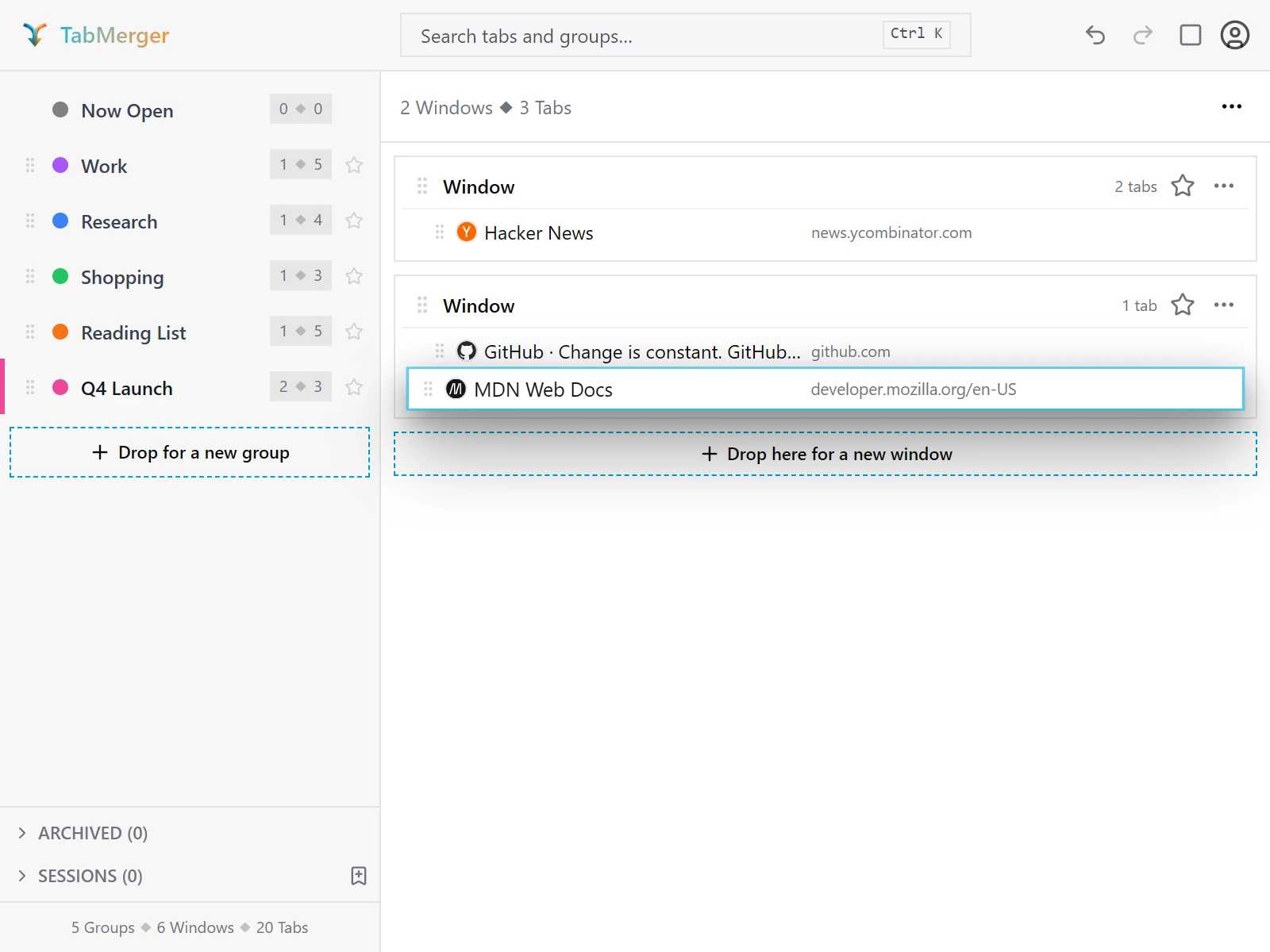
Dropping a tab onto another window inside the same group.
Good looks like
Cross-group: dropping a tab onto a sidebar group
What this checks: That dropping a tab on a group in the sidebar moves it into that group without opening the group first.
Steps
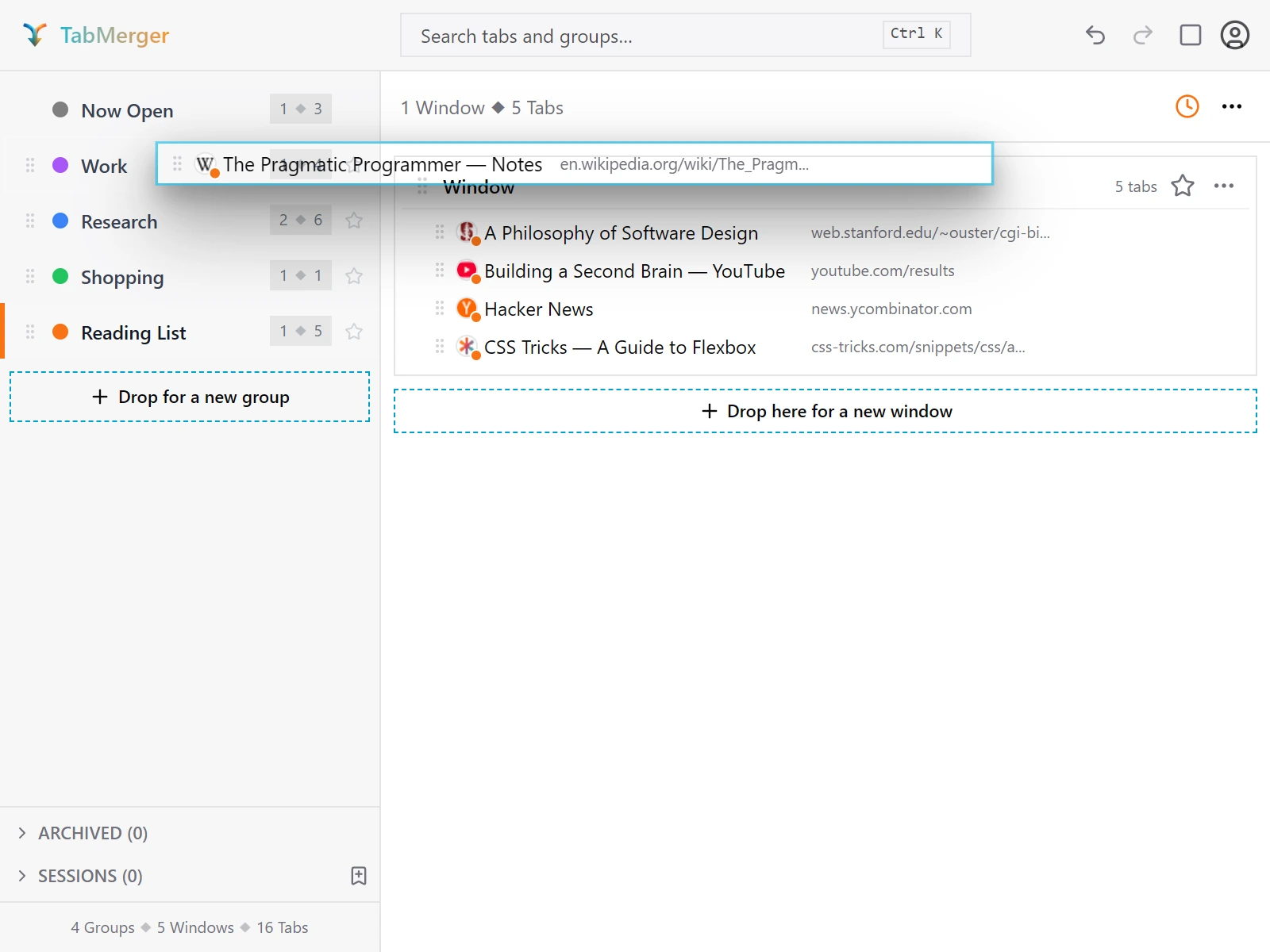
Dropping a tab directly onto a sidebar group.
Good looks like
Report it if: The group springs open but the tab lands in the wrong window, or on top of an existing tab instead of as its own new window.
Cross-group: dragging a whole window into another group
What this checks: That a whole window, with all its tabs, can move into another group.
Steps
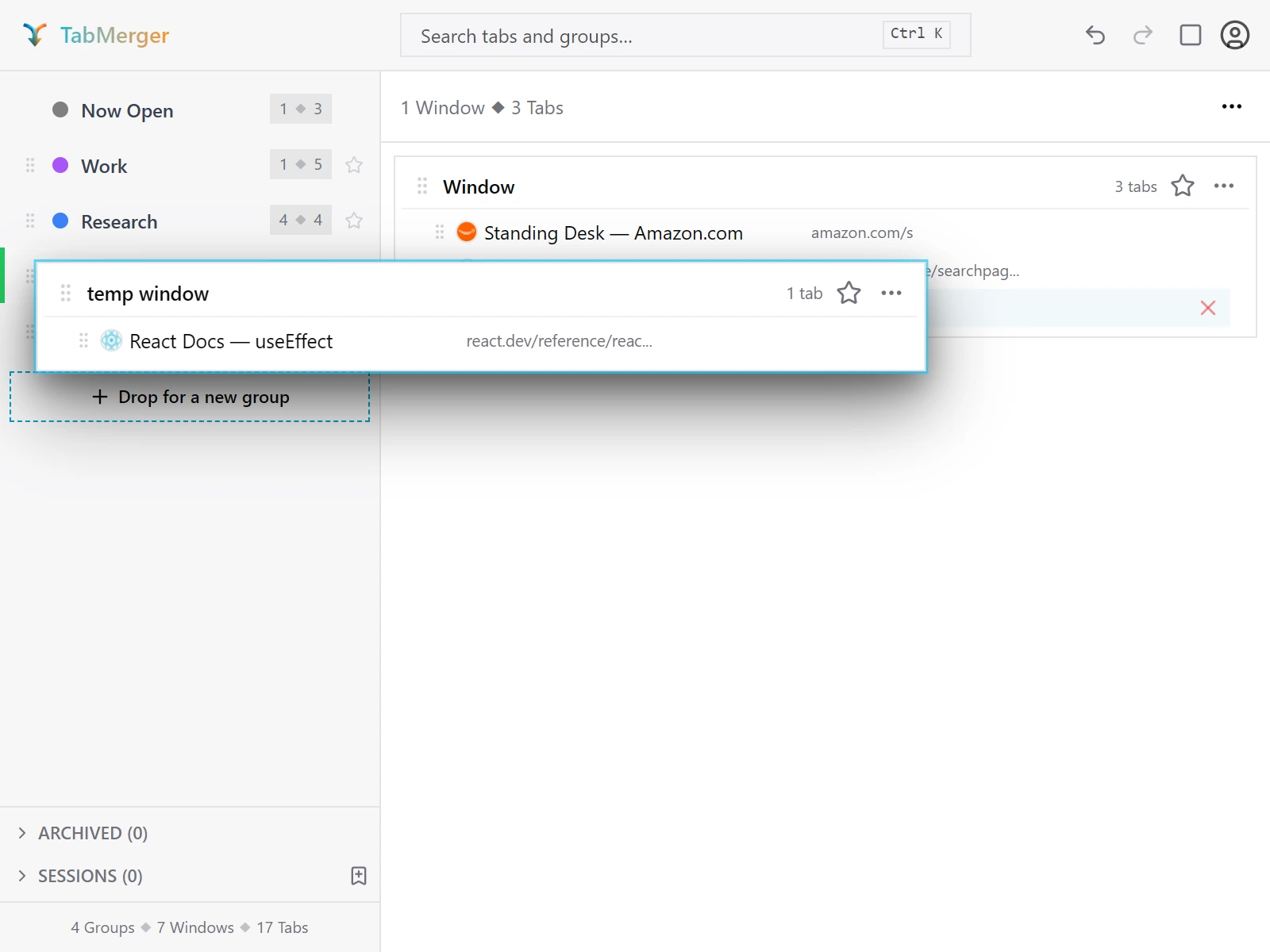
Dragging a window onto a sidebar group. The group under the pointer gets a colored edge and opens behind the card.
Good looks like
Report it if: The source group or its emptied window disappears instead of staying (an empty window/group should stick around, not vanish).
Multi-item: selecting and dragging several tabs
What this checks: That several selected tabs drag together as one block, keeping their order.
Steps
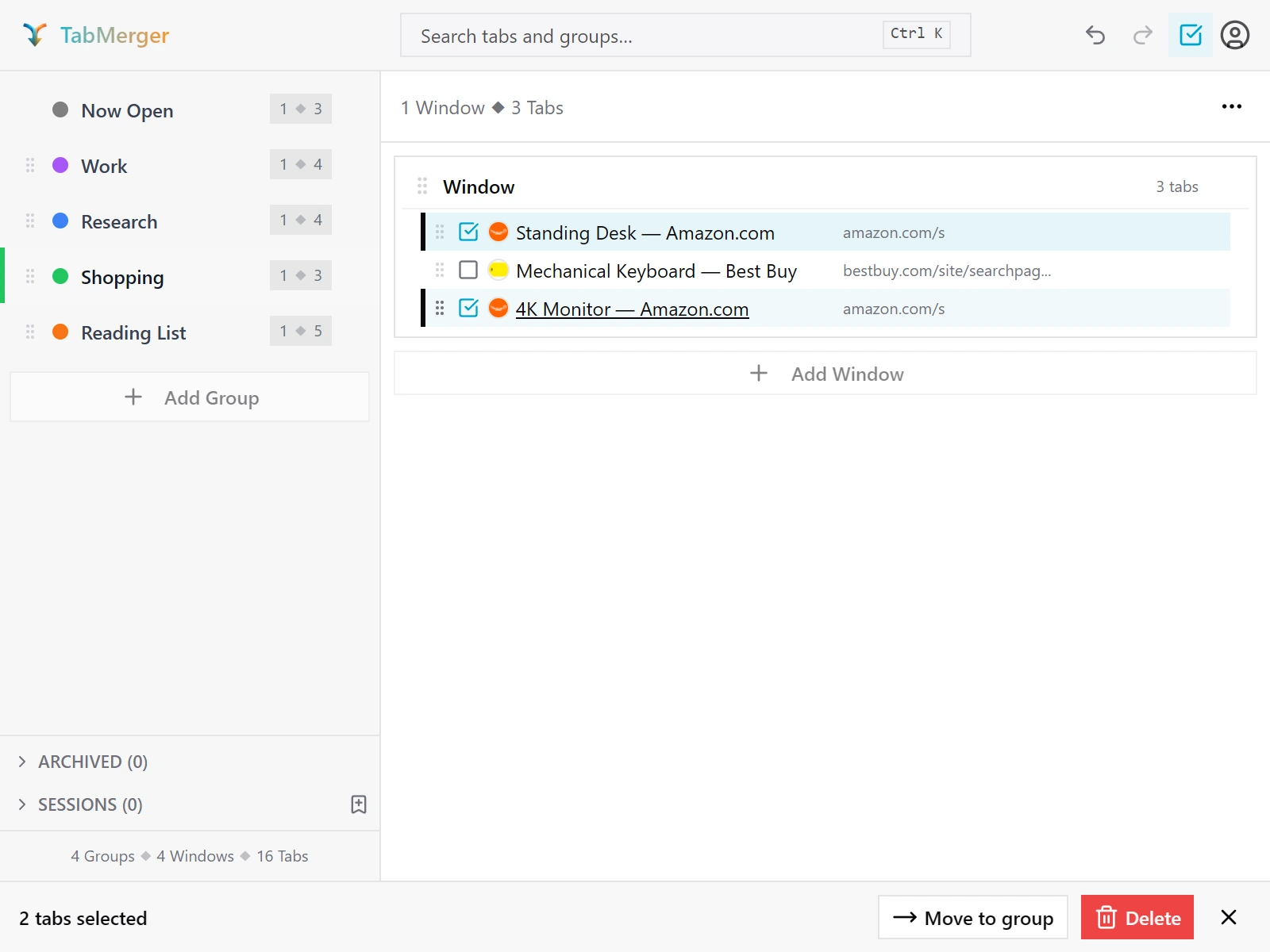
Two tabs checked in selection mode; the bar at the bottom counts them.
Good looks like
Multi-item: dragging a selection across windows and groups
What this checks: That a multi-tab selection keeps its order when dragged into another window or group.
Steps
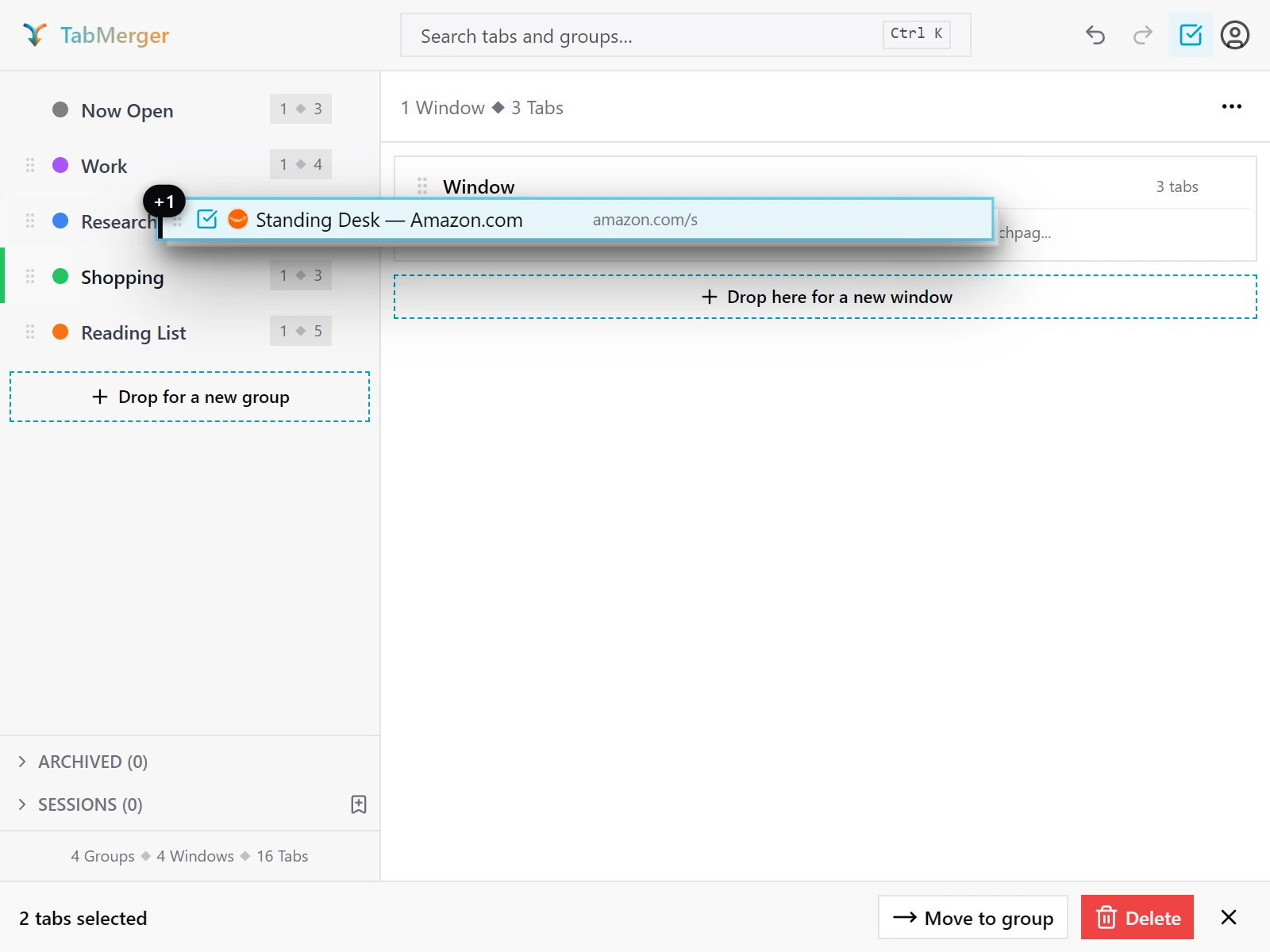
Dragging a multi-tab selection.
Good looks like
Multi-item: select all and multi-group drag
What this checks: That select-all works within a window, and that several selected groups can be dragged together.
Steps
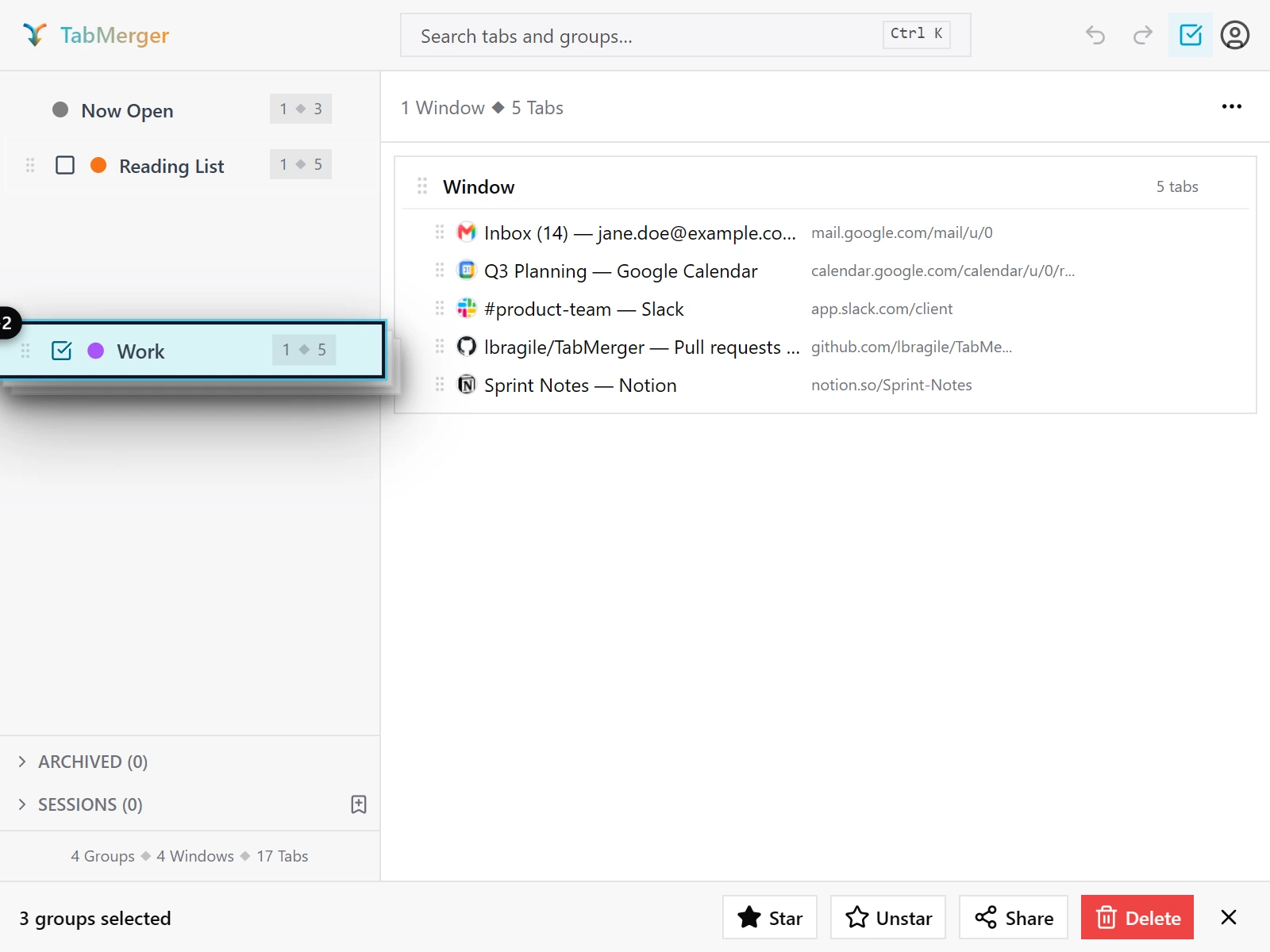
Three selected groups dragged together in the sidebar. The bar at the bottom counts the selection.
Good looks like
Drop zones: "Drop here for a new window" and "Drop for a new group"
What this checks: That dropping on these zones creates a new window or a new group from what you dragged.
Steps
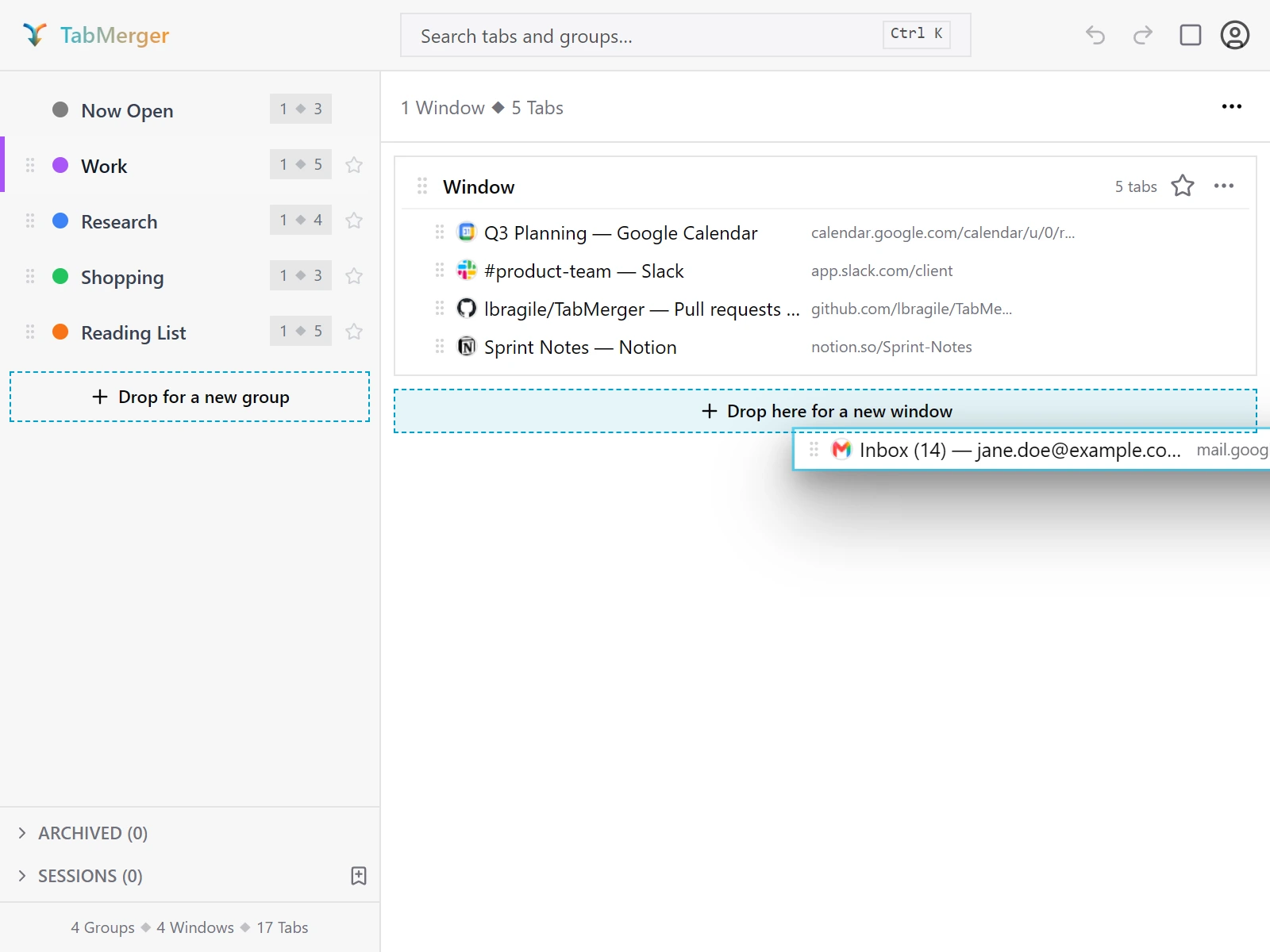
While you drag, both drop zones appear. The one under the pointer is highlighted.
Good looks like
Report it if: The "Drop for a new group" zone still appears once you're already at your plan's group limit — it should disappear instead of accepting a drop it can't fulfill.
From "Now Open": dragging a live tab into a saved group
What this checks: That dragging an open tab from "Now Open" moves it into a saved group and closes the real tab.
Steps
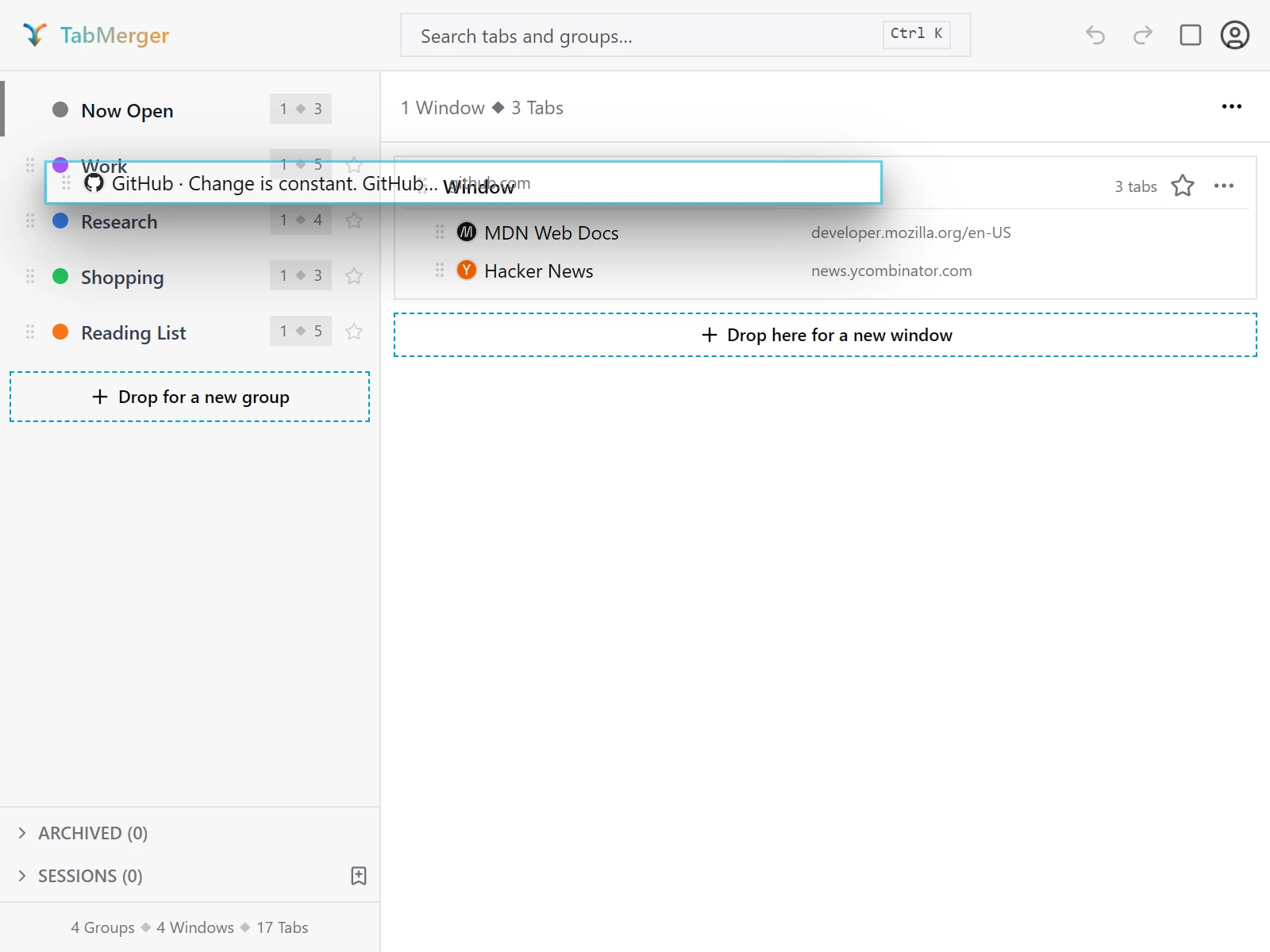
An open tab from "Now Open" dragged onto a saved group in the sidebar.
Good looks like
Report it if: The real tab stays open after the drop (making it look like a copy), or the popup itself closes/crashes mid-drag.
Cancel and edge cases
What this checks: That cancelled or pointless drags change nothing, and that undo reverses a real drag.
Steps
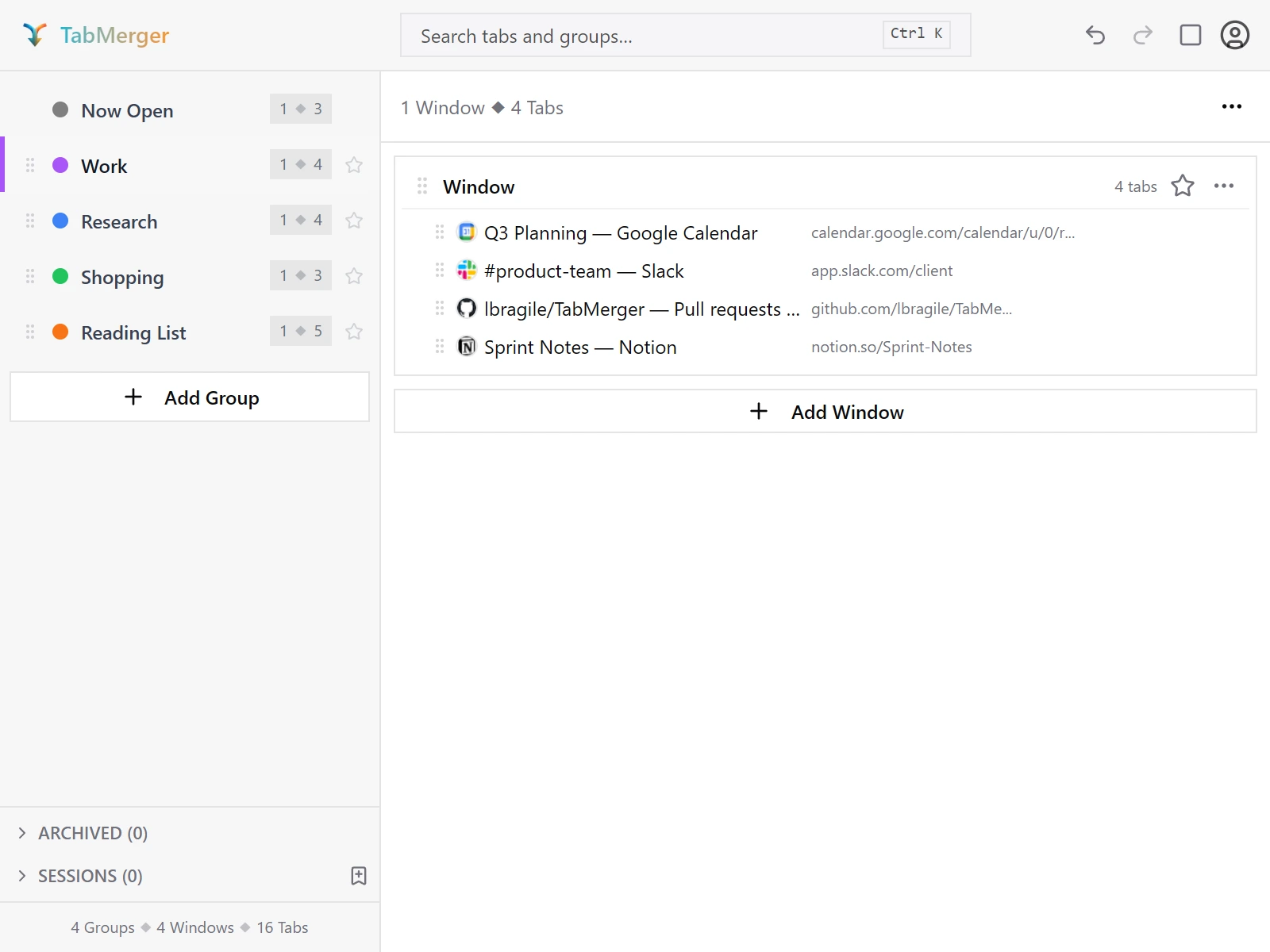
The Undo/Redo buttons in the header, enabled after a change.
Good looks like
Report it if: A tab is duplicated or goes missing after a cancelled or same-spot drag, or Undo doesn't fully restore the pre-drag order.
Keyboard drag
What this checks: That everything you can drag with a mouse can also be moved with the keyboard, with spoken announcements.
Steps
Good looks like
Persistence
Partly ProPro: Only the second-device part needs Pro (it needs sync).
What this checks: That a new order is saved: it survives reopening the popup and reaches your other devices.
Steps
Good looks like
Web app and dashboard (preview site)Some ProShow
Everything here is at tabmerger-preview.vercel.app, not the main tabmerger.com — this beta build syncs with the preview site only.
Signing up and signing in
What this checks: That every way of signing in to the website works: Google, email and password, and a magic link.
Steps
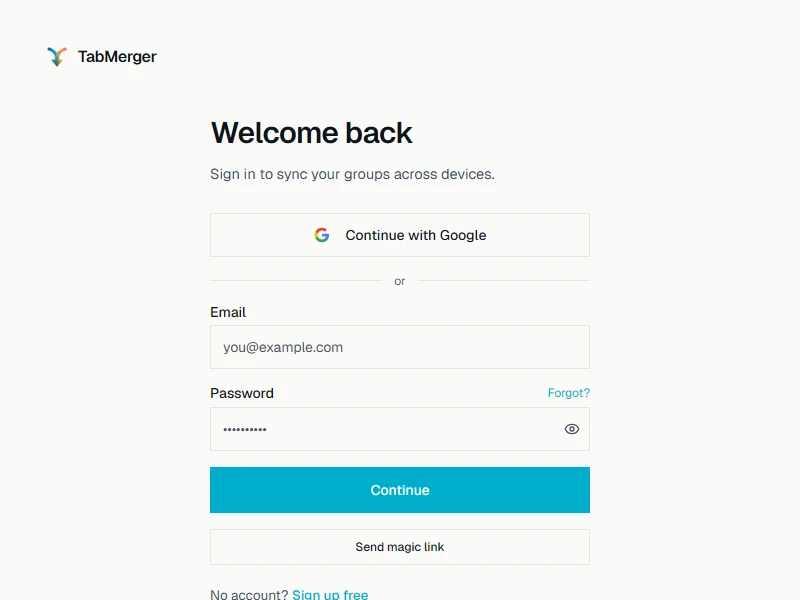
The website's sign-in page: Google, email and password, or a magic link.
Good looks like
Creating an account with email and password
What this checks: That a new email-and-password account ends up signed in, whether or not the site asks you to verify your email.
Steps
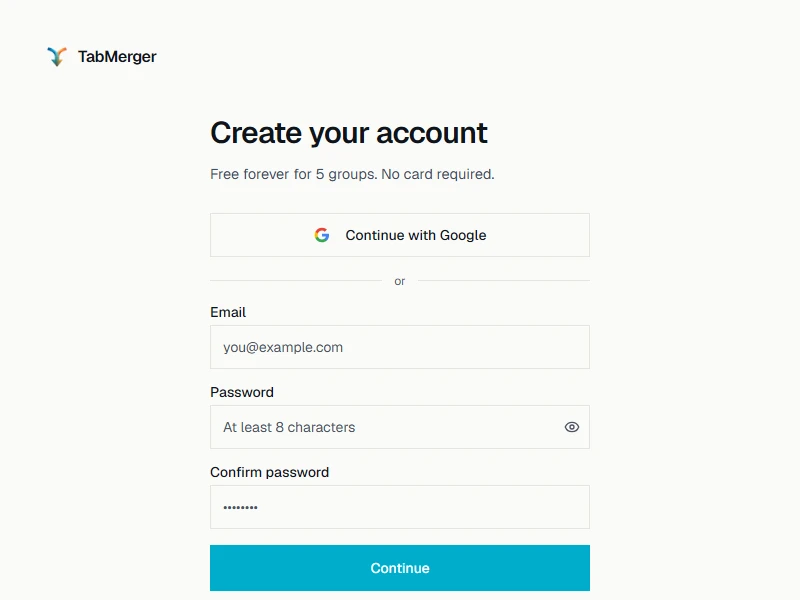
The sign-up page. Google works here too; this item is about the email and password route.
Good looks like
Report it if: You see "Verify your email" but are actually already signed in (for example, opening the dashboard in another tab works without clicking the link).
Forgot password and changing your password
What this checks: That you can reset a forgotten password by email, and change it afterwards.
Steps
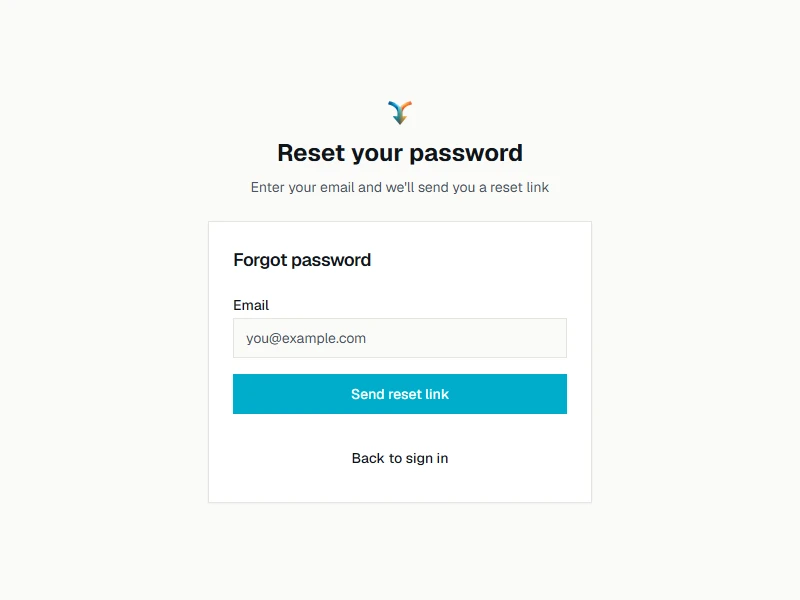
"Forgot?" on the sign-in page opens this. Once signed in, Account settings has a "Change password" field instead.
Good looks like
Dashboard matches the extension after sync
ProWhat this checks: That the website's dashboard shows the same groups as your extension once sync has caught up.
Steps
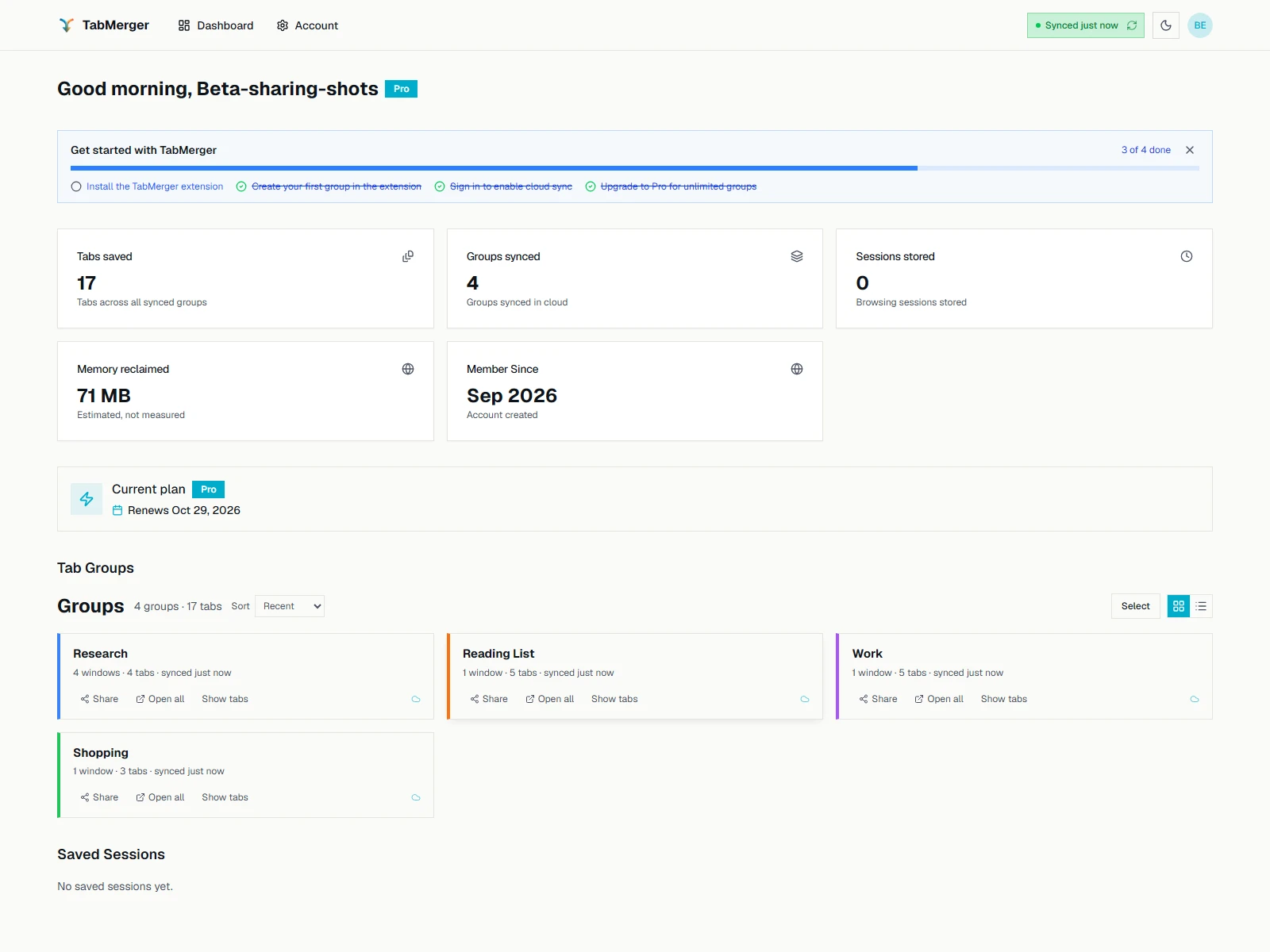
The dashboard's groups, matching the extension's sidebar once synced.
Good looks like
The dashboard is read-only for groups
ProWhat this checks: That the dashboard shows your groups but can't change them: editing happens only in the extension.
Steps
Good looks like
Report it if: Any control on the dashboard that appears to edit, delete, or create a group actually does something.
Sessions and stats on the dashboard
ProWhat this checks: That the saved sessions and totals on the dashboard match the extension.
Steps
Good looks like
Sharing from the dashboard
ProWhat this checks: That the dashboard's Share button copies a share link, like the extension's.
Steps
Good looks like
Account page
Partly ProPro: Only the Devices card needs Pro; it lists the devices that sync.
What this checks: That the account page shows the right profile, plan and devices, and that both sign-out options work.
Steps
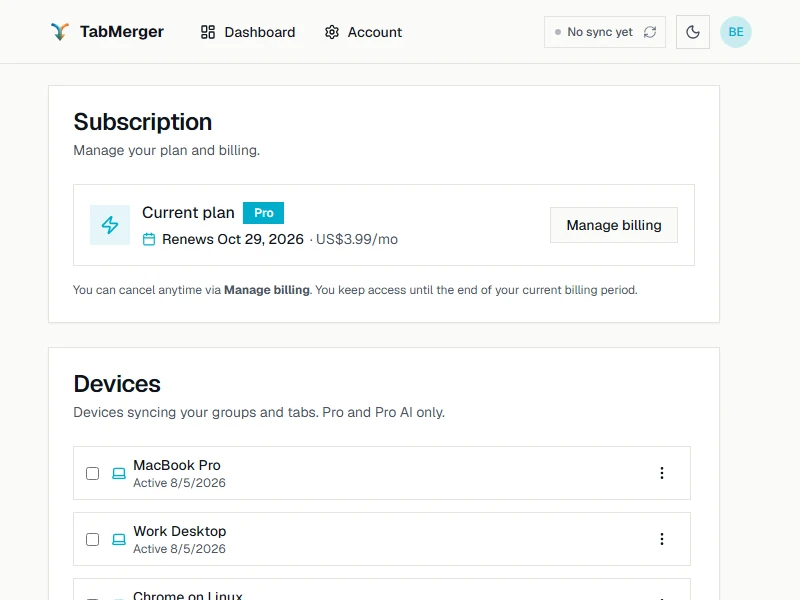
The Subscription and Devices cards on a Pro account.
Good looks like
On a phone
What this checks: That the dashboard and account pages are fully usable on a small screen.
Steps
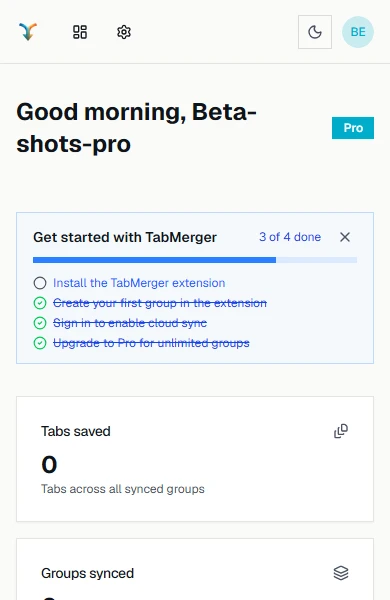
The dashboard at phone width: icons only in the top bar, nothing scrolls sideways.
Good looks like
Report it if: A page scrolls sideways on a phone, or any control at the top is cut off or unreachable.
Notifications (toasts)
What this checks: That pop-up notifications are easy to read, close on their own after a countdown, and can be closed early.
Steps
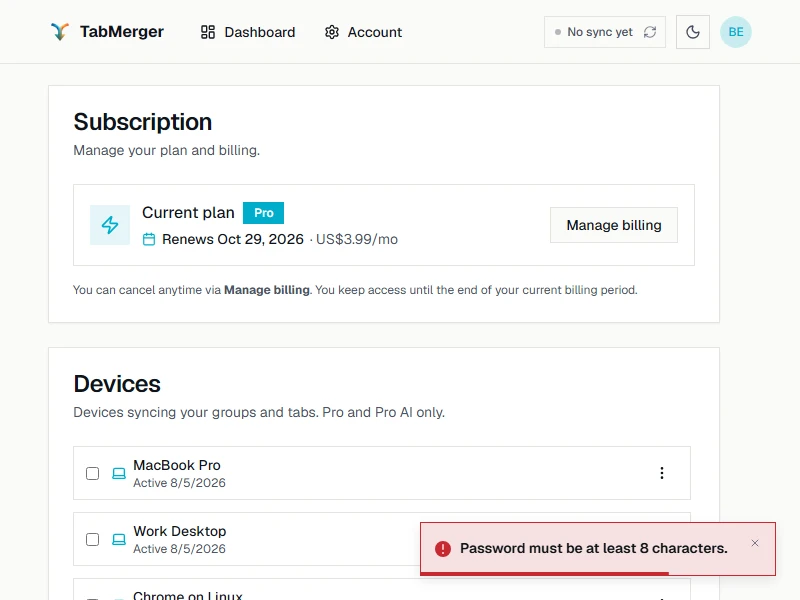
An error notification: red edge, ✕ to close, and the countdown bar along the bottom.
Good looks like
Report it if: A notification is hard to read in either theme, the bar keeps running while you hover, or the ✕ is misplaced or doesn't close it.
SharingSome ProShow
Sharing requires Pro (see "Upgrading to Pro" above to get there in this beta). The encryption key for a share is generated fresh per link and lives only in the URL's #key= fragment — it's never sent to or stored on the server, so anyone who has the full link (including that fragment) can view the shared content. Treat a share link like the content itself.
Sharing one or more groups from the extension
ProWhat this checks: That the extension creates a share link for one group, or for several at once.
Steps
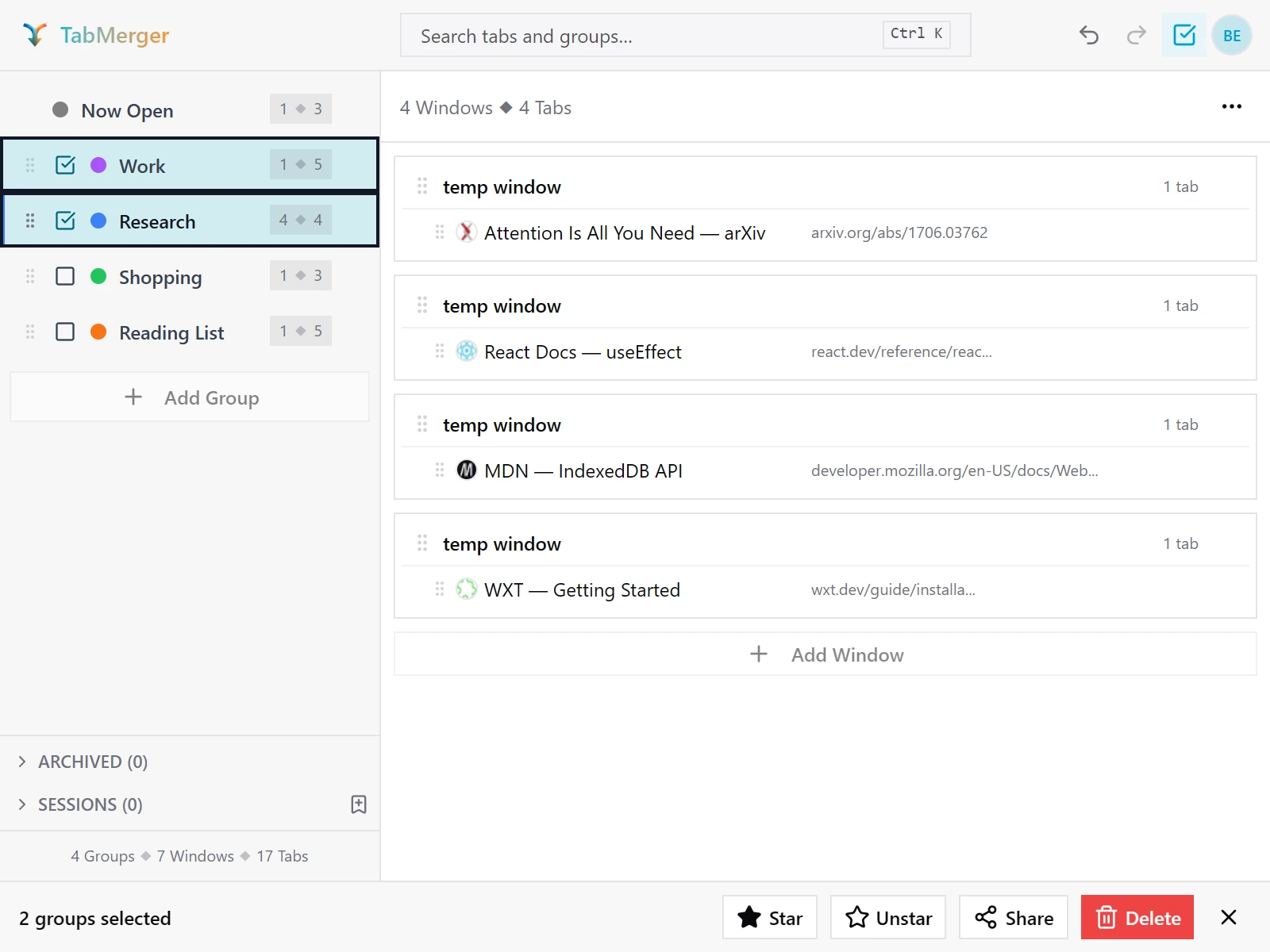
Check the groups to share, then click Share in the bottom bar.
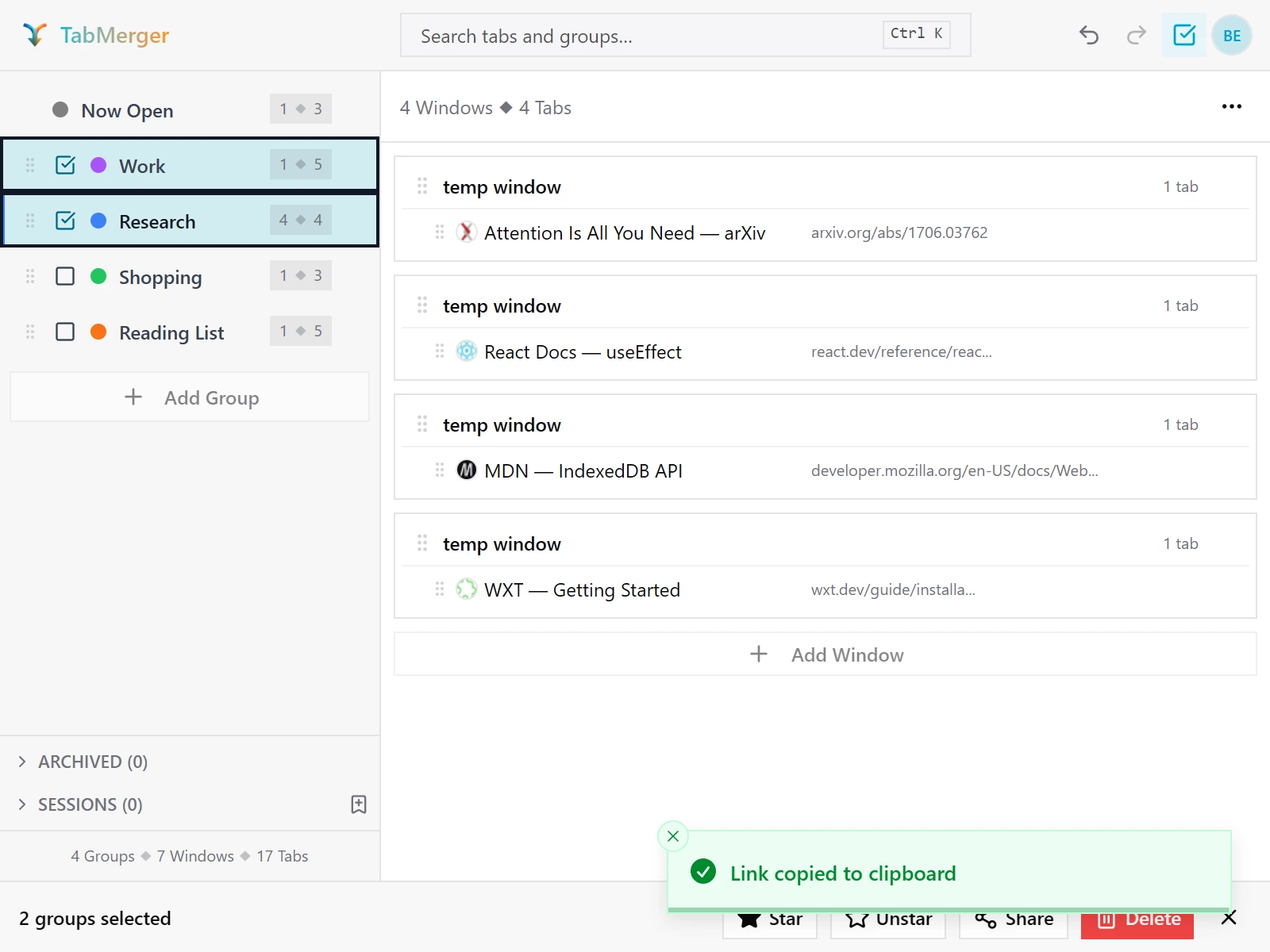
The link is copied straight away.
Good looks like
Opening a shared link
Partly ProPro: Creating the link needs Pro; opening it needs no account at all.
What this checks: That anyone can open a share link without signing in and see the shared groups, read-only.
Steps
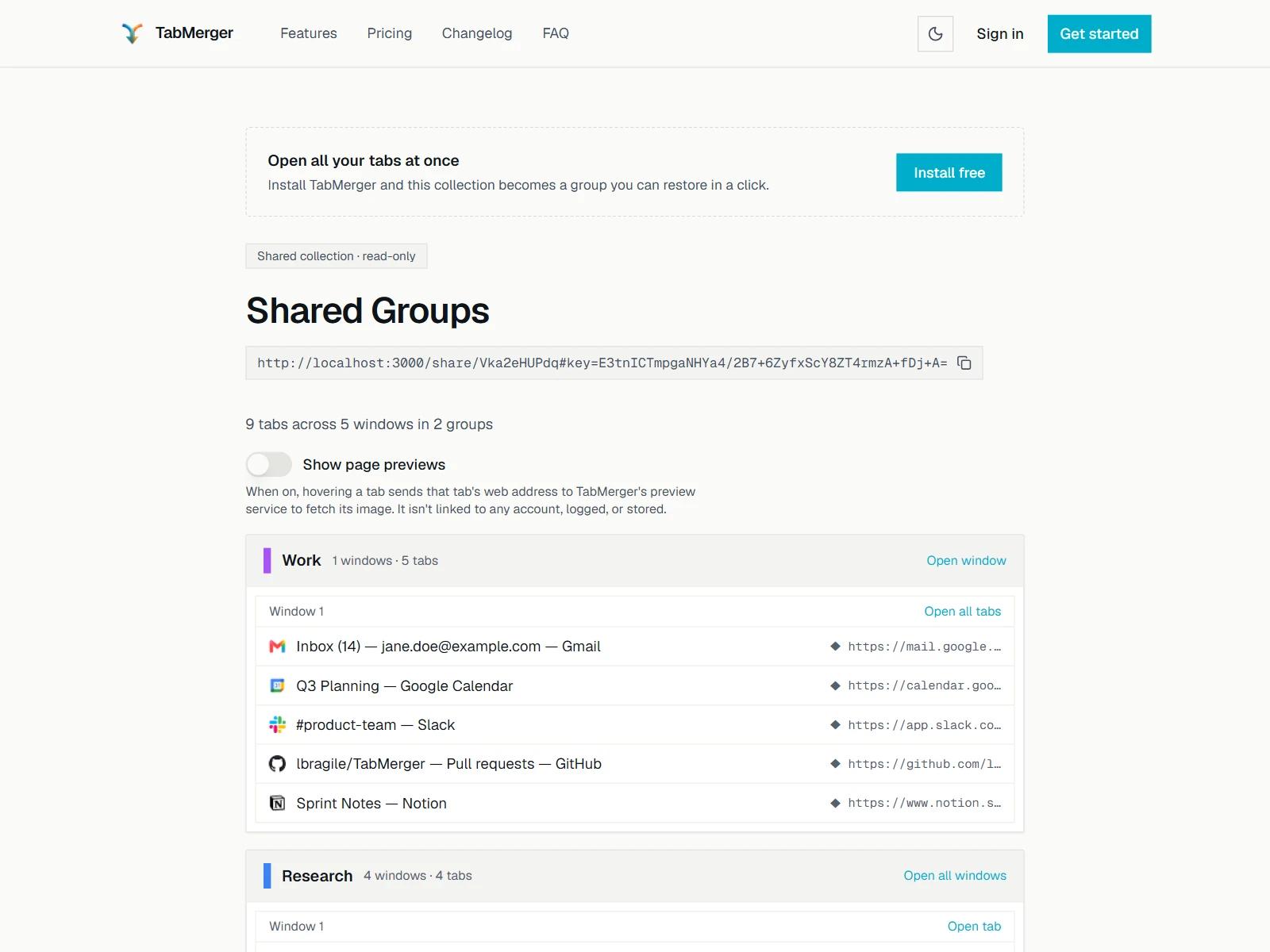
What someone opening your link sees, without signing in. (Here the link points at a local test server; yours will be on tabmerger-preview.vercel.app.)
Good looks like
Page previews on the shared page
Partly ProPro: Creating the link needs Pro; opening it needs no account at all.
What this checks: That page previews on a shared page stay off until the viewer turns them on and confirms.
Steps
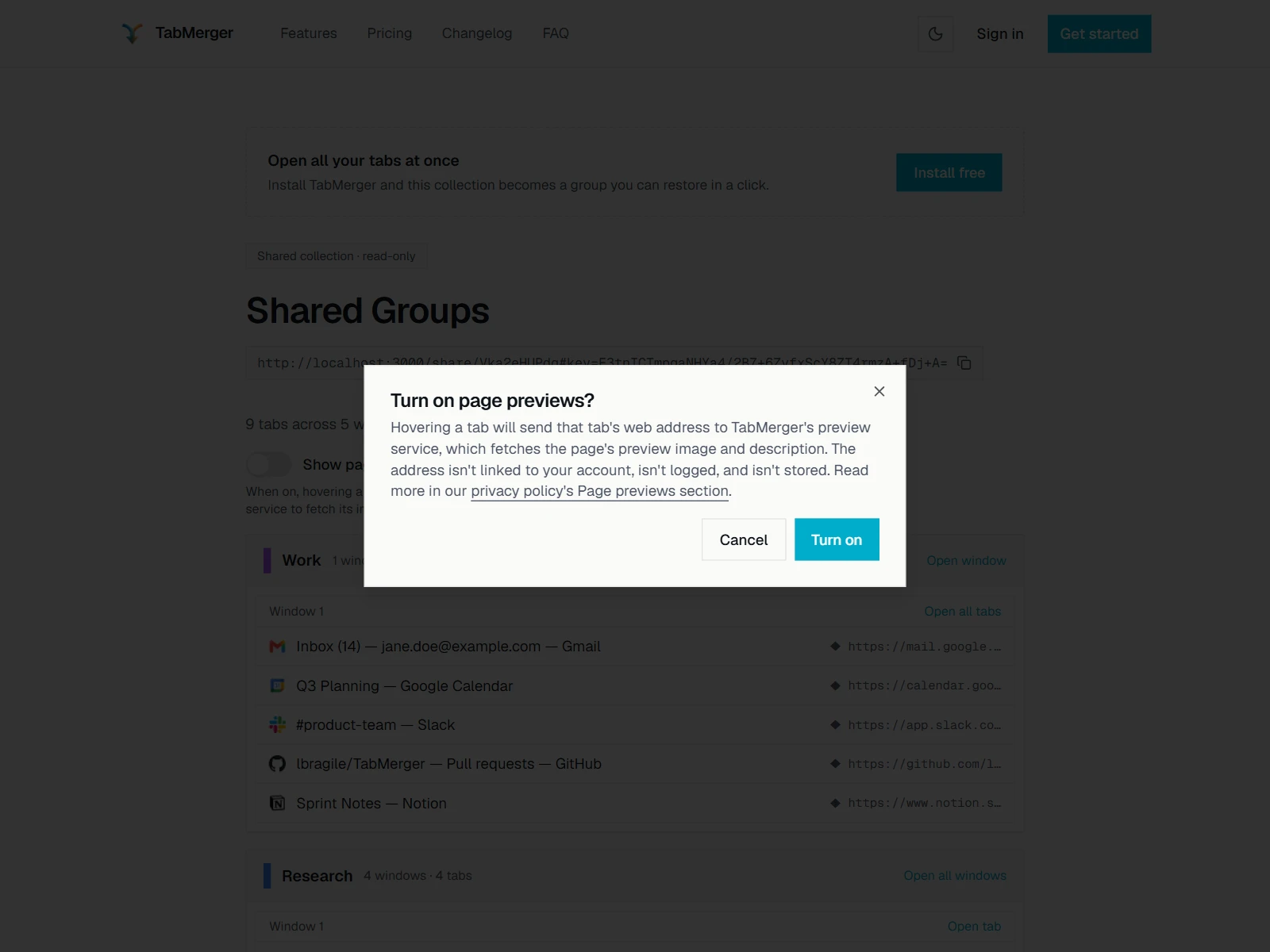
Turning on the switch asks first. Previews stay off until you confirm.
Good looks like
Sharing a group with many windows
ProWhat this checks: That a shared group with several windows shows each window separately.
Steps
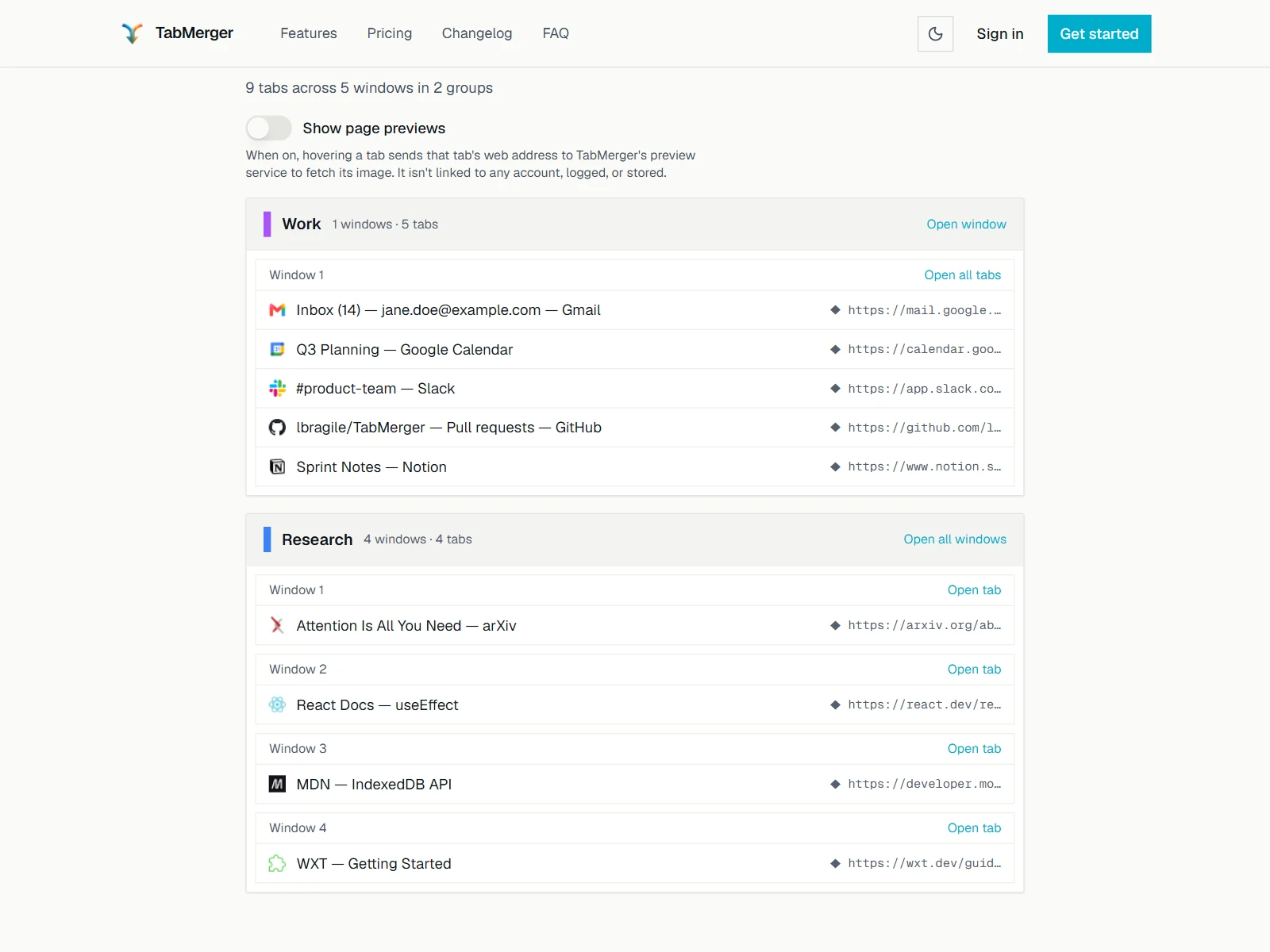
A shared group with four windows: each window is listed separately.
Good looks like
Sharing from the web dashboard instead of the extension
ProWhat this checks: That sharing from the website works the same way as from the extension.
Steps
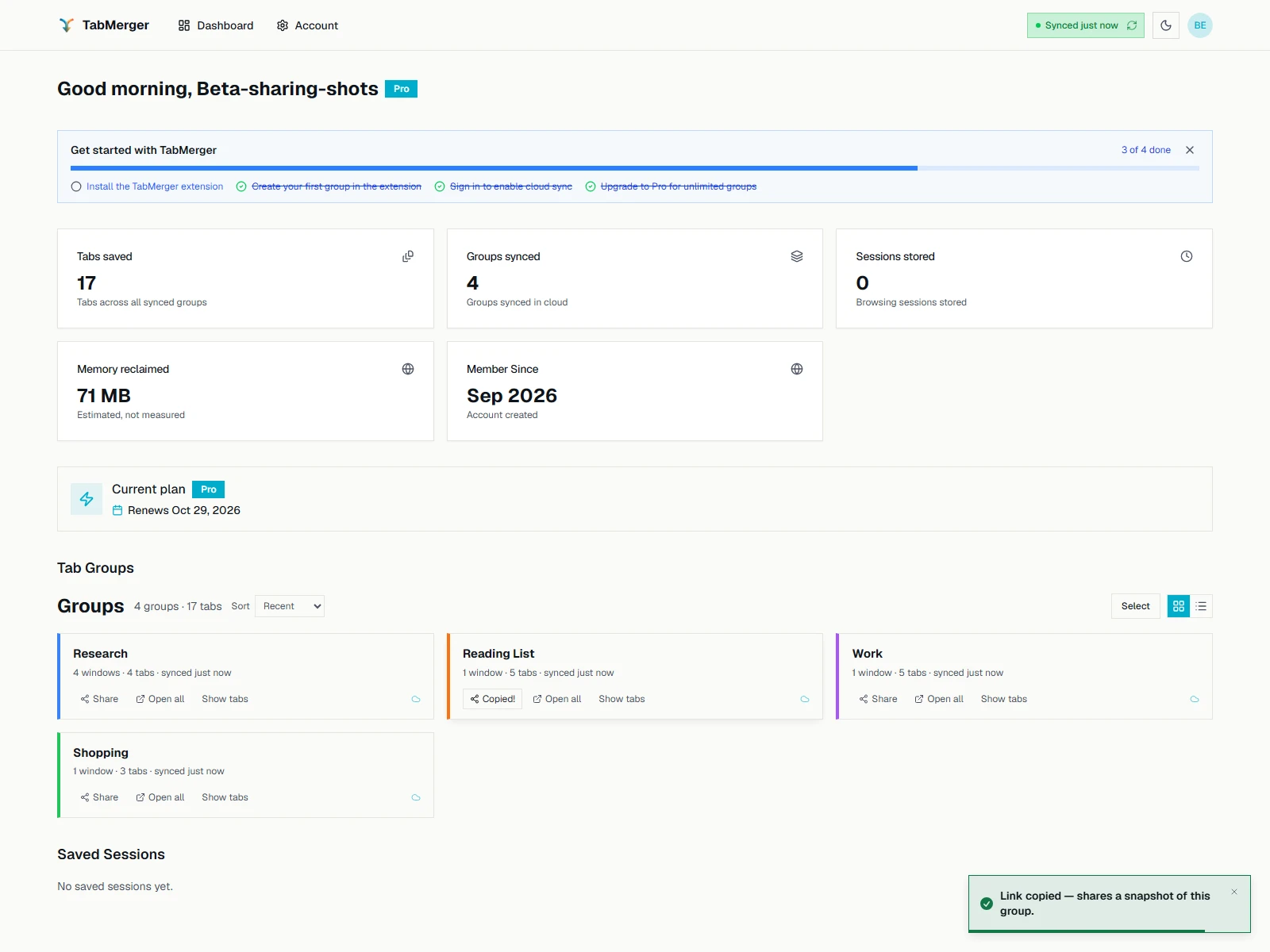
Share on a dashboard card copies the same kind of link.
Good looks like
Editing, re-sharing, revoking, and expiry — what's NOT possible
ProWhat this checks: What share links can't do yet, so you don't spend time reporting it.
Steps
Good looks like
SettingsSome ProShow
Settings has General, Account, and Data tabs for everyone. A Devices tab appears once you're on Pro (see "Upgrading to Pro" above). AI and Dev tabs are not part of this beta build — AI stays hidden behind the "coming soon" flag, and Dev only shows in local development builds, not the beta you installed.
General tab — Theme, Confirm before deleting, Open tab on click, Auto-deduplicate
What this checks: That these General settings take effect right away and are remembered.
Steps
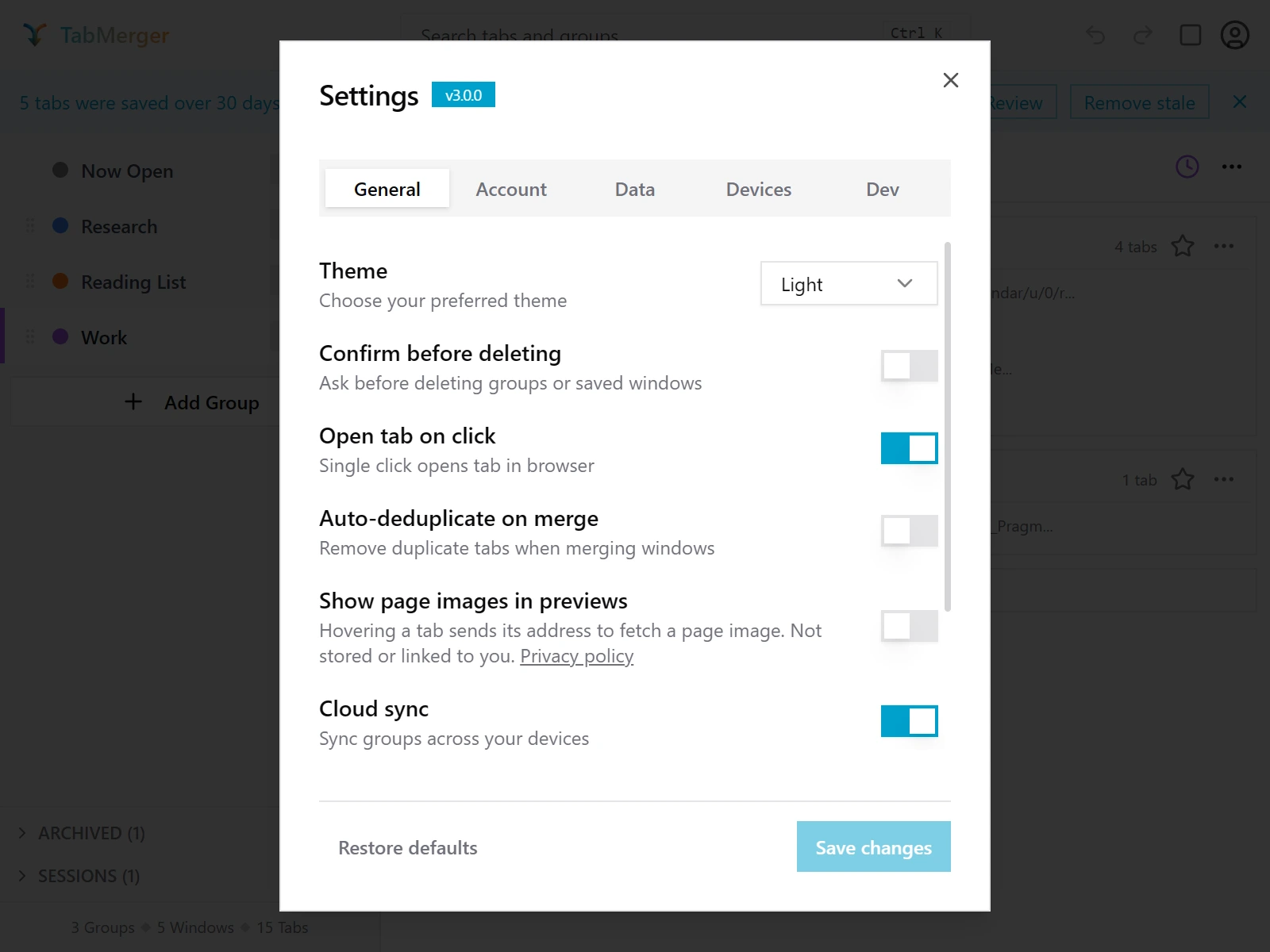
The General tab of Settings, with the version badge next to the title. (The Dev tab only exists in our internal screenshot build; you won't see it.)
Good looks like
General tab — Show page images in previews
What this checks: That the page-images setting controls whether tab previews show a page image.
Steps
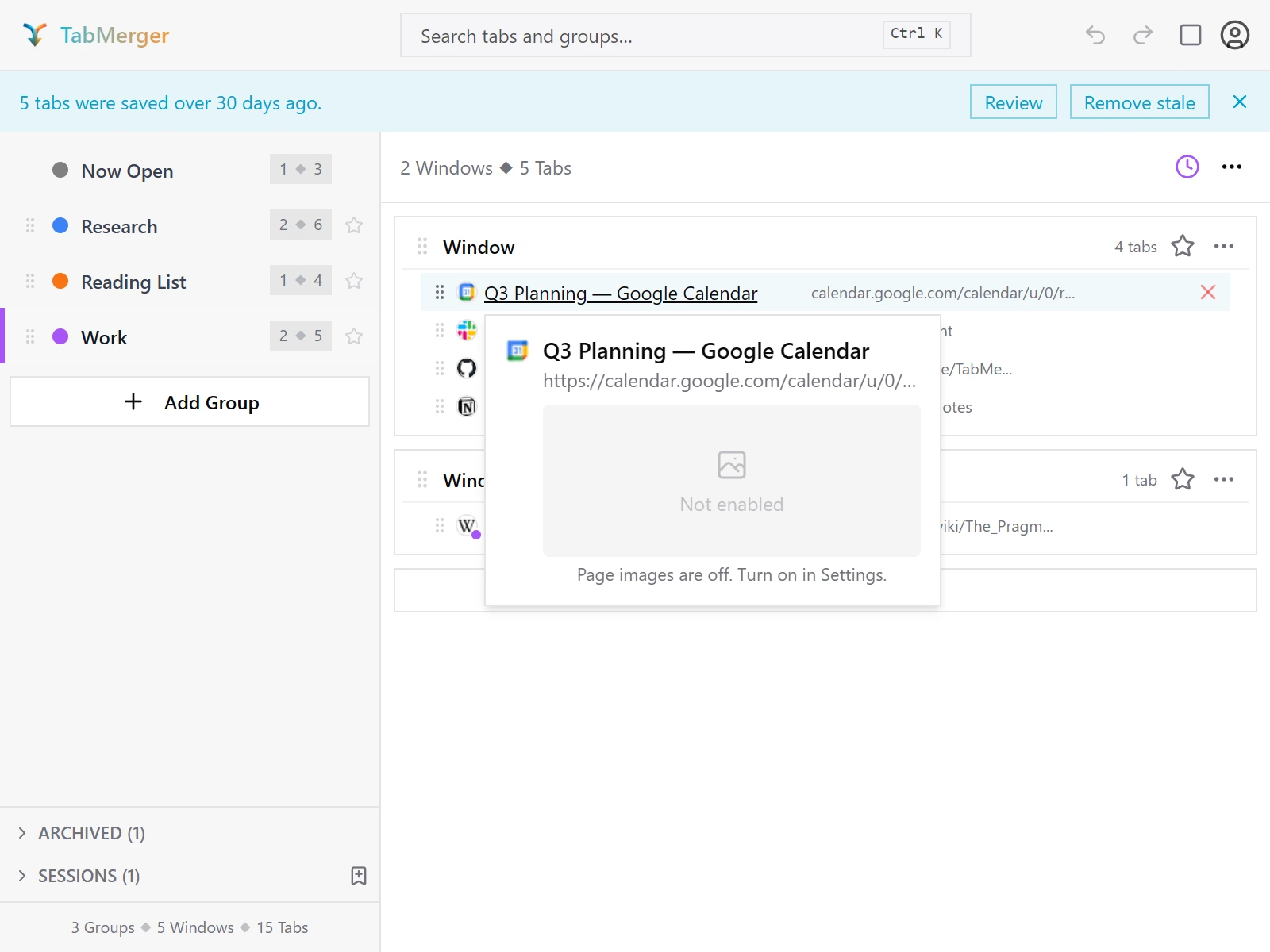
The hover preview with "Show page images in previews" off.
Good looks like
Report it if: The preview shows "No preview" (blank) instead of a real image with the setting on and a page that has one.
General tab — Cloud sync, Stale tab threshold, URL rules
Partly ProPro: Only the Cloud sync switch needs Pro (Free doesn't show it).
What this checks: That these settings appear for the right plans and change what they should.
Steps
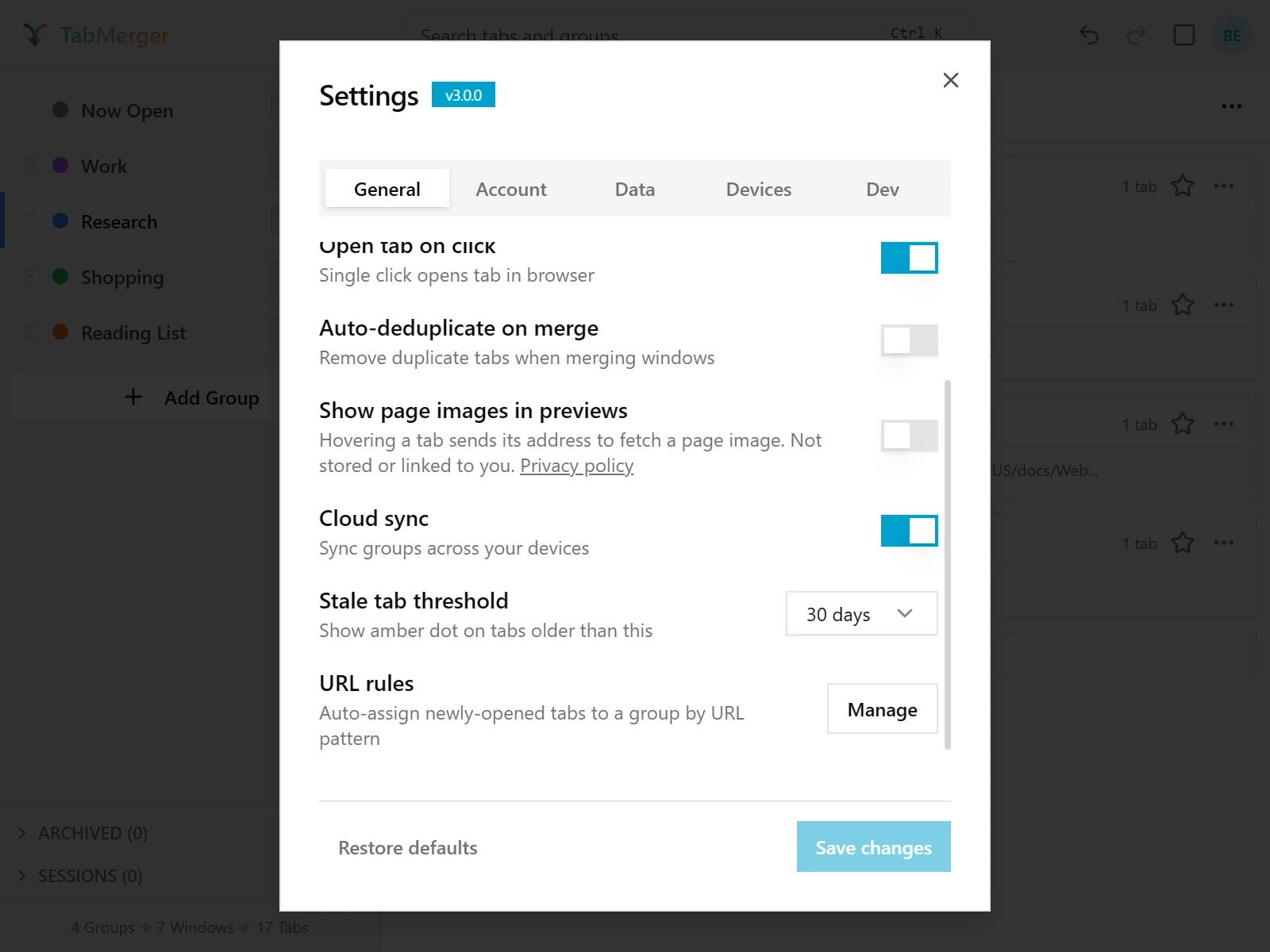
The lower half of the General tab. (The Dev tab only exists in our internal screenshot build; you won't see it.)
Good looks like
Theme: Light, Dark and System
What this checks: That every theme looks right across the popup, and that the choice is remembered.
Steps
Good looks like
Report it if: Anything is hard to read or keeps the old theme (a menu, dialog, icon or border), or the theme resets after reopening the popup.
URL rules: saving matching pages automatically
What this checks: That a URL rule saves pages you open at matching addresses into the group you chose.
Steps
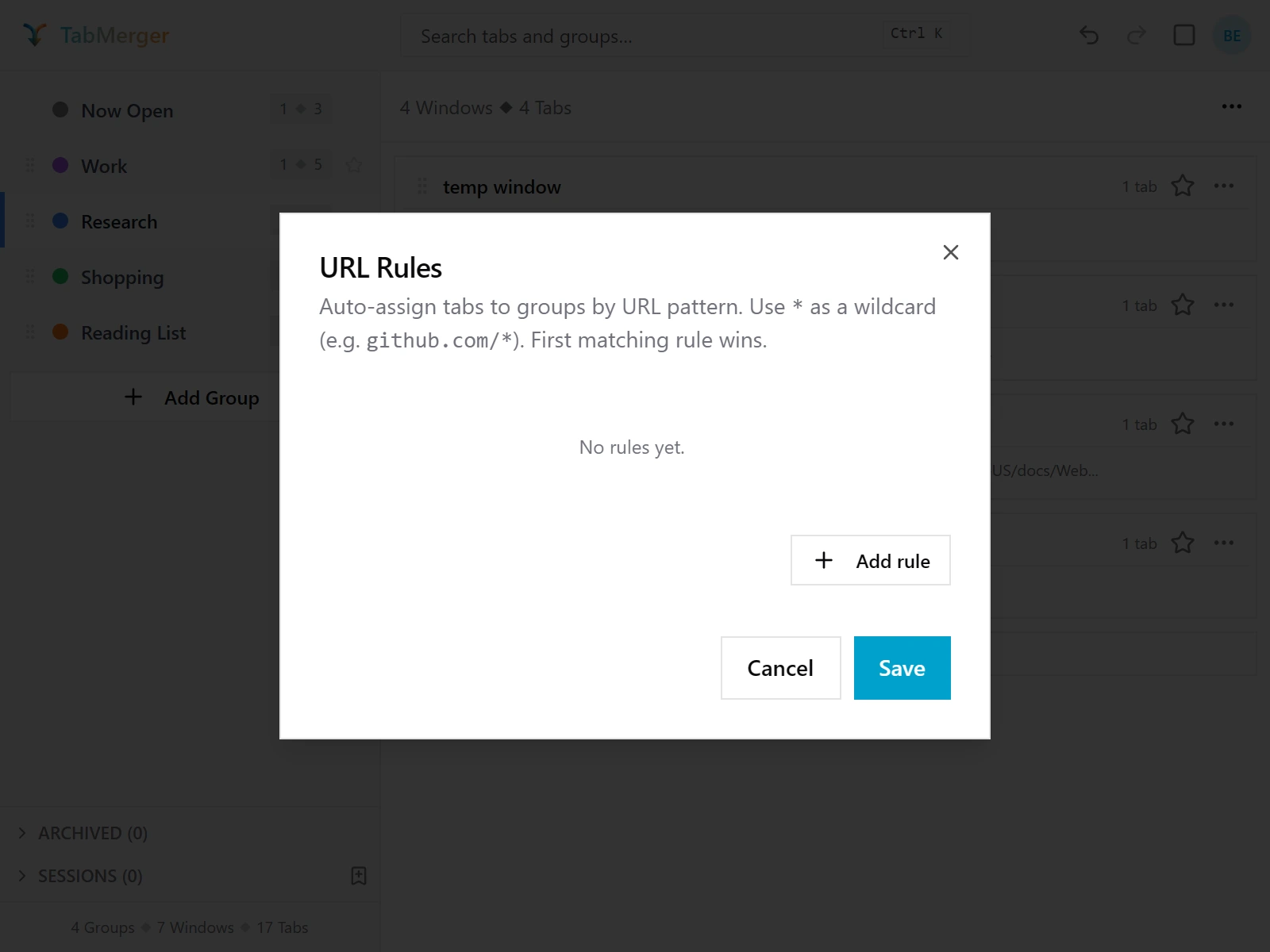
Settings → General → URL rules → Manage opens this editor.
Good looks like
Report it if: A matching page isn't saved, lands in the wrong group, or is saved more than once (for example again every time you reload it).
Account tab — Plan, Renews, Email, Manage billing / Upgrade, Sign out
What this checks: That the Account tab shows your real plan, renewal date and email, and that its buttons work.
Steps
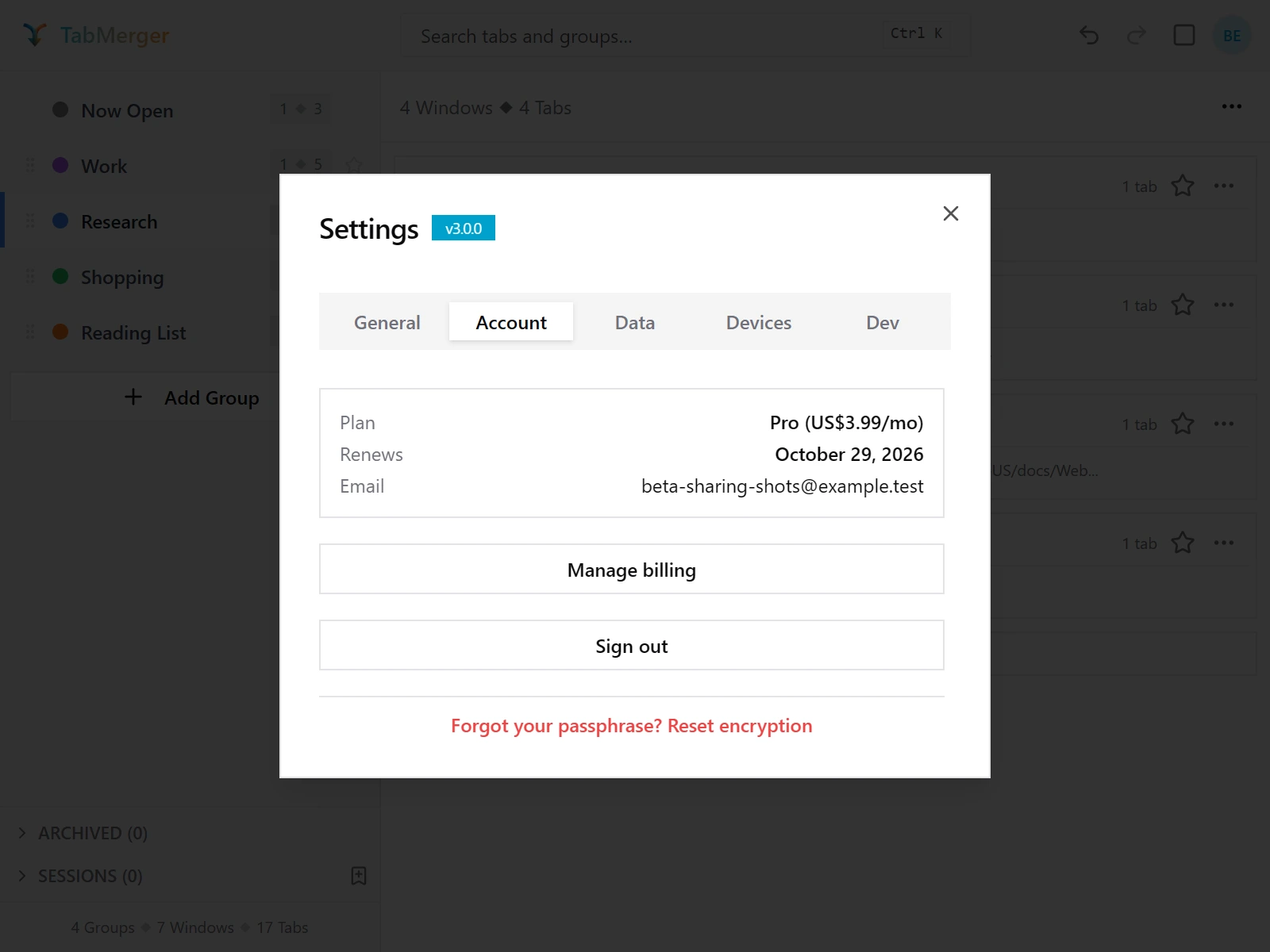
The Account tab on a Pro account. The reset link at the bottom is the next item. (The Dev tab only exists in our internal screenshot build; you won't see it.)
Good looks like
Account tab — Forgot your passphrase? Reset encryption
ProWhat this checks: That the encryption-reset link appears in the Account tab once encryption is set up.
Steps
Good looks like
Data tab — Export, Import, Clear all data
What this checks: That exporting, importing and clearing your data work, with a confirmation before anything is replaced or deleted.
Steps
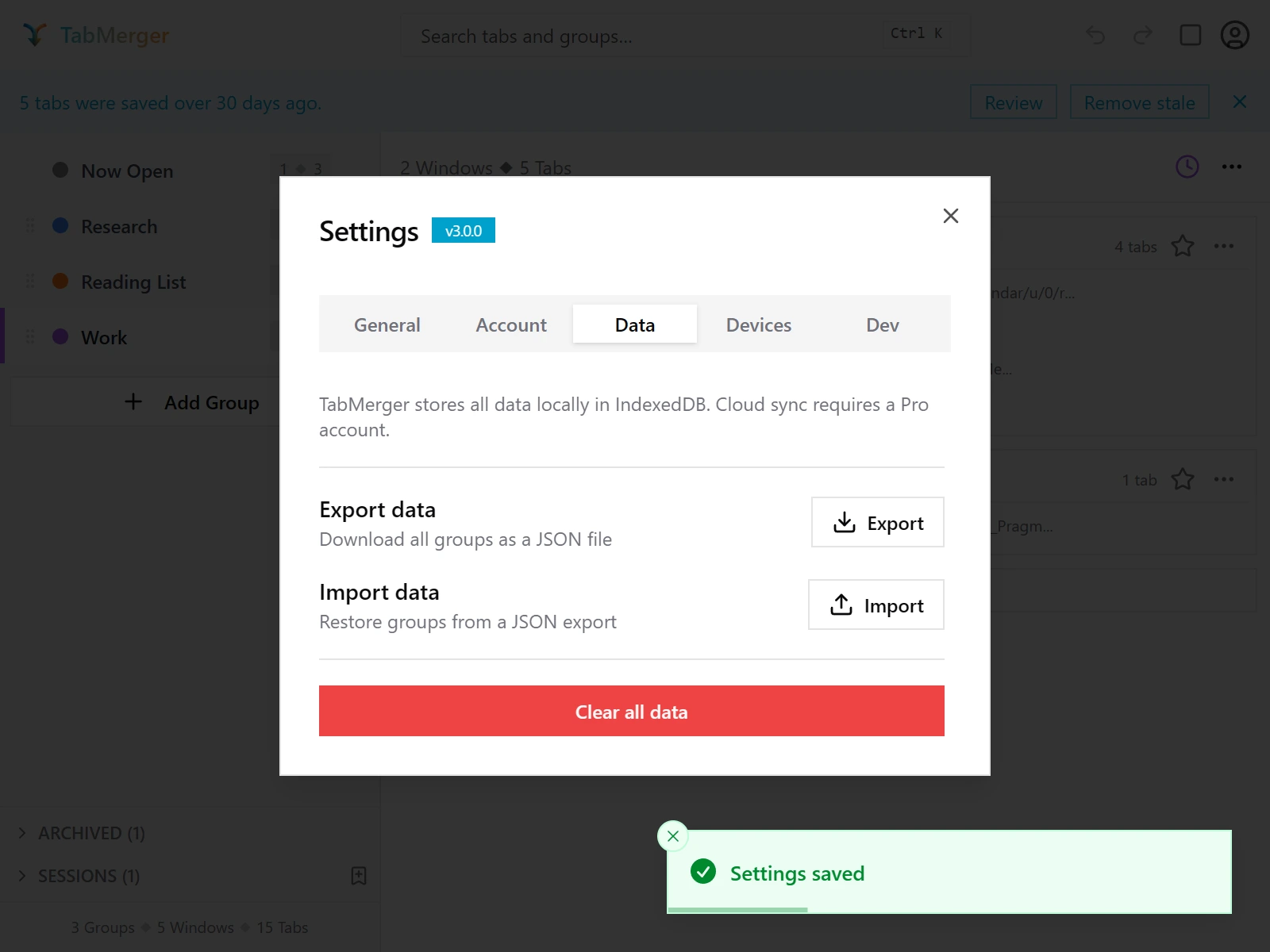
The Data tab of Settings.
Good looks like
Report it if: A bad or empty file silently does nothing instead of showing an error toast like "Invalid file format" or "No groups found".
Save vs Reset, and the "Unsaved changes" indicator
What this checks: That settings only save when you click Save, and warn you about unsaved changes.
Steps
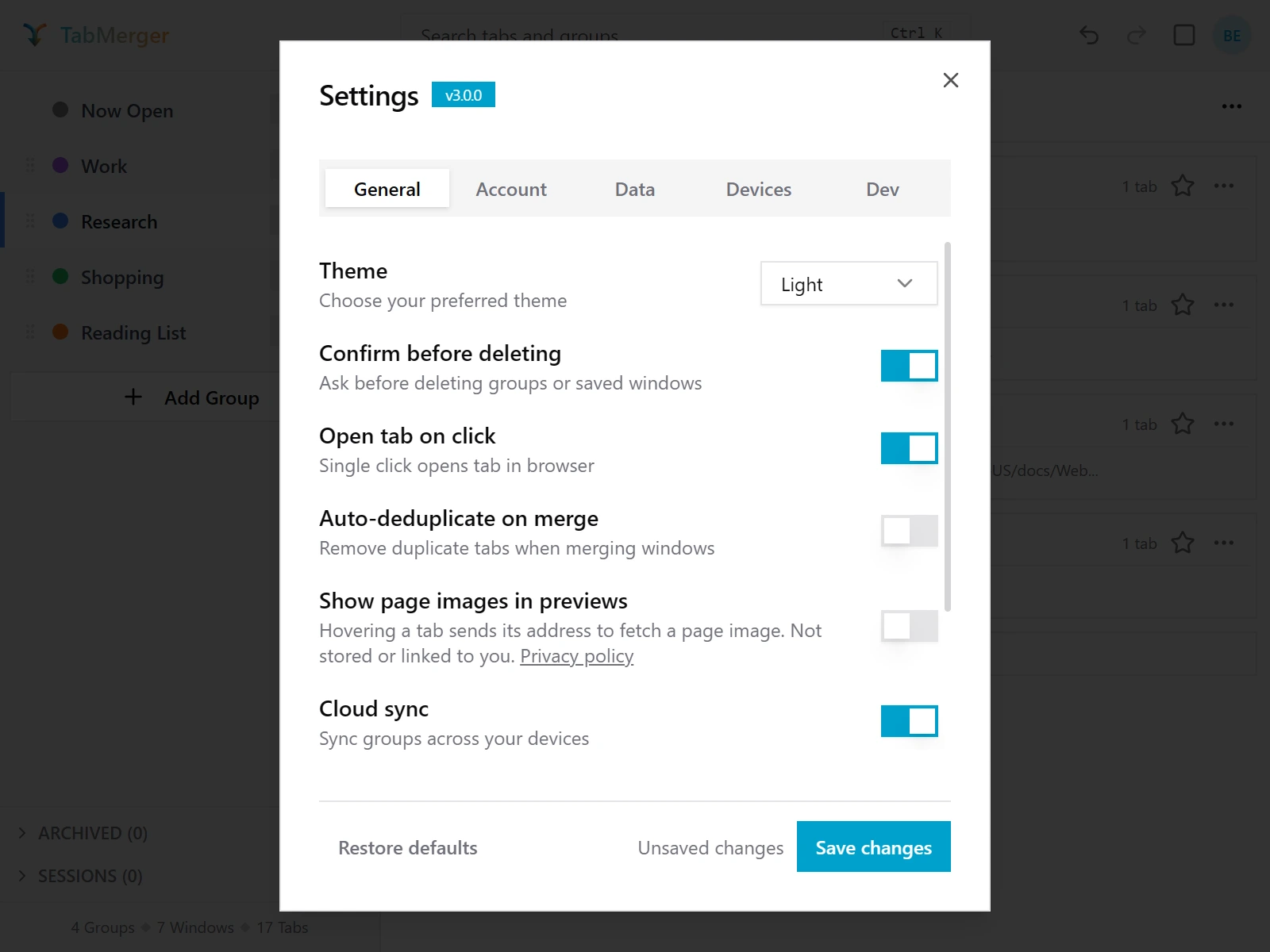
After changing a setting: "Unsaved changes" appears and Save changes turns on. (The Dev tab only exists in our internal screenshot build; you won't see it.)
Good looks like
Report it if: "Save changes" stays enabled with no changes made, or a setting you changed but never saved persists after closing and reopening Settings anyway.
The version badge
What this checks: Where to find the exact version number to put in bug reports.
Steps
Good looks like
Pro only
Sign-in and sync across devicesProShow
Beta builds sync through the preview web app at tabmerger-preview.vercel.app, not the main site — sign in there to see your synced groups, dashboard, and sharing.
Setting up two devices
ProWhat this checks: That two devices signed in to the same account share their groups.
Steps
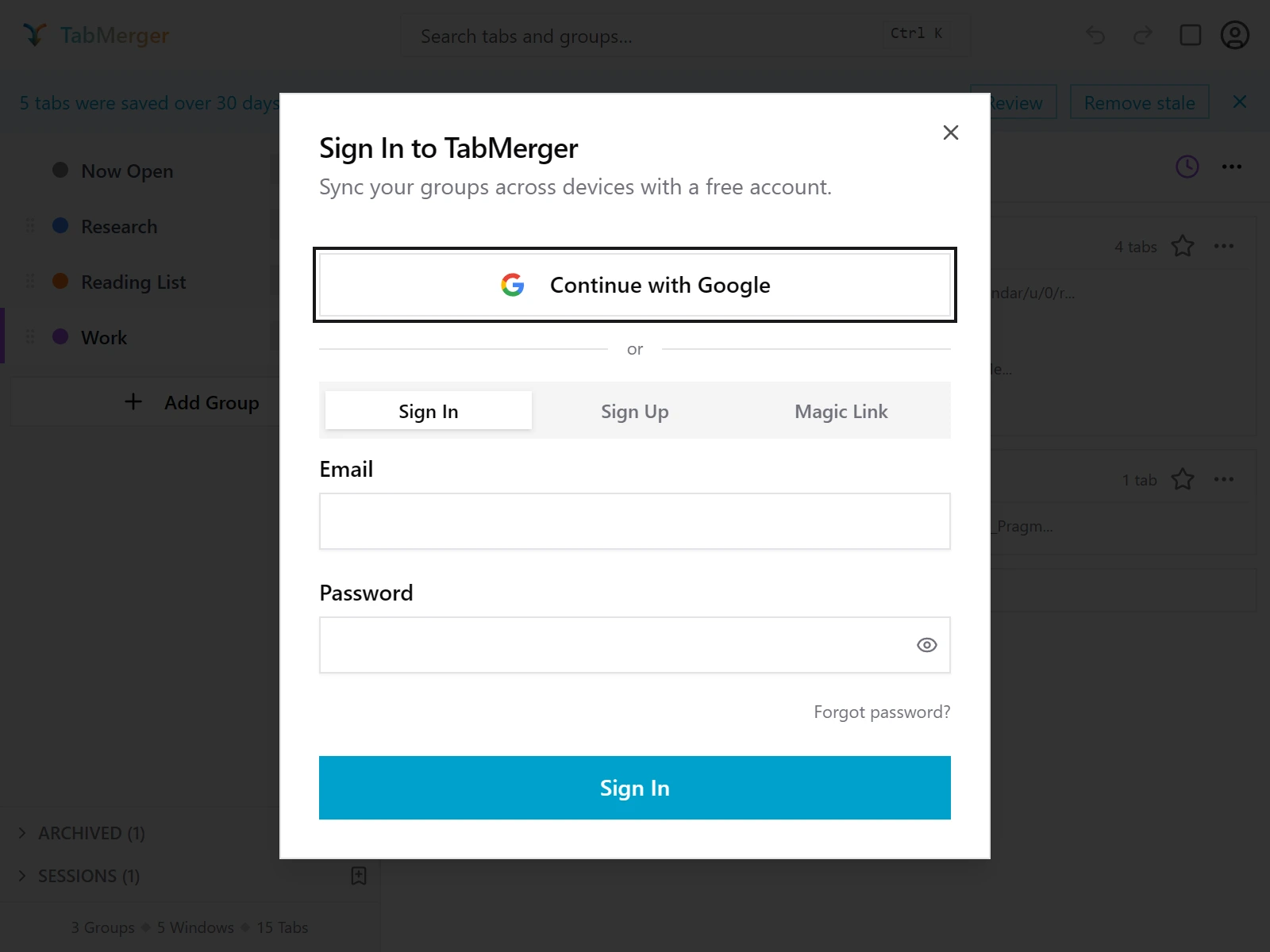
Signing in from the extension: the account icon (top right) → Sign in.
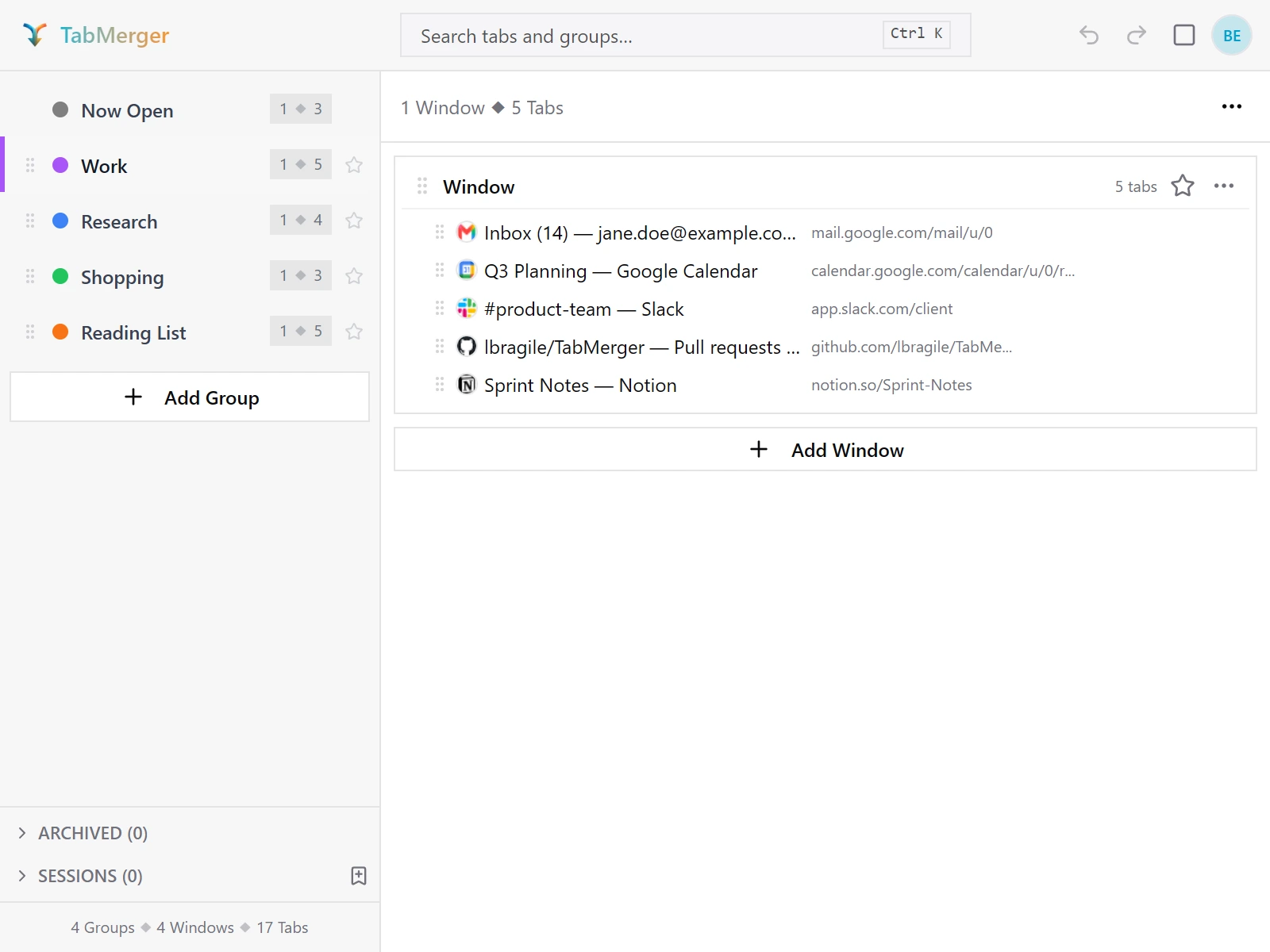
Device A.
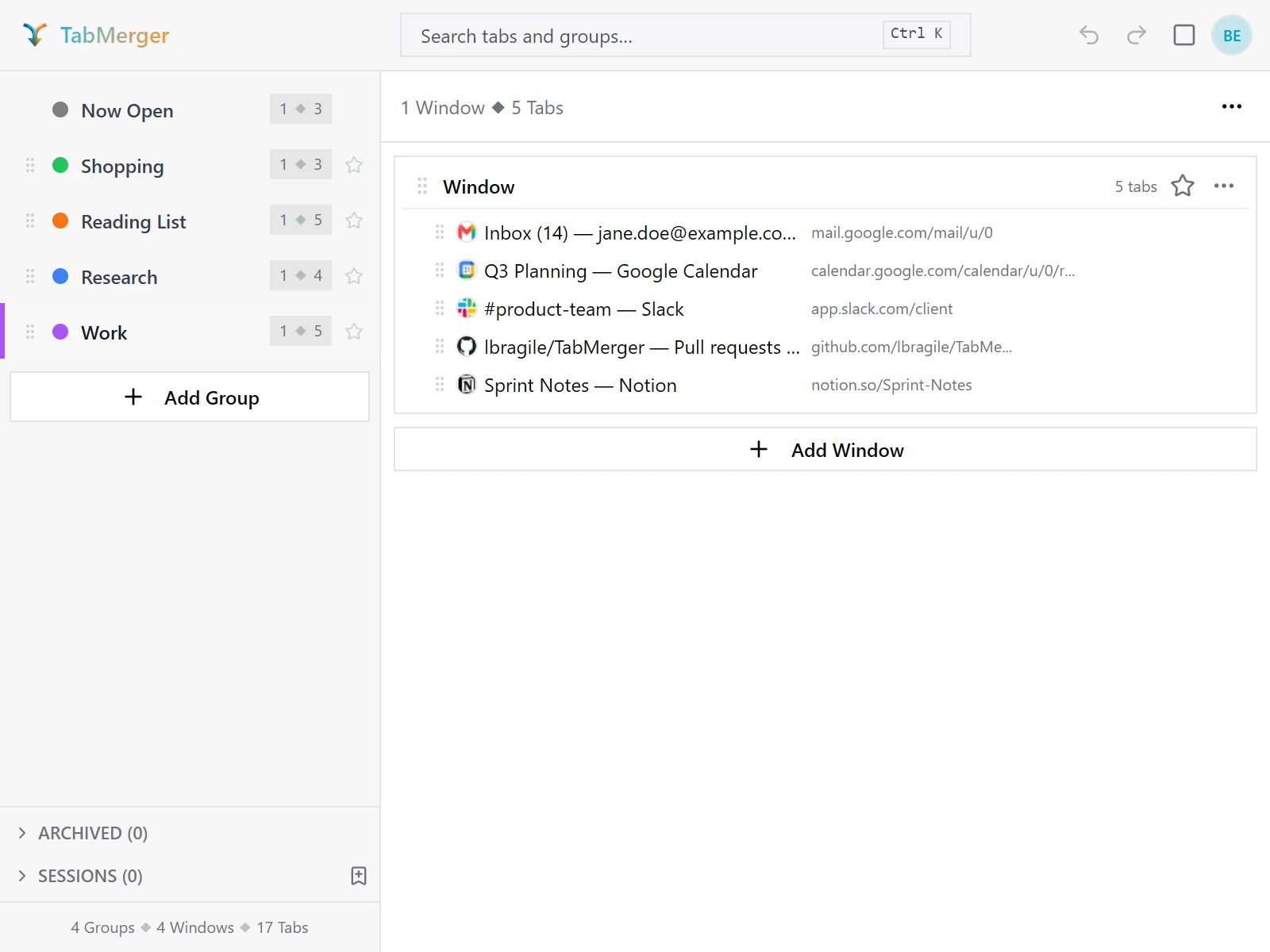
Device B after signing in and unlocking: the same groups and counts, in the same order.
Good looks like
Renames reach the other device
ProWhat this checks: That a rename on one device shows up on the other without a manual refresh.
Steps
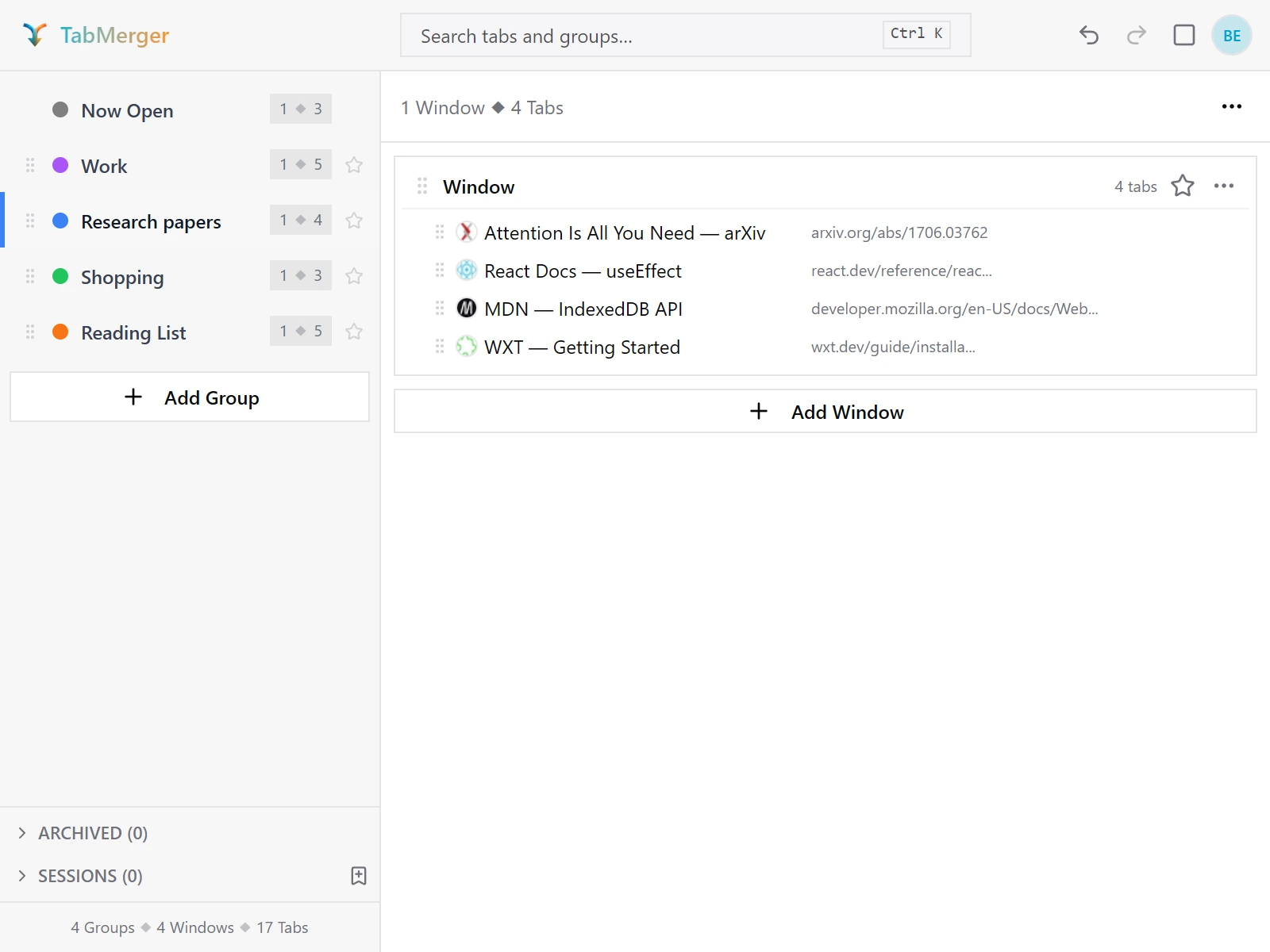
Device A: "Research" renamed to "Research papers".
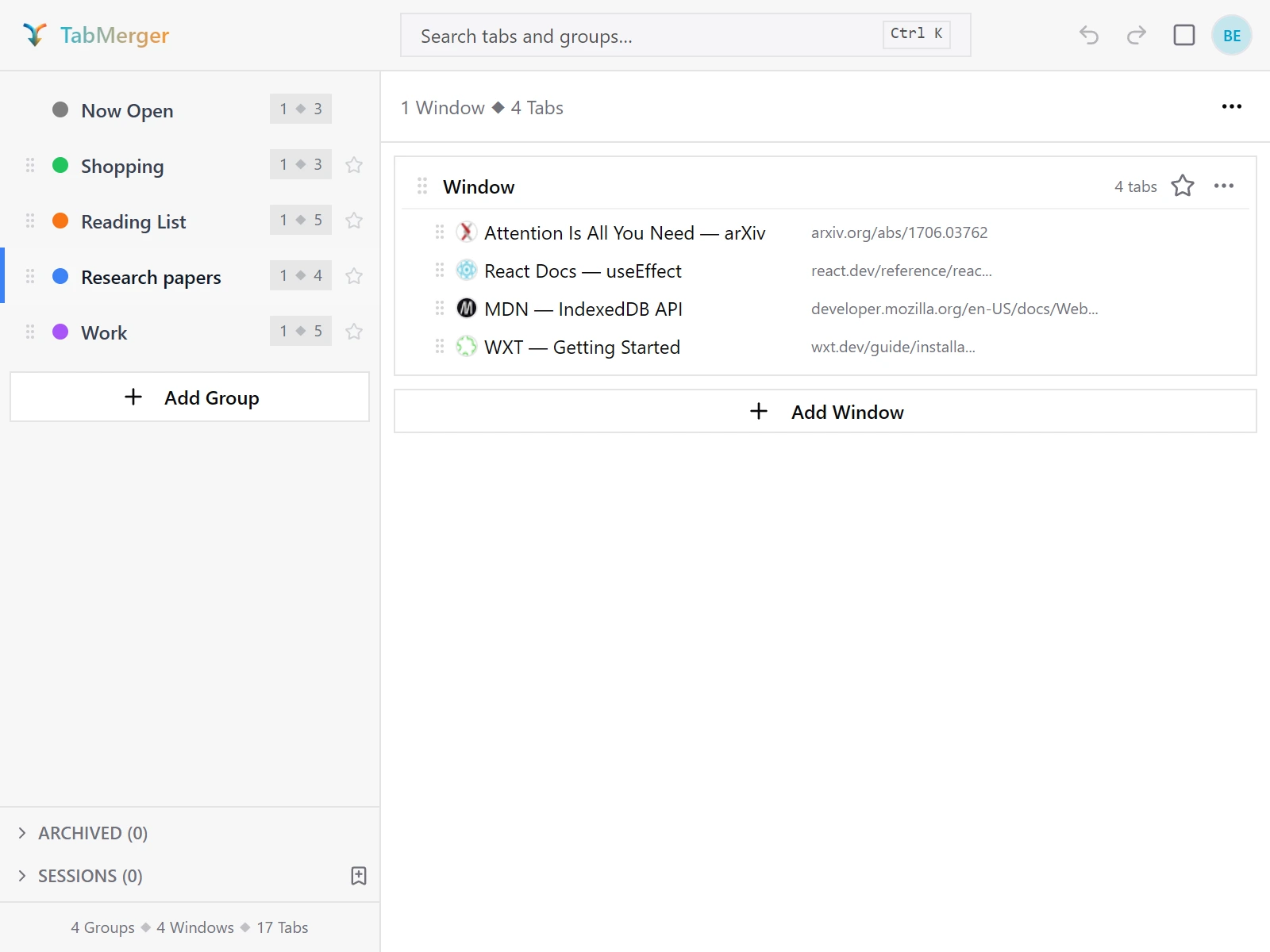
Device B, after just reopening the popup: the new name is there.
Good looks like
Deletes reach the other device
ProWhat this checks: That a deleted group stays deleted on every device instead of coming back.
Steps
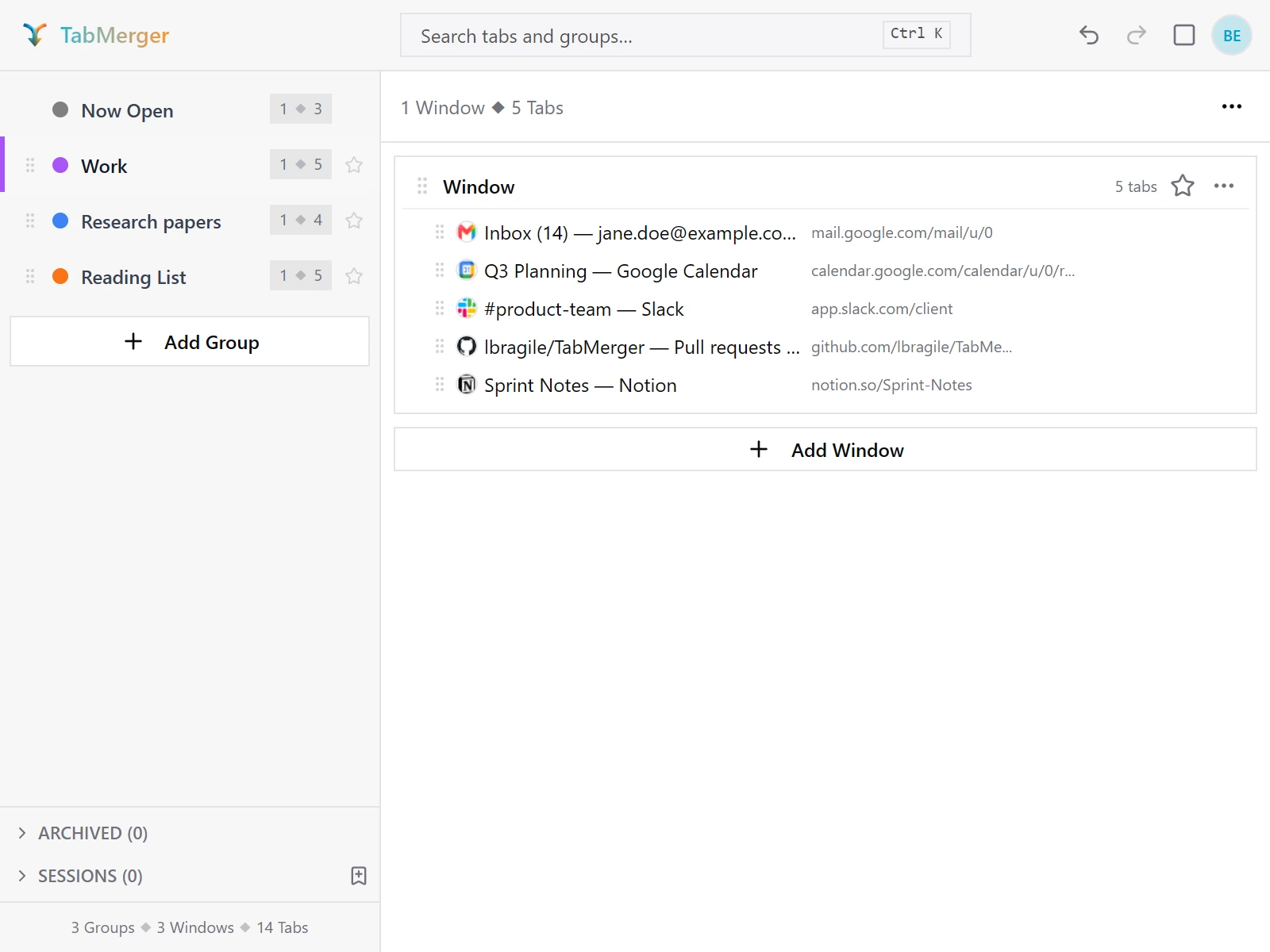
Device A: "Shopping" deleted.
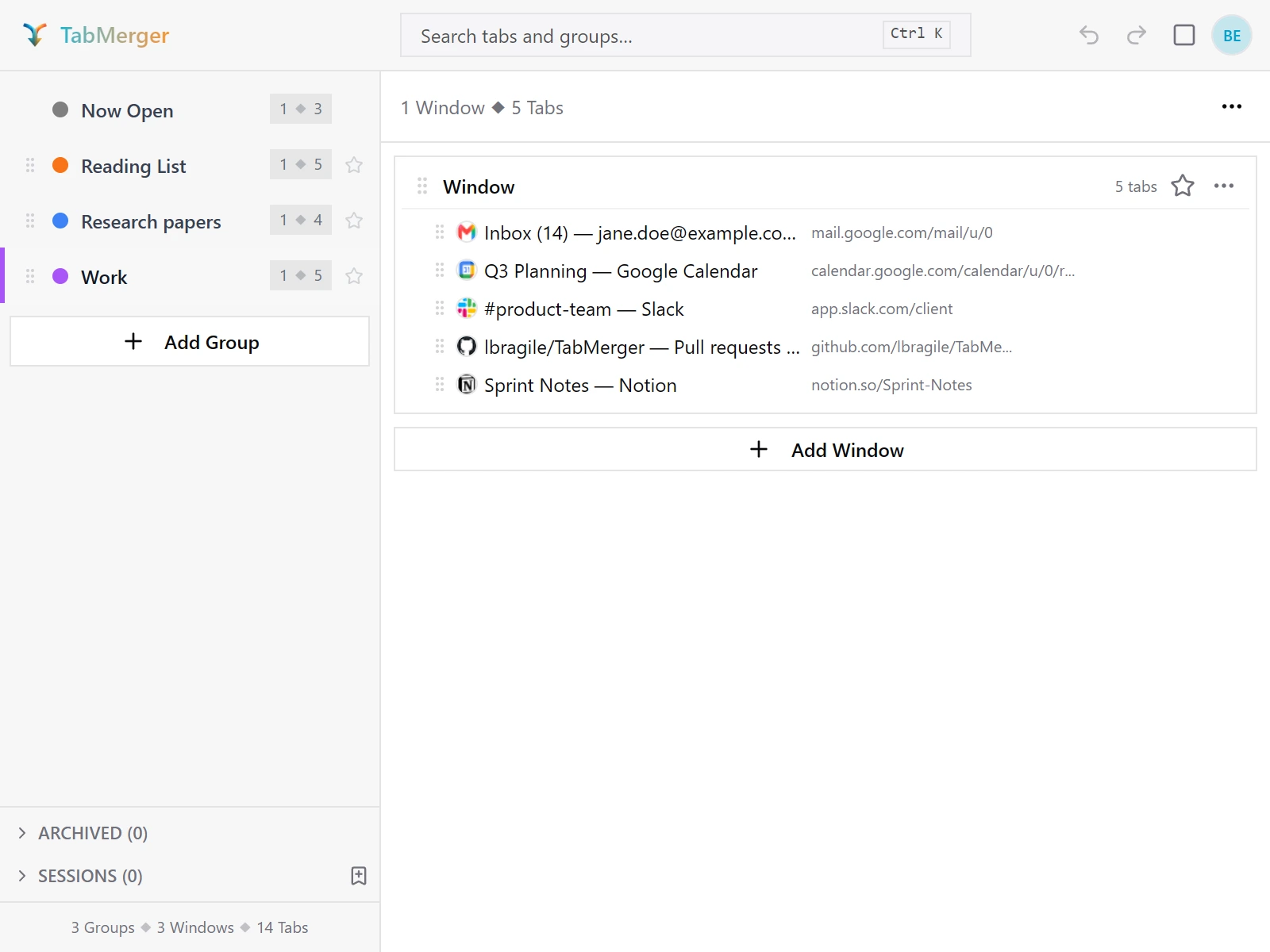
Device B after reopening the popup: "Shopping" is gone there too.
Good looks like
Report it if: A deleted group comes back on either device after a later sync.
Reordering groups syncs
ProWhat this checks: That the order of your groups is the same on every device and on the dashboard.
Steps
Good looks like
Report it if: The order differs between devices after sync has caught up, or a reorder jumps back to the old order.
Offline changes sync when you reconnect
ProWhat this checks: That changes made offline sync once you're back online, without duplicates or losses.
Steps
Good looks like
Deleting a group while offline
ProWhat this checks: That a group you delete while offline stays deleted once you reconnect.
Steps
Good looks like
Report it if: A group you deleted while offline reappears on any device after a sync.
Same group edited on two devices (conflict copy)
ProWhat this checks: That when the same group is edited on two devices before either has synced, nothing is overwritten and you get a copy to merge by hand.
Steps
Good looks like
Report it if: An edit silently disappears with no copy, or a "conflict copy" appears when only one device edited the group.
End-to-end encryption passphraseProShow
Encryption is mandatory for every signed-in account, not an opt-in setting — there's no toggle to turn it off. Your synced groups, sessions, and "Now Open" snapshots are encrypted with a key only your passphrase can unlock; TabMerger's servers never see the passphrase or the unwrapped key.
First-time passphrase setup
ProWhat this checks: That turning on sync asks you to choose an encryption passphrase before any of your data leaves your device.
Steps
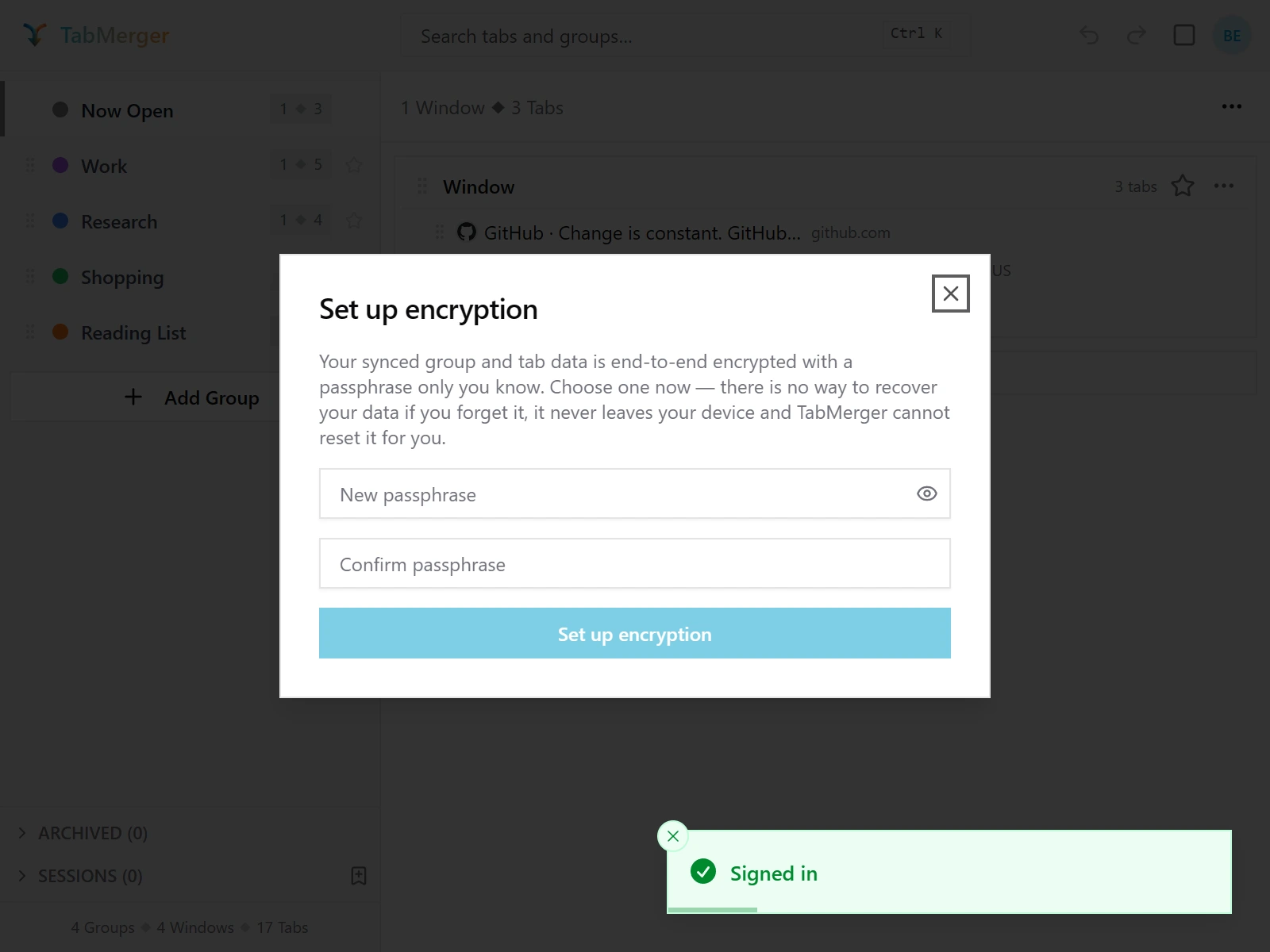
Appears on its own right after signing in on Pro.
Good looks like
Unlocking on a second device
ProWhat this checks: That a second device needs your passphrase once before it can read your synced data.
Steps
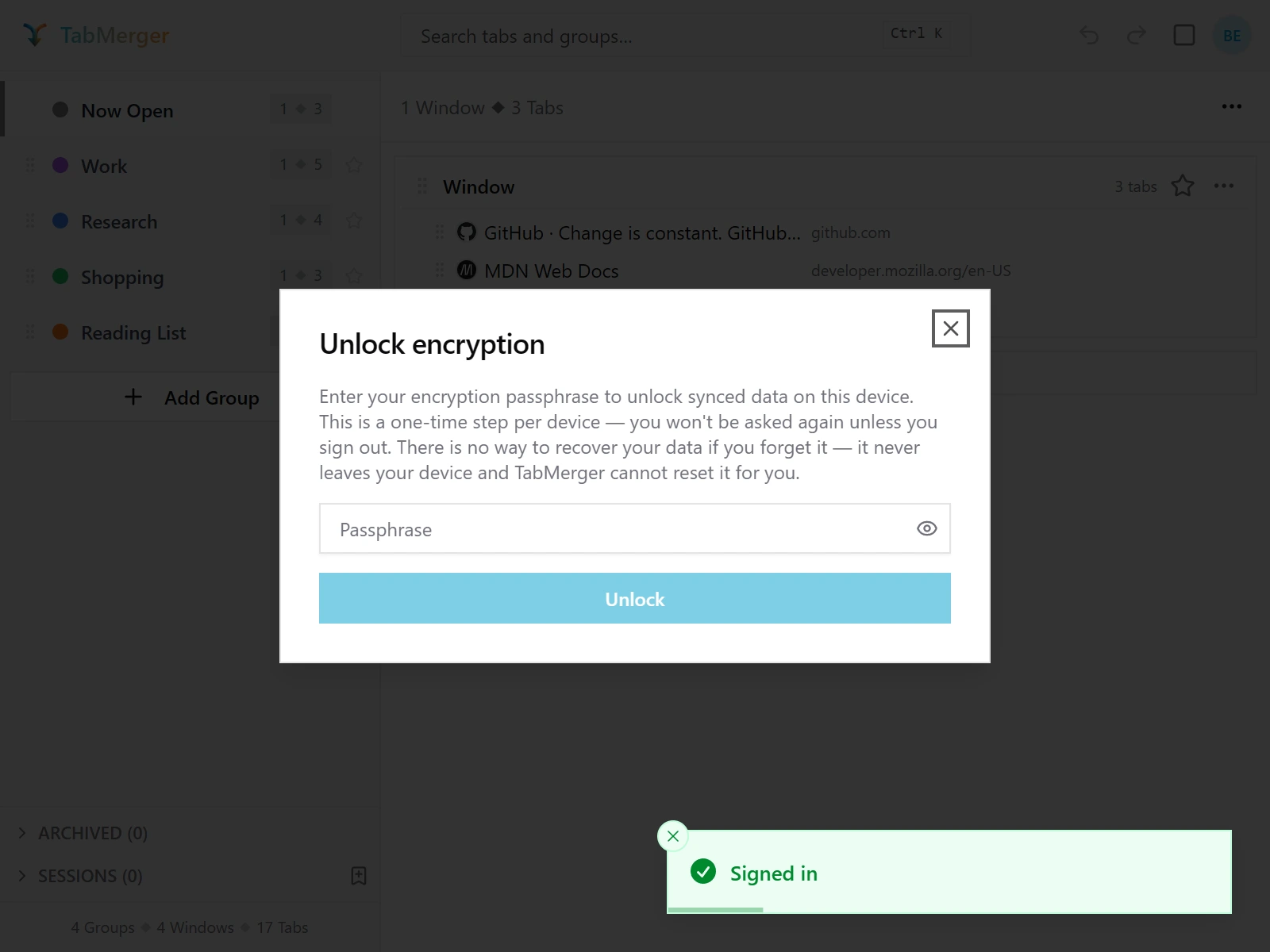
On a second device, the extension asks for your existing passphrase once.
Good looks like
What "locked" looks like, and staying unlocked after a restart
ProWhat this checks: That locked data stays unreadable until you unlock it, and a device stays unlocked after restarting the browser.
Steps
Good looks like
Forgot your passphrase — resetting encryption
ProWhat this checks: That resetting encryption is clearly confirmed first, and lets you set a new passphrase.
Steps
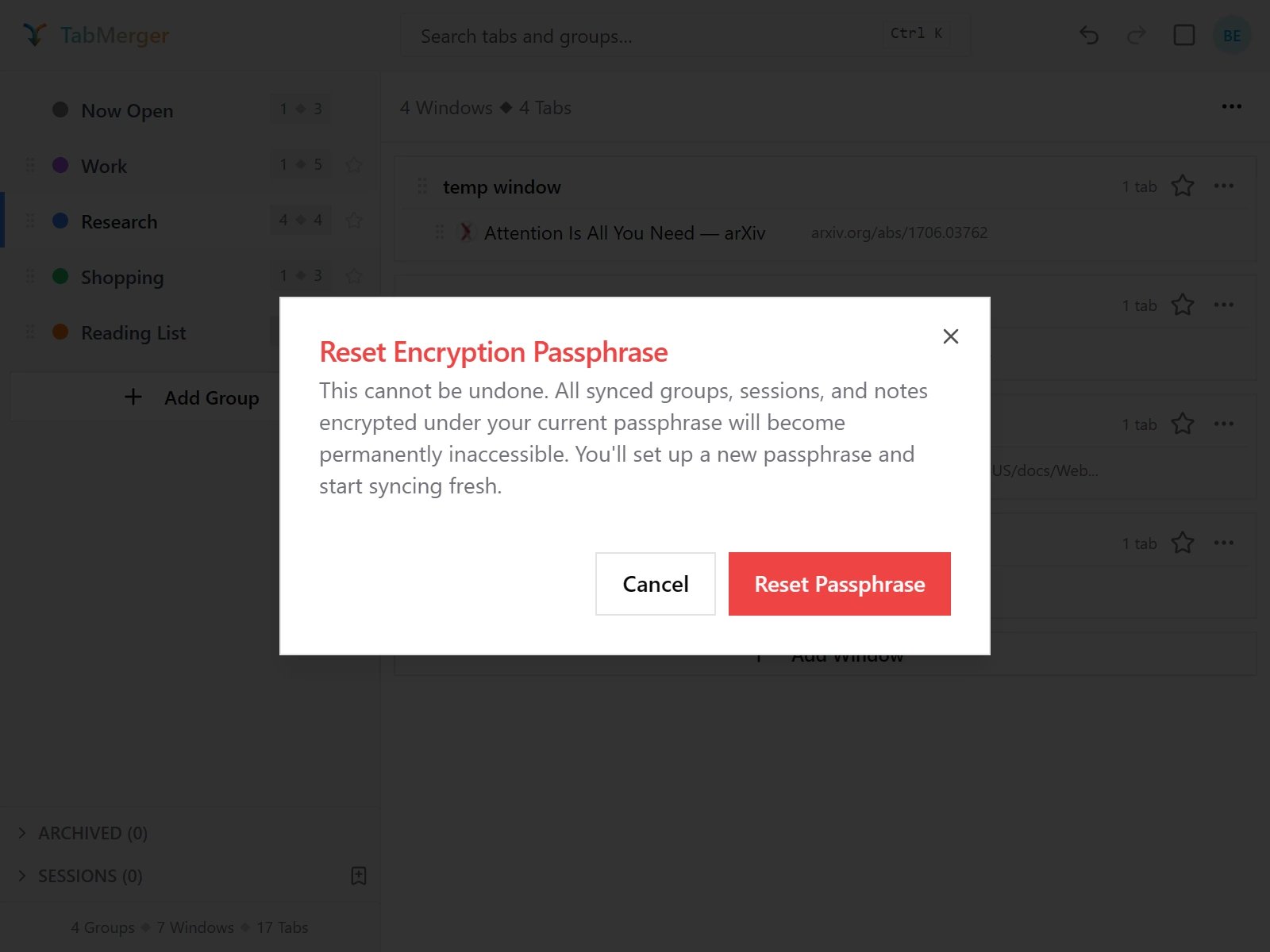
The confirmation you get before a reset. Cancel is safe; Reset Passphrase is not reversible.
Good looks like
Verifying on the web dashboard
ProWhat this checks: That the website asks for your passphrase before it shows your synced groups.
Steps
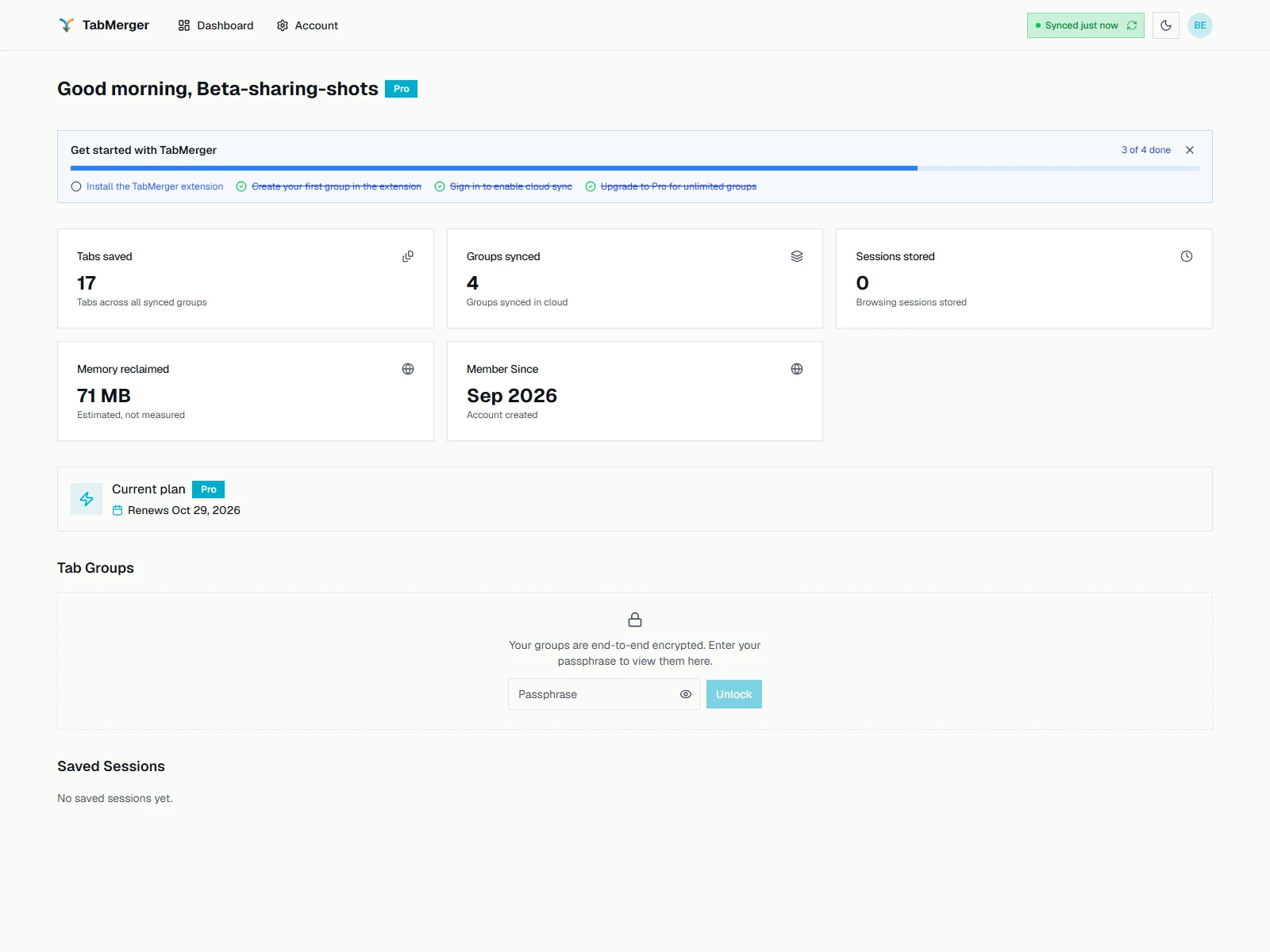
Until you enter your passphrase, the dashboard shows this instead of your groups.
Good looks like
How to tell your data really is encrypted
ProWhat this checks: How you can see for yourself that your data is unreadable without your passphrase.
Steps
Good looks like
What we especially want to hear about
- Any data loss — a group, tab, or session that disappeared and shouldn't have.
- Sync conflicts — a "(conflict copy)" group is expected when the same group was edited on two devices before either synced. Tell us if an edit silently disappears, or if a copy appears when only one device edited.
- Anything confusing, unclear, or that took you more clicks than it should have.
- Anything slow — the popup opening, search, drag-and-drop, or sync taking noticeably longer than expected.
3. Known issues
We already know about these, so there's no need to report them. The list is updated with every beta release; if something here is fixed for you, or behaves differently from how it's described, that is worth reporting.
ChromeNew Chrome beta versions arrive after Chrome Web Store review
Each beta update is reviewed by the Chrome Web Store before it reaches testers, which can take from a few hours to a couple of days. Features described here may appear on the preview site before they reach your extension.
FirefoxFirefox shows a different version number
about:addons lists the Firefox beta as 4.1.0.x (e.g. 4.1.0.8 for 3.1.0-beta.8). That is expected: Firefox can only show a numeric version.
Meanwhile: When reporting a bug, give the version shown in TabMerger’s Settings instead.
ExtensionA change made the instant before the popup closes may not be saved
A change (a new colour, a rename, a move, a note) takes a split second to be stored. If the popup closes within that moment, for example by pressing Enter and then Escape straight away, or on a slow or busy computer, the change can be missing when you reopen TabMerger. Nothing else is affected.
Meanwhile: Reopen TabMerger and make the change again. After an edit, give the popup a moment before closing it.
ExtensionA long web address in a tab row is cut off without “…”
When a tab’s address is too long for its column, it stops abruptly, sometimes in the middle of a letter, instead of ending in “…”. On a narrow row it can also run up against the “renamed” label. Only the display is affected; the saved address is complete.
Meanwhile: Hover the tab to see its full address.
BillingA subscription keeps the currency it started in
Checkout shows the price in your local currency, but a subscription (and every plan change or renewal of it) stays in the currency it was first paid in. Accounts that subscribed before local pricing keep paying in US dollars. Renewals in a local currency are converted again each time, so the amount can shift slightly with exchange rates.
Meanwhile: To test local pricing, use a new account (see “Paying in your local currency” above).
Web appThe dashboard’s “Synced” time can be older than your last sync
In a browser that has not seen a sync yet (a new browser, or after clearing site data), the sync label in the dashboard header shows when your groups last changed, not when a device last synced. While the dashboard is open, a sync from another device that changed nothing, or that only deleted a group, does not move the time either.
Meanwhile: Press the refresh button on the label. The extension in that browser syncs and the time updates.
SyncA saved session deleted on the dashboard can come back
If you delete a session you saved yourself on the web dashboard while a browser with the extension still has that session, the extension can upload it again later, and it reappears on the dashboard. This happens when that browser has to send its sessions again: after a session or an automatic backup could not be uploaded (for example while offline), or after you reset your encryption passphrase. Automatic backups are not affected: one deleted on the dashboard stays deleted there, and the browser that has it keeps its own copy.
Meanwhile: Delete the session in the extension (the Sessions list in the sidebar). That removes it from that browser and from your account.
Web appSome groups or sessions show as “(locked)” after a passphrase reset
After you reset your encryption passphrase, the dashboard asks for the new one. Anything that was saved with the earlier passphrase and has not been uploaded again since still cannot be read, even though the new passphrase is correct: it shows as “(locked)” with a short explanation on the item, and it cannot be shared or restored (a locked session can still be deleted). A device listed in Account shows the same explanation instead of its window and tab count.
Meanwhile: Open the extension on the device that has those groups or sessions, unlock it with the new passphrase and let it sync. It uploads them again and the dashboard can read them after a refresh.
4. Report a bug
Bugs and ideas go to our public GitHub Discussions — github.com/lbragile/TabMerger/discussions. Take a look there first — someone may have already reported the same thing.
Discussions are public. Don't paste private URLs, tab titles, or screenshots that show personal information — blur or crop them first. You'll need a (free) GitHub account to post.
Both links prefill this template into the discussion body — fill it in before posting, it saves us a round trip of follow-up questions:
Summary:
Steps to reproduce:
1.
2.
3.
Expected:
Actual:
Beta version (Settings title badge or chrome://extensions):
Browser and OS:
Signed in: yes / no
Screenshots or screen recording:
FAQ
I see "Item not found"
Make sure you joined the Google Group with the same Google account you're signed into in Chrome. Access can take a little while to show up after joining — wait a bit and try again before assuming something's broken.
Can I keep the stable version installed?
Yes — the beta ("TabMerger BETA") is a separate extension from stable ("TabMerger") with completely separate data. You can run both, though we suggest disabling stable while testing to avoid confusing yourself about which one you're using.
Will I be charged if I upgrade to Pro?
No — upgrading in the beta uses Stripe's test mode. Use a Stripe test card (see the "Upgrading to Pro" section above) — no real card works here, and no real money changes hands either way.
Where does my data sync?
Beta builds sync with the preview web app at tabmerger-preview.vercel.app, not the main tabmerger site. Sign in there to see your synced groups, sessions, and sharing.
Where do I see known issues?
Check the repo's Discussions Q&A — that's where beta bug reports live.
How do I leave the beta?
Leave the Google Group and uninstall the "TabMerger BETA" extension. Your stable installation, if you kept one, is unaffected.